Google Meet Tips for Sales Reps: Close Deals Faster

-

Key takeaways
Preparing for and conducting a successful sales call with Google Meet involves the following best practices:
- Before the call: Test your setup 24 hours in advance—mic, camera, internet connection, and screen sharing.
- During the call: Use tiled layout to see all participants, share specific tabs (not your full screen), take real-time notes, and record with permission.
- After the call: Document outcomes immediately while details are fresh, identify the next action, set automatic reminders, and log everything in your CRM.
- Follow-up velocity matters: Leads reached within 5 minutes are 9x more likely to convert. Without systematic follow-up, prospects go cold, and deals die.
- The CRM factor: Manual note-taking wastes 4+ hours per week per rep. A CRM that integrates with Google Meet auto-logs your calls, creates next-action reminders, and keeps your team aligned so nothing falls through the cracks.
Google Meet has 300 million monthly users, but here’s the thing—most sales teams are using it to host calls without any system for tracking what happens after the call ends. You present, you talk, you shake hands (virtually), and then… the conversation disappears into someone’s inbox. That’s where deals stall.
The truth is, 80% of B2B sales require five to twelve contact attempts to close. If you’re not systematically following up on every Google Meet call, you’re leaving deals on the table. The good news? With the right approach—preparation, presence, and post-call tracking—you can turn every video call into momentum toward closure.
This guide walks you through the three phases of effective Google Meet selling: before the call (setup and strategy), during the call (engagement and presence), and after the call (the part that actually closes deals). By the end, you’ll understand why the best sales teams don’t just host calls—they systematically track outcomes and follow up with precision.
Ready to see how a CRM automates this process? Try Nutshell free for 14 days—no credit card required.Table of Contents
- Phase 1 – Before the call: Setup and preparation
- Phase 2 – During the call: Engagement and presence
- Phase 3 – After the call: Follow-up and tracking
- SMB-specific best practices for video sales calls
- Advanced tips for closing more deals from Google Meet calls
- Why CRM integration matters for Google Meet sales calls
- Frequently asked questions
Phase 1 – Before the call: Setup and preparation
Preparation isn’t just about testing your mic and camera. It’s about showing up as your best self—confident, informed, and ready to have a real conversation.
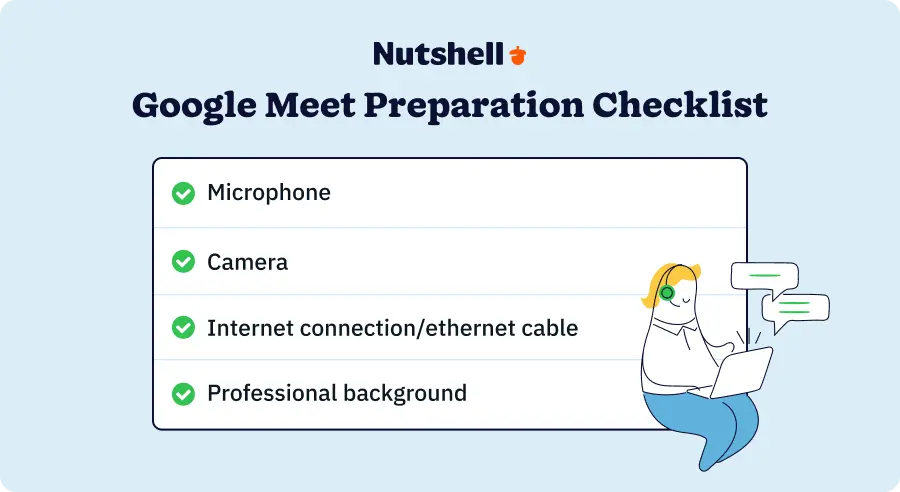
Start 24 hours before the call. Test your audio, video, and internet connection. Not five minutes before—24 hours. If something’s broken, you have time to fix it. Open your Nutshell CRM and pull up the prospect’s full record: previous conversations, deal stage, any notes from earlier interactions, and what the next action is supposed to be. When you show up to a call, and you already understand where they are in the journey, the conversation feels smarter and more personalized.
Technical setup checklist:
- Microphone test: Speak into your mic and listen back. Check for background noise (AC, keyboard, chair creaking). Mute notifications so Slack messages and email alerts don’t distract or disrupt the call.
- Camera test: Ensure good lighting from the front (overhead light creates shadows on your face—position the light at eye level). Check your framing—head and shoulders visible, nothing too close.
- Internet connection: Use a wired Ethernet connection instead of Wi-Fi if possible. Ethernet is more stable and less prone to interference. If Wi-Fi is your only option, position yourself close to the router and test your upload/download speeds beforehand.
- Screen sharing: Open the exact documents or slides you’ll share and test screen sharing from your web browser. Make sure fonts are large enough to read on a smaller screen, and remove any sensitive information that might accidentally appear.
- Google Meet features: If you plan to record, poll, or use annotation tools, test each one beforehand so you’re comfortable using them live.
Environment preparation matters just as much:
- Background: Use a professional or blurred background. Remove clutter, personal items, or anything distracting. A virtual background works if your real background isn’t professional, though a clean, real background always feels more authentic.
- Lighting: Natural light from a window is ideal—avoid harsh overhead lighting or sitting with a window behind you (backlit, making your face dark). Aim for soft, even lighting that shows your face clearly.
- Dress code: Dress professionally, even if it’s a casual industry. You’re building trust, and appearance contributes to that. Wear colors that contrast with your background and avoid patterns that distort on camera.
Preparation also means having your information ready:
- CRM access: Pull up the customer’s record in your CRM before the call. Have their deal stage, previous conversations, and next-action items visible so you understand the relationship context without hunting for it during the call.
- Talking points: Write down three to five key points you want to cover. Not a script—just bullet points to keep you on track.
- Call agenda: Send a brief agenda to the prospect 24 hours before the call (e.g., “Discuss your current process, walk through our solution, answer questions, and agree on next steps”). This sets expectations and gives them time to prepare, too.
- Calendar buffer: Schedule 15 to 20 minutes after the call for notes and follow-up. Don’t do back-to-back calls because you’ll need time to document outcomes.
Why does this matter? Preparation shows respect for your prospect’s time. It eliminates technical distractions so you can focus on the conversation. And it builds your confidence, which translates to a better call. When you’re scrambling to fix your audio or find a file, that energy comes through on camera. When you’re prepared, you’re calm, focused, and ready to listen and respond.
Phase 2 – During the call: Engagement and presence
The call is underway. Now your job is to be fully present—listening, responding, and building connection. This is where the real work happens.
Use the tiled layout in Google Meet so you can see all participants. If it’s one-on-one, seeing their face helps you read their reactions. If it’s a group, you see everyone’s engagement level. A prospect who’s leaning back and scrolling (you can see the distraction on their face) is less engaged than someone sitting forward and nodding along. Tiled layout gives you that feedback.
Pin the person you’re speaking with most. If you’re presenting to a group but there’s one decision-maker, pin them so you’re visually focused on them. This shows attention and respect.
Video presentation best practices on Google Meet:
Share specific tabs or documents, not your entire screen. When you share only what matters, the prospect stays focused on your message. They’re not distracted by notifications or wondering what else is on your desktop. It’s a simple thing, but it shows professionalism.
When presenting a proposal, for example, open the PDF in full-screen and share only that window. When walking through your product, open a specific browser tab and share just that. This focused approach keeps attention on your message and removes friction.
Use Google Meet’s features strategically to keep the conversation interactive, not one-directional. Enable tiled layout so you see all participants, not just the speaker. Use polls to gauge interest—”Which of these three features matters most to you?”—and you get real-time feedback on what resonates. This transforms a presentation into a conversation.
Professional appearance on video:
- Eye contact: Look at the camera when you’re speaking, not at the video of the participant. This creates the illusion of eye contact and shows you’re engaged.
- Posture: Sit up straight, avoid slouching, and position your camera at eye level (not looking down at you from above, which is unflattering).
- Pace and clarity: Speak at a normal pace, enunciate clearly, and avoid filler words (“um,” “like,” “you know”). A slight pause is better than filler.
- Confidence: Believe in what you’re saying. Hesitation and uncertainty come through on camera. If a prospect asks something you don’t know, say “That’s a great question. Let me get you the right answer” instead of waffling.
Take notes in real-time. Open a Google Doc or a notepad on the side of your screen. Jot down key points: What they said their biggest pain is, what they care about most, any objections they raised, and agreements you made about next steps. This serves two purposes: You’re capturing details while they’re fresh, and when a prospect sees you taking notes, they feel heard. They know what they’re saying matters.
Record the call with permission. Ask at the start: “Do you mind if I record this so I can share highlights with my team and we don’t miss any details?” Most people say yes. Recording changes the dynamic a little—you feel less pressure to remember everything because it’s being captured. You can focus on the conversation instead of note-taking.
Avoid multitasking. Close email, Slack, and unnecessary browser tabs. Mute notifications. Your job for the next 30 to 60 minutes is to be fully present with this person. When you’re checking email or distracted, it shows—even subtly. Your energy changes, your responses lag, and the prospect feels it.
Ask clarifying questions and listen actively. “Can you tell me more about that?” or “What does that look like in your current process?” People want to be heard, not sold to. When you ask good questions and genuinely listen, you build trust. And you learn what actually matters to them, which makes your solution positioning much stronger.
Control the conversation gently. If someone’s dominating the discussion, redirect: “That’s a great point. I also want to make sure we hear from [other person] on this.” If you’re going off track, bring it back: “I want to dive into that, and I also want to make sure we cover X before we run out of time.”
The goal is for the prospect to feel like they’re talking to someone who’s knowledgeable, prepared, genuinely interested, and organized. That feeling translates to trust, and trust closes deals.
Phase 3 – After the Call: Follow-Up and Tracking
This is the section that separates sales teams that close deals from sales teams that lose them. Google Meet ends the call. Your CRM wins the deal.
Here’s the hard truth: Most sales teams do great work during the call but fall apart afterward. A prospect agrees to a demo, but the rep forgets to send the link. A customer raises an objection, but it’s never documented, so the next rep re-asks the same question.
A deal moves forward, but there’s no record of what was discussed, so context gets lost.
The fix is systematic follow-up. And it starts immediately after the call ends.
Document outcomes while details are fresh. Don’t wait until the end of the day or tomorrow. While you’re still in the headspace of the conversation, capture what was discussed, what they care about most, what objections came up, and what agreements you made. In your CRM, log the call with full notes. Include the prospect’s biggest pain point, which features resonated most, and what their timeline looks like. This becomes the institutional memory of the relationship. The next person on your team reads these notes and understands where you left off.
Identify the next action specifically. Don’t be vague. “Follow up later” is not an action. “Send proposal by Friday” is. “Schedule a demo for next Tuesday” is. “Get their current vendor contract and review it” is. Vague next actions don’t happen. Specific next actions do.
Set automatic follow-up reminders. This is where SMBs typically fail. Manual reminders don’t work because reps forget. “I’ll remember to follow up with them tomorrow” is a lie you tell yourself. You won’t. You’ll move on to the next call, the next email, the next crisis. Systematic reminders work. Add the reminder to your calendar and your CRM. “Tuesday at 9 AM, follow up on demo request.” When that reminder pops up, you act.
Assign follow-up tasks to the right people. If the prospect needs information that your marketing team has, assign that task to them. If you need engineering to review a specific requirement, tag them. Clarity about who owns what prevents things from falling through the cracks. It also makes people accountable—they see the task, they know it’s theirs, and they take action. A CRM like Nutshell makes this visible to the whole team, so deal progress doesn’t depend on one person remembering.
Log everything in your CRM. Your customer relationship management system should be your command center—the one place where everything about every customer and prospect lives. Who did you talk to? What did they say? What did you promise? What’s the next step? When’s the next touch? All of this should be in your CRM, visible to everyone on the team, with automatic reminders triggering follow-up at the right time.
Here’s a concrete example: It’s Monday at 10 AM. You schedule a Google Meet call with a prospect for later that day. You set it up in Google Calendar. Your Nutshell CRM integrates with your calendar, so the call appears in the prospect’s record automatically. At 2 PM, the call happens. You share your screen, take notes, and agree on next steps: “We’ll send you a proposal by Wednesday, and we’ll schedule a demo for Friday.”
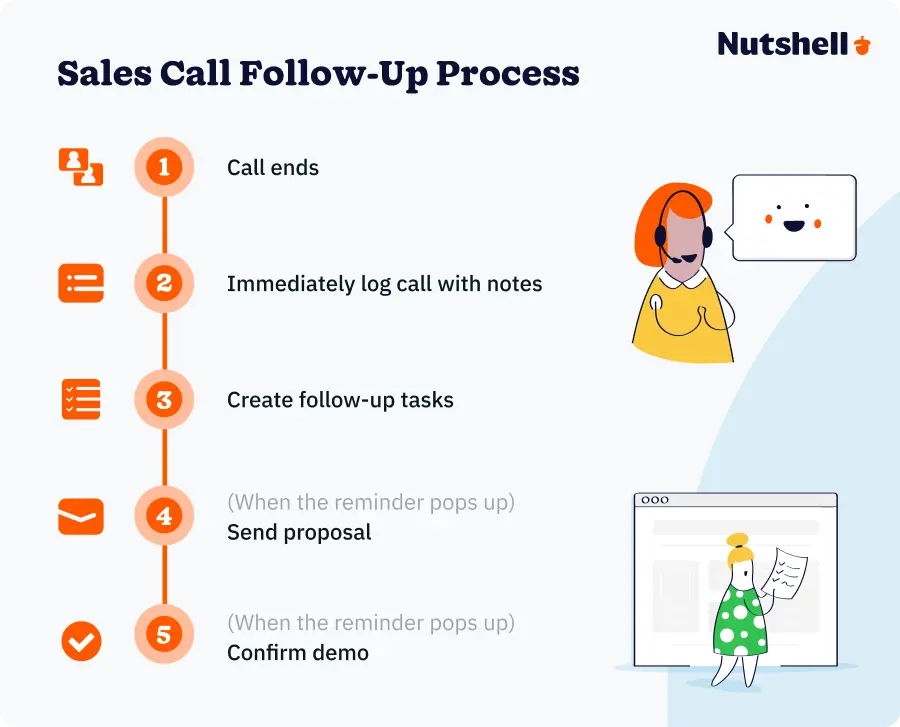
The call ends. Here’s where most teams drop the ball. But here’s where great teams use their CRM:
Immediately after the call, you log it in Nutshell. You capture the notes, the prospect’s pain point (their current vendor doesn’t integrate with their accounting software), the features that resonated (automation and reporting), and the next steps (send proposal, schedule demo). Nutshell auto-logs the call from Google Meet, so there’s already a record of who was on the call and the duration. You add the details.
Then you create two tasks: “Send proposal to [prospect name]—due Wednesday by 5 PM” and “Confirm demo time with [prospect name]—due Thursday.” The tasks appear in your calendar and in Nutshell. Wednesday reminder pops up. You send the proposal. Friday reminder pops up. You confirm the demo time. Meanwhile, the prospect sees your responsiveness—you said Wednesday, and the proposal arrives Wednesday. You’re professional, organized, and trustworthy.
That’s the difference between deals that stall and deals that close.
Now let’s talk about velocity. Leads reached within 5 minutes are 9x more likely to convert. That doesn’t just mean responding fast to inbound leads. It means responding fast to every interaction. A prospect attends your demo? Reach them with the next steps within 5 minutes of the demo ending. They ask a question? Respond within 24 hours. They raise an objection? Address it immediately. Velocity builds momentum. It signals that you’re serious, organized, and customer-focused.
Here’s another stat worth noting: 80% of B2B sales require five to twelve contact attempts to close. That means your follow-up cadence isn’t a suggestion—it’s a necessity. If you’re only following up once or twice, you’re giving up on deals that could close. If you’re following up five to twelve times (via email, call, LinkedIn, webinar, etc.), you’re doing what winners do.
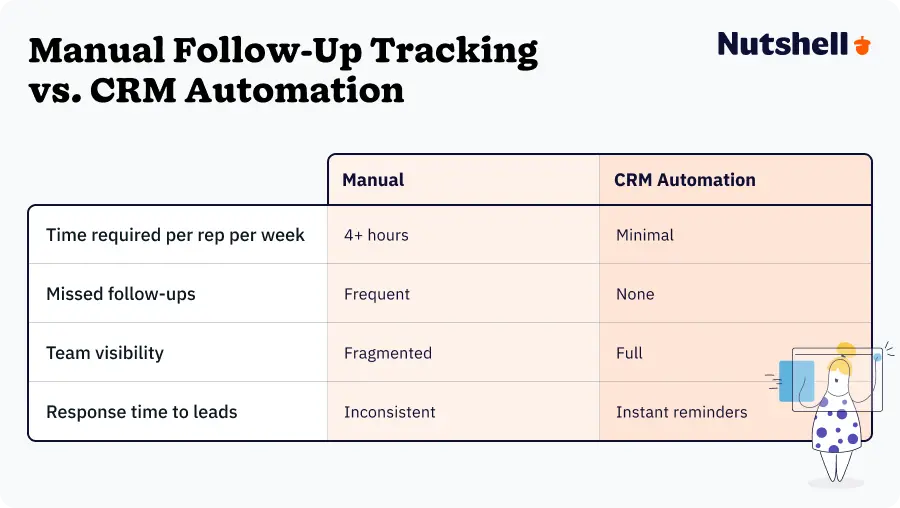
The manual way to track this is to keep a spreadsheet. “Prospect name, last contact date, next follow-up date, contact method.” You update the spreadsheet manually. You set reminders manually. You check the spreadsheet before each day. It works, sort of. But it also takes 4+ hours per week of admin time per rep. That time could be spent selling.
The smart way is a CRM that automates it. When you log a call in your CRM, the system creates follow-up tasks automatically based on your workflow. “If a call happened, create a follow-up task for 48 hours later.” Boom. The task exists. It reminds you. You act. Rinse and repeat. Now, instead of spending time managing the process, you’re spending time selling.
The bottom line: Manual follow-up costs you deals
Most SMBs manually log notes into a spreadsheet or their email inbox—and something always falls through the cracks. With a CRM that integrates with Google Meet, you cut manual work by 4+ hours per week per rep and close deals 9x faster when you follow up within 5 minutes.
Ready to stop losing deals to follow-up friction? See how Nutshell auto-logs calls and creates next-action reminders, so your team never misses a follow-up.
Need a user-friendly CRM to boost sales and team efficiency?
Take our guided tour to explore Nutshell’s incredible features!

SMB-Specific best practices for video sales calls
SMB sales teams operate differently from enterprise teams. You have fewer people, smaller budgets, and less infrastructure. That means every call, every lead, and every follow-up matters disproportionately. You can’t afford to lose deals to missed follow-ups or communication breakdowns.
Here are the practices that actually move the needle for small teams:
The 5-minute response rule: Leads reached within 5 minutes are 9x more likely to convert. This isn’t theoretical. When a prospect fills out your form or attends a webinar, they’re interested. That interest is hot. If you respond within five minutes, you capture that heat. If you wait until tomorrow, it’s gone. Someone else responded faster. Your prospect moved on. For SMBs, this is a competitive advantage you can actually own. Enterprise companies have complex approval chains. You don’t. You can respond in five minutes. Do it.
Consistent follow-up cadence: Figure out your follow-up sequence. Maybe it’s call, email, LinkedIn, email, call, webinar, email, call. Design a cadence that works for your business, and then execute it consistently. Consistency matters more than novelty. A prospect who hears from you five times with slightly boring messaging will convert faster than a prospect who hears from you twice with brilliant messaging. Frequency compounds.
Document everything: For accountability, for team visibility, for deal history. When a prospect talks to your team member about a problem, document it. When they ask a question, document the answer. When you agree on a timeline, document it. Future you and future team members will thank you. And it’s not just about memory—it’s about proving you care. Prospects notice when a company keeps detailed notes. It signals professionalism.
Use consistent terminology: Align your team on language. What do you call your main product? What are the different deal stages? What’s a “qualified lead” vs. a “prospect” vs. a “customer”? When everyone on your team uses the same terms, communication is clearer and deals move through your pipeline predictably. Inconsistency creates confusion and delays.
Track deal stage systematically: Know where every prospect is in your pipeline. Are they in the discovery phase? The proposal phase? The negotiation phase? Move deals through these stages clearly and deliberately. Not haphazardly. Not “we might do business with them someday.” Clear pipeline visibility helps you forecast revenue, identify bottlenecks, and know where to focus effort.
Hold the team accountable for follow-up completion: If you assign a follow-up task, it needs to get done. Not “whenever you get to it.” By the date assigned. Weekly check-ins on open follow-ups keep the team aligned and ensure nothing slips. And celebrate when follow-ups lead to closed deals. “This consistent follow-up turned a cold prospect into a customer. That’s a win for the whole team.”
Use video strategically: Not every communication needs to be a video call. Email is fine for updates. A Slack message is fine for quick questions. Reserve video calls for moments that matter: initial conversations where you’re building trust, demos where you need to show value, and closing conversations where you’re asking for the sale. Video is powerful, but it’s also time-intensive. Use it where it matters most.
Want templates for tracking follow-ups and managing your pipeline? Explore Nutshell’s free sales resources for checklists, guides, and best practices.
Advanced tips for closing more deals from Google Meet calls
You’ve prepared, you’ve had an engaging conversation, and you’ve documented outcomes. Now let’s talk about the nuances that separate good sales reps from great ones.
Present with confidence
Know your material. When you talk about your solution, you should be able to explain it clearly without hesitation. Prospects pick up on uncertainty. If you sound unsure, they’ll be unsure. If you sound confident, they’ll feel it. This doesn’t mean being arrogant or dismissive of objections. It means knowing your stuff and trusting that your solution solves a real problem.
Screen share strategically
Use visuals to move deals forward. When presenting a proposal, share the document. When walking through pricing, share the pricing page. When addressing a competitive comparison, share a comparative document. Visuals anchor conversations and give prospects something concrete to reference later. They’re also more persuasive. People retain information better when they see it and hear it.
Record calls to reference later
Recording isn’t just for compliance. It’s for learning and sharing. If a prospect raises an objection, you can reference the exact moment they said it and your response. You can share recordings with your team for coaching. A new rep can watch a call to learn how to handle certain situations. And you don’t need to write down every detail because the recording captures it.
Send a recorded summary within 24 hours
After the call, transcribe the key points and send them to the prospect. “Here’s what we discussed, here’s what you asked for, and here’s what we agreed to.” This does several things: It confirms mutual understanding, it shows professionalism, and it keeps the conversation fresh in their mind. It also becomes proof of what was said, which is helpful if misalignments happen later.
Zero Manual Logging. Instant AI Summaries for Every Call.
With AI-powered meeting summarization, every Google Meet session is transcribed and summarized seamlessly.
Schedule the next call DURING the current call
This is huge. Before the call ends, say, “Let’s lock in the demo for Friday at 2 PM.” Pull up your calendar in Google Meet (you can share it) and confirm the time. Why? Momentum. Once people leave the call, they’re distracted by other things. Email them later with a calendar invite, and they might not respond for days. Ask them while you’re on the call, and they say yes, and you confirm it in real-time. One task is done. Momentum maintained.
Use polling to gauge prospect interest
“Which of these three features is most important to you?” The answer tells you what to emphasize. It also makes the prospect feel heard because you’re actively asking what matters to them. Polls also increase engagement—instead of passively listening, they’re actively participating.
Leverage transcription for documentation
Google Meet auto-transcribes calls (in certain regions and with certain setup). Use that transcription to populate your CRM notes. Modern CRMs like Nutshell go further—they not only transcribe but also summarize key points, surface action items, and make the entire conversation searchable so you never lose important details.
Address objections in real-time
Don’t let objections linger. If a prospect says, “Your price is higher than your competitor,” address it during the call. “I hear you. Here’s why we’re priced higher, and here’s the value you get for that investment.” Real-time addressing shows confidence and prevents the objection from festering. The prospect leaves the call with their concern addressed, not dwelling on it.
Build urgency ethically
Timeline matters. If a feature set is changing next month and pricing goes up, say that. If your implementation schedule is limited and their timeline is tight, acknowledge it. “If we’re going to get you live by Q2, we need to move forward by end of this month.” Urgency works when it’s real and ethical. Fake urgency (arbitrary deadlines, false scarcity) breaks trust.
Confirm agreements verbally and in writing
“So we’re aligned: Next step is you send me your current vendor contract by Friday, I’ll review it and identify integration gaps, and we’ll jump on a call Monday to discuss. Does that work?” They confirm. You send a follow-up message confirming those exact terms. Now you have clarity and written record. No ambiguity. No “I thought we agreed to…” later on.
Use specific language and scripts
For closing moments, have language ready. When moving someone to a trial: “Based on what we discussed, I think a 14-day trial would let you see the value without any risk. I can set that up for you today if you’re ready.” When asking for the sale: “We’ve covered all your requirements, and I believe we’re the right fit. What would it take for you to move forward?” When handling price objections: “I understand budget is a concern. Let’s look at ROI. If this solution saves your team four hours per week, and your reps cost X per hour, you’re looking at X in monthly savings. How does that compare to the cost?”
Why CRM integration matters for Google Meet sales calls
Google Meet is exceptional at hosting calls. But it’s not built for tracking sales outcomes. That’s the problem most SMB sales teams run into—and why deals stall.
Here’s the issue: Without a system for tracking what happened after a call, the outcomes scatter. Call notes live in someone’s email. Next steps are remembered (or forgotten) rather than documented. Deal history is fragmented. The next person on your account doesn’t know what was discussed. The rep who talked to the prospect thinks follow-up is scheduled, but it actually isn’t. Prospects go cold.
Without systematic tracking, you’re also spending way too much time on admin. Every call requires manual note-taking, manual task creation, and manual reminders. A rep conducting six calls per week is spending 4+ hours per week entering data. That’s time not spent selling.
The solution is a CRM that integrates with Google Meet.
Why CRM integration matters:
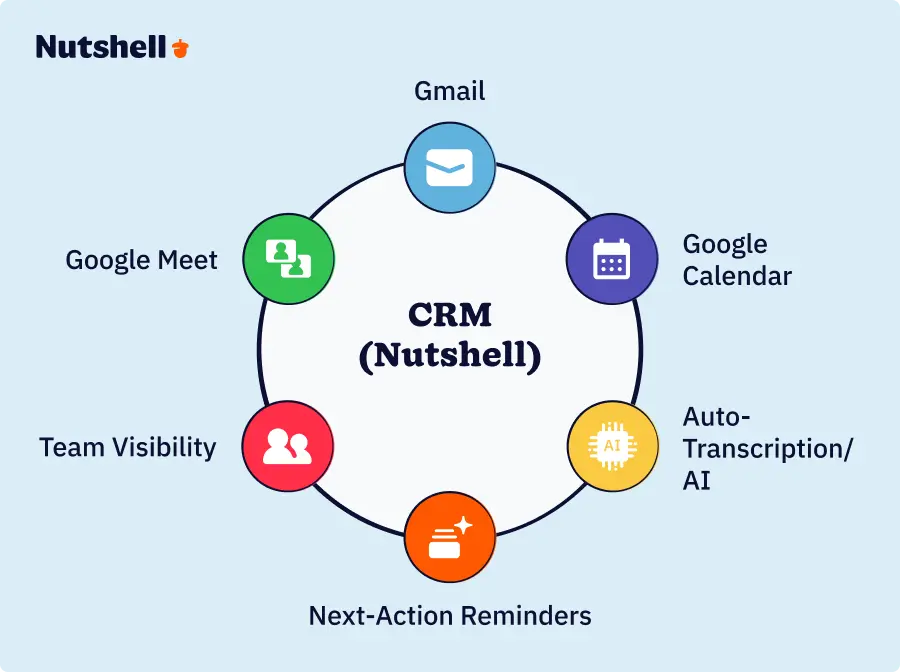
- Auto-logging: When a call happens in Google Meet, a CRM like Nutshell automatically creates a call record. The prospect name, call duration, attendees, and date are all captured without you lifting a finger. You add the notes and outcomes, but the structural data is already there. That saves time right there.
- Next-action reminders: Instead of manually creating follow-up tasks, your CRM creates them automatically. You log an outcome: “Send proposal by Friday.” The CRM creates a task. Friday morning, you get a reminder. The task doesn’t disappear into your to-do list—it’s right there in your CRM, integrated with the prospect’s full record, contextual, and impossible to miss.
- Team visibility: Everyone on your team sees customer history, deal stage, and what’s supposed to happen next. The prospect calls in asking about something your colleague mentioned? You open the CRM, and you see the full context. No “What did we promise them?” moments. No frustration on the prospect’s end. No knowledge silos on your team.
- Deal velocity: Systematic follow-up accelerates deal closure. When every action is tracked, every reminder is automatic, and every team member sees what’s happening, deals move faster. Prospects don’t stall waiting for you to remember to follow up. Your team doesn’t waste time on duplicate work or missed context.
- Time savings: Reps spend less time on admin, more time selling. Four hours per week per rep adds up fast. Over a year, that’s 200+ hours per rep. For a five-person team, that’s 1,000 hours annually—roughly half a full-time employee’s worth of time. Freed up to actually build relationships and close deals.
- Nutshell as an example: A CRM like Nutshell integrates directly with Google Workspace. Your Google Meet calls, Gmail messages, and Calendar events flow automatically into Nutshell. When you host a call in Google Meet, Nutshell auto-logs it and creates next-action tasks. When you send an email, it’s logged with the prospect. When you set a reminder, everyone on the team sees it. No manual data entry. No context switching. One system, full relationship visibility.
Frequently asked questions
-
1. How long can a Google Meet call last?
Google Meet allows group calls to run up to 60 minutes on the free tier. If your Google Workspace plan is paid (Business Starter, Business Standard, or Business Plus), you get unlimited call duration. For sales teams conducting long demos, training calls, or multi-person meetings, a paid Google Workspace plan is worth it just for unlimited call length.
-
2. Is Google Meet secure for business and sales calls?
Yes. Google Meet uses end-to-end encryption for audio and video. You can set security controls—waiting room (prospects have to be approved before joining), participant muting, and disabling screen sharing if needed. Recording requires explicit notification and consent from all participants. For sales teams discussing competitive information, pricing, or sensitive customer data, Google Meet’s security is solid. It’s trusted by enterprise companies, so it’s definitely secure enough for SMB sales conversations.
-
3. How many people can join a Google Meet call?
Up to 100+ participants, depending on your Google Workspace plan. For SMBs, this is overkill most of the time—you’re doing one-on-one sales calls or small group demos. But if you ever need to run a larger webinar or team training call, Google Meet scales with you.
-
4. How do you record and transcribe a Google Meet call?
Recording is one click in Google Meet. Hit the record button, and the call is captured. Participants are notified that recording is happening (you can’t record without their knowledge). Recordings are saved to your Google Drive. Google Meet also auto-transcribes calls (depending on your region and workspace settings), and you can access the transcript in Google Docs. Use transcripts to populate CRM notes—you don’t have to type everything out manually.
-
5. What should I do immediately after a Google Meet sales call?
Create a next-action task while the conversation is still fresh. Capture what was discussed, what they asked for, what objections came up, and what you agreed to. Schedule the follow-up in your calendar. Log everything in your CRM with enough detail that a team member could pick up the relationship without confusion. The best SMBs do this immediately after the call ends—while they still have 15 to 20 minutes blocked on their calendar before the next commitment. Delay this by even a few hours, and details get fuzzy, follow-ups get missed, and momentum stalls.
Without a CRM, this manual process takes time, and details get lost. With a CRM that integrates with Google Meet, your calls auto log, next-action tasks are created automatically, and your team has instant visibility. That’s the difference between deals that close and deals that stall.
-
6. How do you integrate Google Meet with a CRM?
Some CRMs offer native integration with Google Workspace. You connect your Google account, and the CRM automatically logs calls, emails, and calendar events. Nutshell, for example, integrates directly with Google Meet, Gmail, and Calendar—so your calls flow into prospect records automatically, your emails are logged with the customer, and your calendar syncs with your deal pipeline. This eliminates manual data entry and ensures nothing gets lost.
If your CRM doesn’t offer native integration, you can manually log calls by capturing the relevant details and adding them to your prospect’s record. It works, but it’s time-consuming and prone to gaps. Native integration is worth the investment because it removes friction and ensures consistency across your team.
Turn Google Meet calls into closed deals with systematic follow-up
Google Meet is a tool that hosts video calls. It’s excellent at that. But video calls are just the beginning of the sales process. Real sales effectiveness happens after the call ends—when you track outcomes, create next-action tasks, set follow-up reminders, and keep your team aligned on where every deal stands.
The three-phase framework works: Prepare meticulously (Phase 1) → Engage authentically (Phase 2) → Follow up systematically (Phase 3).
Google Meet handles Phases 1 and 2. Your CRM handles Phase 3, and Phase 3 is where deals actually close.
Here’s what separates winning SMB sales teams from struggling ones: Winning teams use Google Meet for calls, but they use a CRM for outcomes. They log every call with notes on what was discussed, what the prospect cares about, and what happens next. They create automatic reminders so follow-up isn’t optional—it’s built into the system. They make sure every team member sees customer history so context isn’t lost. They move deals forward predictably because every action is tracked.
Struggling teams host calls in Google Meet but then lose track of what happened next. Notes scatter. Follow-ups get forgotten. Deal history disappears. Momentum dies. Prospects go cold.
The good news: You can fix this today. Train your team on the preparation and engagement tactics in this guide. Then implement a CRM—preferably one that integrates with Google Meet so tracking happens automatically rather than manually. Nutshell does this with native Google Workspace integration.
When your team is set up correctly, sales calls become momentum builders instead of one-off events. Every call generates a documented outcome, an assigned next action, and an automatic reminder. Deals move forward faster. Your reps spend less time on admin and more time building relationships.
Transform your Google Meet calls into closed deals. Start by systematizing your follow-up process. Try Nutshell’s CRM free for 14 days—see how automatic call logging, AI transcription, and next-action reminders turn every video call into momentum toward closure.
No credit card required. Live demo available if you want to see it in action.
BACK TO TOP Written by
Simone Morgan Associate Content MarketerEdited by
Written by
Simone Morgan Associate Content MarketerEdited by Will Gordon Sr. Director of MarketingReviewed by
 Andy Fowler CEO & Co-Founder, Nutshell
Ready to try
Nutshell for Free?Thank you! Your submission has been received!Oops! Something went wrong while submitting the form.



Enable Fast, Secure and Convenient Logins With Single Sign-On (SSO) in Nutshell
Published on: May 5, 2025
What Are the Top 3 Go-To-Market Strategies?
Published on: November 10, 2022Sales Performance Reviews: 9 Tips to Make Them Valuable
Published on: November 10, 2022Join 30,000+ other sales and marketing professionals. Subscribe to our Sell to Win newsletter!