Introducing Customizable ‘Add New’ Dialogs for Tailored Data Collection
-
Last updated on: November 14, 2025
The best CRM for your team is the one that’s customized to your needs. That’s why we’re excited to introduce a new customization option within Nutshell—the ability to tailor your ‘add new’ dialogs to your business’s unique needs.
This update enables you to customize the fields in the pop-ups that appear when someone on your team creates a new person, company, or lead in Nutshell.
Here’s everything you need to know about this game-changing update.
Why customize your ‘add new’ dialogs?
Your CRM data collection process is at the core of your sales and marketing efforts. It’s how you gather crucial information about your leads, contacts, and companies.
With customized ‘add new’ dialogs, administrators can now take full control of this process and ensure that the right information gets collected every time someone on your team adds data to Nutshell.

What elements of the dialog can you customize?
Here’s a closer look at what you can do with this new feature:
- Decide which fields to show: With this update, you can handpick the Nutshell fields that are displayed when creating a new person, company, or lead. This ensures that your team only sees the information that’s important to your workflow.
- Customize the field order: Every business has a unique way of working. Now, you can re-order fields in the ‘Add New’ dialog to match your specific requirements.
- Set fields as optional or required: Ensure that essential information is never missed. You have the option to mark fields as required, guaranteeing that vital data is captured every time a new person, lead, or company is added.
How to get started with customizing your ‘add new’ dialogs
Here’s a step-by-step guide to help you harness the full potential of this feature:
Step 1: Access the create dialog
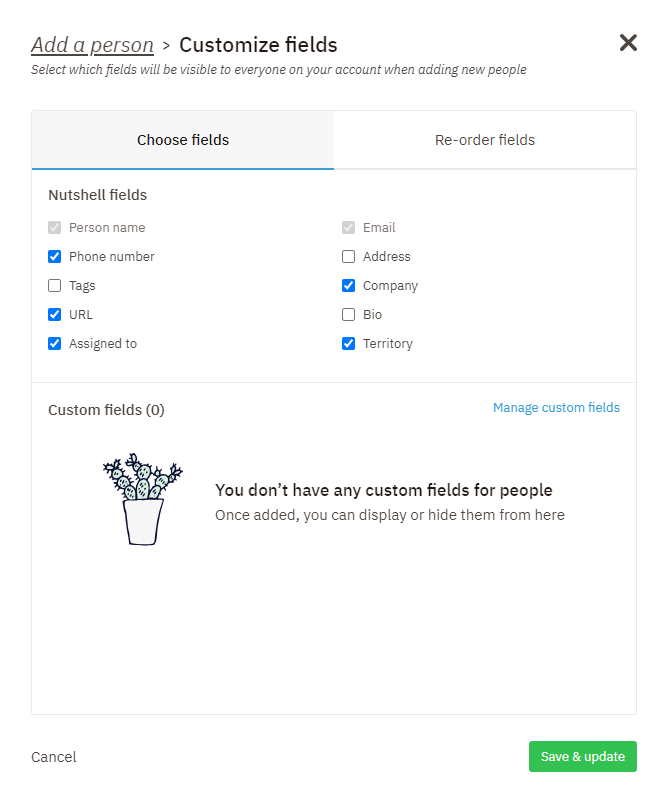
To begin customizing your dialogs, click the ‘Add New’ button in Nutshell. Admins will see a ‘Customize fields’ button in the top right corner of the dialog, which opens up the configuration options.
Step 2: Select fields
Once you open the configuration options, you can begin selecting the fields you want to include in the dialog by checking checkboxes.
You can also select or create custom fields to include in the dialog. To create custom fields, click on the ‘Manage custom fields’ link.
Step 3: Reorder fields and set required fields
In the ‘Re-order fields’ tab, you can rearrange fields and choose whether fields are required.
To re-order fields, simply drag and drop them into your desired order. Fixed default fields for the dialog are excluded from re-ordering.
In this step, you also have the option to designate certain fields as required by clicking the ‘Required’ checkbox. This ensures that crucial information is always filled in during the creation of a person, lead, or company.
Step 4: Save and update
Once you’re happy with your customized setup, click the ‘Save & update’ button to save your changes!
Tailor data collection to your needs with customized ‘add new’ dialogs
Ready to make the most of this feature? Start customizing your dialogs today to tailor your CRM experience to your unique needs and boost your team’s productivity.
Should you have questions or need assistance along the way, just check out our knowledge base article or reach out to our dedicated support team. Happy customizing!
FAQs
-
1. Who can customize the ‘add new’ dialogs in Nutshell?
Only admin users can customize ‘add new’ dialogs. When you click the ‘Add New’ button, admins will see a ‘Customize fields’ button in the top right corner. Non-admin team members will use the dialogs as configured by admins.
-
2. What fields should I make required in my CRM dialogs?
Focus on essential fields needed to move deals forward: contact name, company name, email, and phone number. Consider your ideal customer profile—what information does your team need to qualify leads and personalize outreach? Start minimal to encourage adoption.
-
3. Can I create different dialog configurations for different teams?
Currently, dialog customizations apply across your entire Nutshell account for all users. You can’t create team-specific configurations. However, you can customize dialogs separately for people, companies, and leads to match different workflows.
-
4. What happens to existing data when I change required fields?
Existing records aren’t affected when you add required fields. The requirement only applies to new records created after the change. Your current data remains intact, and you won’t need to retroactively fill in information.
-
5. Can I revert to the default dialog settings if needed?
Yes. You can modify your dialog settings anytime by clicking ‘Customize fields’ and adjusting your selections. Simply uncheck fields, reorder them, or remove required designations, then click ‘Save & update’ to restore previous settings.
BACK TO TOPWritten by
Chris Cain VP of Product Development, NutshellReady to try
Nutshell for Free?Thank you! Your submission has been received!Oops! Something went wrong while submitting the form.
Sales Performance Reviews: 9 Tips to Make Them Valuable
Published on: November 10, 2022What Are the Top 3 Go-To-Market Strategies?
Published on: November 10, 2022Highly Effective Strategies for Elevating Sales Team Performance
Published on: November 10, 2022Join 30,000+ other sales and marketing professionals. Subscribe to our Sell to Win newsletter!
- Product
- Nutshell Overview
CRM & Sales
Our powerful and easy-to-use flagship product.Marketing
Email marketing, forms, landing pages, and more.Engagement
Webchat, SMS, WhatsApp & more in your Omni-Channel Inbox.Prospecting
Prospect for new leads and new contacts in your CRM.Quotes & Invoices
Quickly create quotes & invoices in your CRM.
AI
See why Nutshell is the leading AI CRM.Integrations
Connect to Google/Microsoft and over 5,000 Apps.
ReportingCreate reports and forecasts in an instant.CRM Advisor
Get a dedicated point of contact to get the most out of Nutshell.Partner Marketplace
Find trusted partners to help optimize your Nutshell CRM.
- Pricing
Nutshell AI
- Resources
- Contact Us
Contact Sales
Send us your questions or book a 1-on-1 demo.Join a Demo
Join a group demo for a general overview of Nutshell.
Contact Support
Contact our support team via live chat in app or via email.Become a Partner
Refer businesses to Nutshell & earn commissions.
Contact Marketing
Questions about our website or our marketing opportunities?Careers
Join our growing team! See current openings.