Who approves a CRM connection to Google Workspace? A 5-step guide for small business owners

-
If you’re connecting your CRM to Google Workspace, you’ll eventually land on a screen asking for admin approval. It’s a common roadblock for small teams, but Google has simplified the process. Now, users attempting to integrate the two can see an option to send the administrator, whoever that may be, a review request during the process.
This Google Workspace approval workflow is a point of reference and control, ensuring only the official administrator can clear the request. This Nutshell guide serves as a breakdown of the five essential steps small businesses must take to move beyond the approval stage and complete the integration process.
Key takeaways
- The app integration must be approved by a Google Workspace admin, who is typically the owner, the person who set up the company email, or an IT person.
- Carefully read the list of permissions described on the approval screen and select the API scopes you need to ensure you can enable the correct workflows.
- Before finalizing the approval, select the accounts and calendars you want to include.
- Verify that the connection works by checking Google’s OAuth log events and testing with an email and scheduled meeting.
Which CRM integrates with Gmail, and who has to approve it?
Most modern CRM systems integrate with Gmail and Google Calendar, and the Google sign-in process is the same for each setup. Determining who should approve the connection is the stumbling block small business teams often face. When it comes to Google Workspace, businesses must assign an administrator to approve third-party app integrations as a security measure.
Google Workspace is a paid application designed for business use, providing an array of useful business tools and allowing companies to set up domain-specific email addresses. The Google Admin console offers a list of built-in administrative roles, and the Workspace admin for a company will be allocated a role here.
Having an official admin assigned gives businesses an important security checkpoint. Establishing that point of review is far safer than letting a third-party service provider handle the full setup. In fact, a 2025 Data Breach Investigations report compiled by Verizon revealed that the percentage of breaches related to third-party involvement sits at 30%, twice as much as it was the previous year.
How do you connect Google Workspace to a CRM in five steps?
The inclusion of an admin approval step shouldn’t become a roadblock for teams that need their Google Workspace accounts connected to their CRM. Following these five steps should ensure teams experience a smooth integration process:
- Find out who your Workspace admin is
- Select API scopes on the approval screen
- Choose which accounts and calendars to include
- Approve the application in the Admin console
- Confirm the connection works
1. Find out who your Workspace admin is
It’s useful to know who your company’s Workspace admin is ahead of setting up the integration. A dedicated IT person, the person who set up your company email address, or whoever manages your website should be the first people you ask.
The person who set up the company’s Workspace account is typically automatically assigned the role of super admin, giving them access to every Admin console feature. Super admins have the ability to view and assign admin roles as needed. To safeguard against lockouts and ensure business continuity, Google recommends that Workspace users assign two super admins.
If you’re setting up the Workspace CRM connection and you’re not an admin, you may see an option within the approval workflow to ask an admin to review the request. According to Google, this option appears when trying to access an unconfigured application.
If you know who your admin is, give them a heads-up regarding the review request coming their way. If not, and the option to request a review is available to you, it will send the assigned administrator a notification to approve the request. Either way, knowing the name of your admin will make the process easier.
2. Select API scopes on the approval screen
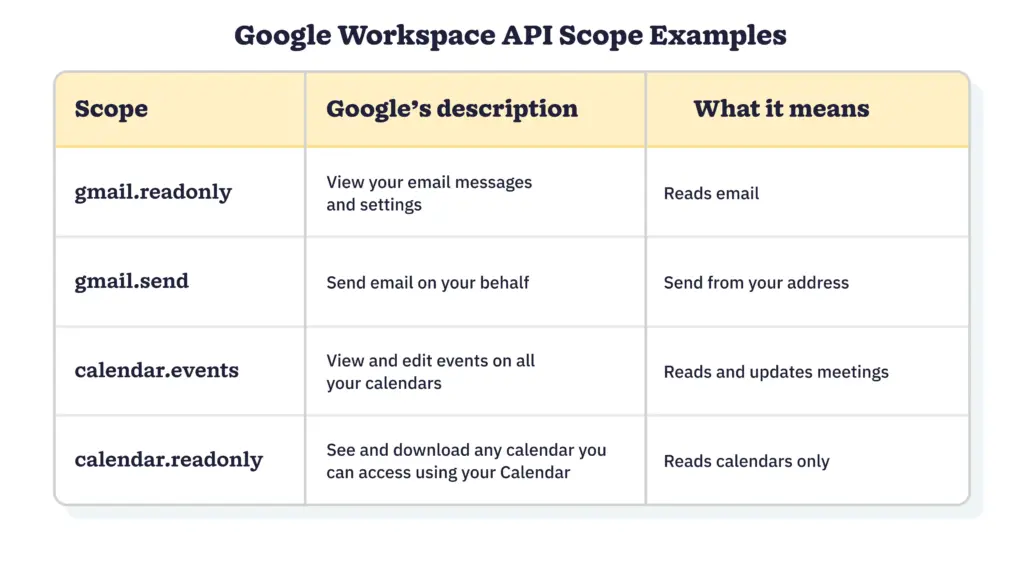
Google’s approval screen will display a list of access types, each showing its API scope and description. Reading through this list is important to ensuring your integration has the correct access to perform the actions you need.
Equally important is removing the API scopes you don’t need. In fact, Google recommends requesting the narrowest scope for the actions required. It also warns that applications using Gmail API scopes that are sensitive or restricted need to pass OAuth verification.
In essence, you should determine your goal, then select the API scopes that represent that goal. For example, if you want the integration to read and update meetings, you should include the “calendar.events” API scope on your list.

3. Choose which accounts and calendars to include
Just because your admin has approved the app connection doesn’t mean that your team automatically has access. Each team member needs to sign in to their Google account to connect. But once they do, the connected CRM and everyone else who has access can see that team member’s email and calendars.
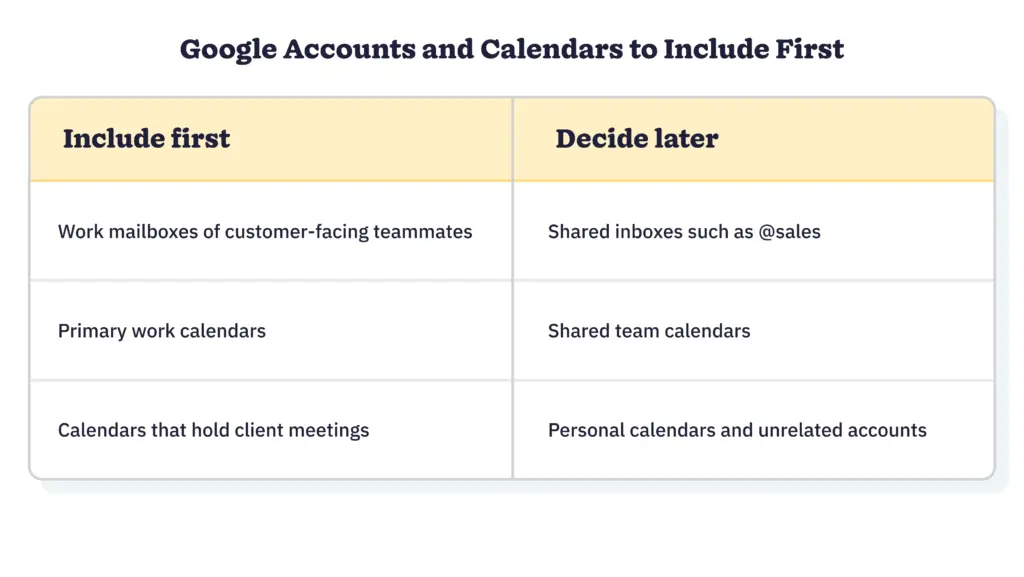
That means there are two things to decide at this point. The first is determining who should connect. Customer-facing team members are typically connected first, with shared inboxes added later.
The second is establishing what each account will see. For instance, allowing Google Calendar access allows the team member to see any calendar they’re able to open, including shared team calendars and any personal calendars teammates may have added.

4. Approve the application in the Admin console
At this point, your administrator can log in to Google’s Admin console to allow the app access to your CRM. There are three possible access states your admin will see in the Admin console:
- Trusted: Any service restrictions have been overridden.
- Limited: Only unrestricted Google services can be accessed.
- Blocked: Unable to access any Google services.
Choose “Trusted” if you want to connect your CRM with Gmail and Google Calendar and you’ve double-checked the API scopes. Any restrictions applied in your Google services settings to Gmail will prevent a “Limited” app from reaching it.
5. Confirm the connection works
There are two key places to check to ensure your Google Workspace CRM integration is working properly.
The first place to check is the OAuth log events in the Admin console. You’ll need the Audit and Investigation administrator clearance level for this. Here, you’ll be able to see who connected what. It’ll show you each time the app is authorized, along with the app name, API scope, and user.
Your second checkpoint is the CRM. Run a test by sending an email to a test contact, scheduling a test meeting, and confirming that both of these surface where you’d expect them to. Review the list of accounts you worked with in step three rather than making any settings adjustments if you find anything missing.
A short checkpoint, a lasting connection
Navigating admin approval when integrating Google Workspace with your CRM may seem intimidating to small business teams with no dedicated IT person. But this five-step process is actually easy for small teams to execute, especially when you consider that the owner of the business is often the administrator.
Walking through this setup is also an opportunity to document the process, so your team knows exactly what to do next time you want to set up any more app connections.
Frequently asked questions
-
1. Which CRM integrates with Gmail?
Many CRMs integrate with Gmail, and most use Google’s sign-in and approval process. Compare how each one connects, which Google permissions it requests, and whether your admin has to approve it. The answer that matters is the one your own approval screen shows.
-
2. What are the best CRMs for Google Workspace?
The best fit depends on your team’s size and workflow. Look for a native Gmail and Google Calendar connection, clearly worded permissions, and documentation that tells your admin where to approve it.
-
3. Do I need to be a super admin to approve a CRM?
Not necessarily. Google says that managing third-party app access requires the Service Setting administrator privilege, so a delegated admin with that privilege can approve it.
-
4. Does a CRM with Gmail integration work with a free @gmail.com account?
Google states that @gmail.com accounts have no administrator, so there’s no admin approval step. Check the CRM’s requirements, since some integrations list Google Workspace as a prerequisite.
-
5. What if no one knows who our Google Workspace admin is?
Ask whoever gave you your work email address, your IT contractor, or the person who manages your email service or website. For a small business, the admin is often the person who set up the company domain.
BACK TO TOPWritten by
Will Gordon Sr. Director of MarketingEdited by
Sam Poole Associate Content MarketerReviewed by
Chris Cain VP of Product Development, NutshellReady to try
Nutshell for Free?Thank you! Your submission has been received!Oops! Something went wrong while submitting the form.

When Persuasion Becomes Deception: Where Should Salespeople Draw the Line?
Published on: November 10, 2022

CRM vs marketing automation: The real difference, and why you might need both
Published on: February 22, 2023How to Manage a Sales Pipeline for a Financial Services Company
Published on: June 19, 2024Join 30,000+ other sales and marketing professionals. Subscribe to our Sell to Win newsletter!
- Product
- Nutshell Overview
CRM & Sales
Our powerful and easy-to-use flagship product.Marketing
Email marketing, forms, landing pages, and more.Engagement
Webchat, SMS, WhatsApp & more in your Omni-Channel Inbox.Prospecting
Prospect for new leads and new contacts in your CRM.Proposals & Invoices
Create & send quotes, invoices and contracts in your CRM.
AI
See why Nutshell is the leading AI CRM.Integrations
Connect to Google/Microsoft and over 5,000 Apps. Reporting
Create reports and forecasts in an instant.Mobile App
Take your CRM with you wherever you go.CRM Advisor
Get a dedicated point of contact to get the most out of Nutshell.
- Pricing
Nutshell AI
- Marketplace
- Resources
- Contact Us
Contact Sales
Send us your questions or book a 1-on-1 demo.Join a Demo
Join a group demo for a general overview of Nutshell.
Contact Support
Contact our support team via live chat in app or via email.Become a Partner
Refer businesses to Nutshell & earn commissions.
Contact Marketing
Questions about our website or our marketing opportunities?Careers
Join our growing team! See current openings.