Five ways to set up a CRM for Microsoft Teams and give reps time back

-
The average sales rep’s week comprises several selling and non-selling activities. 22% of that week is spent meeting with customers and prospects, while 13% of it is dedicated to manual data entry. This is according to Salesforce’s 2026 State of Sales report, which included survey responses from 4,050 sales professionals. That means that for every ten minutes a rep spends speaking to leads and customers, six minutes are spent typing.
A solution exists for reps to move information between their CRM and Microsoft Teams. In fact, with Microsoft retiring its Office 365 Connectors in Microsoft Teams in May 2026, many companies have been forced to review how their CRM updates reach Microsoft Teams. Microsoft has directed teams to the Workflows app as the fix.
For this walk-through, Nutshell reviewed the documentation related to Microsoft Teams and established five ways to set up a CRM for Microsoft Teams, as well as who can facilitate each setup.
Key takeaways
- Connecting your CRM and Microsoft Teams allows reps to view data such as contact, call, and deal information next to their relevant conversations.
- There are five core ways to move data between your CRM and Microsoft Teams, each requiring a different approach and varying approval levels.
- Regardless of the setup you choose, it’s best to get your Microsoft administrator involved in the process as early as possible, in case you need their approval.
What is a CRM for Microsoft Teams?
A CRM for Microsoft Teams is a customer relationship management platform that connects to Teams, allowing data to be shared between the two systems. It gives teams access to up-to-date information without having to switch between the CRM and Teams. Companies can set up this connection in one of five core ways.
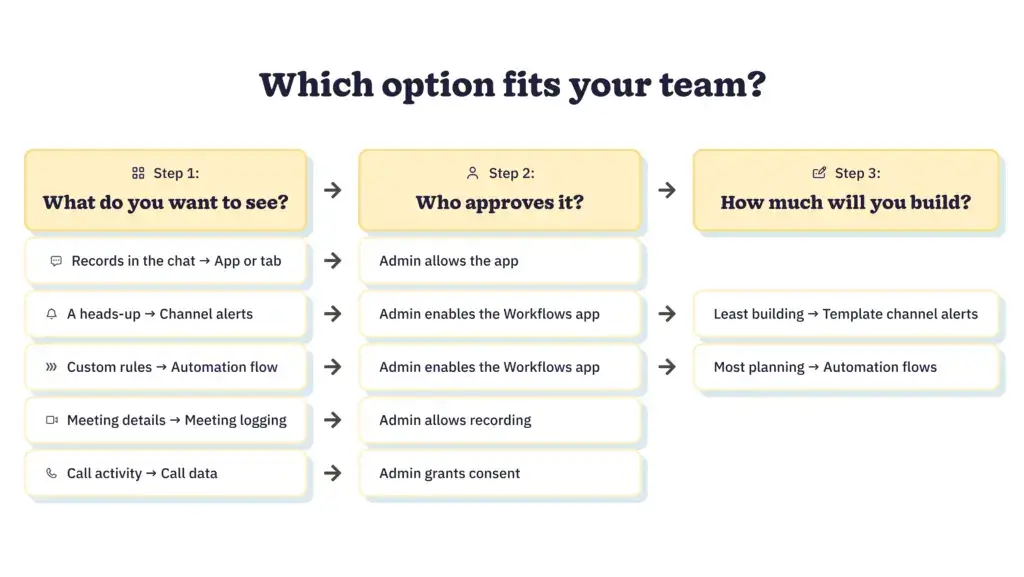
The best Microsoft Teams CRM is the one that supports your team’s existing processes and is one they will actually use. Selecting the right one for your team boils down to three fundamental questions:
- What do you want your team to see?
- Who can approve the setup?
- How much building are you willing to do?
Each one of the five setup options removes a portion of the manual data entry, some significantly more than others. It’s important to note that they are options as opposed to a ranked setup list. Teams can choose to run more than one of these at the same time, as long as they prioritize the one that the team requests most often.
Which of the five MS Teams CRM setup options fits your team?
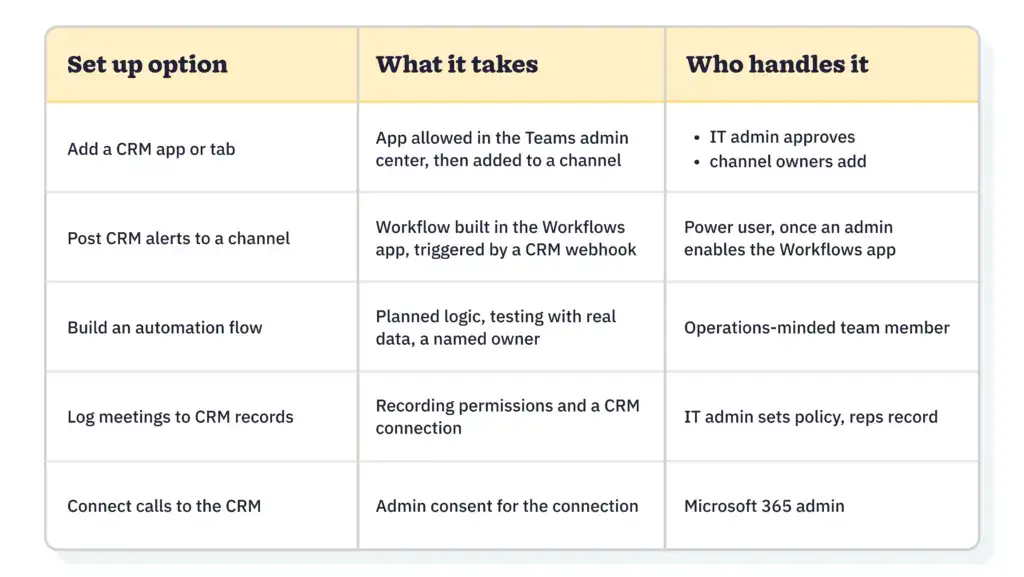
Let’s walk through the five setup options we’ve been talking about, highlighting what’s involved and who on a small business team typically takes the reins.

1. Add a CRM app or tab in Microsoft Teams
Adding a Microsoft Teams tab means embedding a webpage within a channel, group chat, personal app, or meeting space. This allows teams to pin applications to the top of their workspace, creating a single view inside Microsoft Teams and placing customer records and related conversations in the same interface.
On a typical small business team, an IT administrator (or whoever manages the company’s Microsoft 365 account) will manage the apps the team can access through the Teams admin center. Actions here include allowing and blocking apps, as well as pre-pinning tabs in meetings. Once approved, channel owners can add the app.
2. Post CRM alerts to a Teams channel
Previously, Microsoft users would set up an alert using a webhook, which is a signal sent from one application to another when a trigger event occurs. For example, if a deal moved to the “Won” stage, the CRM would use a webhook to send a message to Microsoft Teams and surface it in a place the team could see it.
However, Microsoft retired this ability in May 2026, forcing users to move to using its Workflows app to pick up webhook requests. There’s still a webhook involved on the CRM side, but a workflow on the Microsoft side points the message to the correct channel. The workflow process change has made the process easier for teams, providing them with predefined templates and triggers to help them get started.
Access to the Workflows app requires admin enablement. Once enabled, anyone with a Teams account can access and use it to set up alerts. Teams that had connector-based alerts in place prior to May 2026 should prioritize recreating them as workflows.
3. Build an automation flow
An automation flow involves actions initiated by triggers that run in sequence on their own. For instance, something happens in your CRM, it triggers a resultant action in Teams, which then triggers another action elsewhere. Connecting your CRM to Microsoft to set up automations can be done through the Workflows app, as well as Power Automate, Microsoft’s service specifically for automations.
The difference between an automation and a channel alert is that the alert posts a single message. An automation flow can take multiple actions, including tagging a deal owner and routing messages to different channels when a deal reaches a specific value.
Automation building is typically the responsibility of a sales operations lead or the person who manages your Microsoft 365 account. Whoever is tasked with the build must approach it with careful planning, test with real data, and set up regular checks to ensure the automation is maintained when processes change.
4. Log Teams meetings to CRM records
Logging a meeting means saving details about the meeting to the relevant customer’s contact record after the meeting. Automated meeting logging saves team members from having to enter the details on the record manually, ensuring the data is saved each time a meeting ends.
To save a recording as part of your meeting log, the meeting organizer and whoever initiates the recording must have recording permission. According to Microsoft’s recording guidelines, recordings for private meetings save to the organizer’s OneDrive, and channel meetings save in SharePoint.
Your Microsoft admin sets your team’s meeting policies, where they can enable the ability to record. It’s up to the team to build the habit of recording meetings and the sales manager to set the expectation. It’s important to note that the connection to your CRM may also require the admin’s approval.
5. Connect calls to the CRM
Call records contain usage and diagnostic data related to calls and meetings. These are created by Microsoft Teams after the call or meeting ends and kept for 30 days. It’s particularly useful to sales managers because it places call activity and the related deal right next to each other.
Your CRM vendor will be able to tell you more about which connection saves to the record. Bear in mind that admin approval will be required for a connection that reads organization-wide call data. Small business teams should ensure their assigned administrators have all the information they need to manage connections and approvals.
Which Microsoft Teams CRM setup option should you choose?

Establishing what you’d like your team to see is a good place to start.
- Add a CRM app or tab: Go with this option if you want your contact records visible next to their related conversations.
- Post channel alerts: Set up channel alerts if you’d like to be notified when something changes.
- Build an automation flow: Choose an automation flow to control meeting data access and reduce manual updates.
- Log Teams meetings: Log meetings if you want to automatically save the meeting, including the recording, transcript, and summary, to the contact record when the meeting is done.
- Connect calls to the CRM: Connect calls to surface your call activity right next to their corresponding deals.
Once you’ve completed your setup, you’ll need to determine who can approve it. An effective approach to make the approval process easier is to discuss the setup and need for approval with your Microsoft admin before you do the work.
To set up channel alerts and automated flows, you’ll need Microsoft’s Workflows app enabled. Meeting logging and connecting calls may also require approval by an administrator.
It’s also worth considering how much planning and building you want to put into your setup. Creating channel alerts from a template won’t require much, but setting up automation flows will likely be the heaviest lift of the five. Ease into it by starting with one connection. Then add a second after the first is established and part of your team’s daily routine.
Start with the update your team asks about most
13% of each week dedicated to manual data entry might not sound like much, but when you consider that it’s more than 5 hours a week that reps spend typing to update data, you realize the impact it has on their time spent selling.
Choosing the right Microsoft Teams-to-CRM connections is all about giving your reps that crucial selling time back by allowing customer data to automatically move between Teams and your CRM.
Begin by picking the setup that answers the question your team asks most often, like a completed meeting, a won deal, or a logged call. Then, speak to your administrator about your planned update, set it up, and test it in a single channel. Only add your next connection setup when the initial setup is effective and being used regularly by your team.
Frequently asked questions
-
1. What is the best CRM for Microsoft Teams?
There isn’t one best choice because the right fit depends on the routes your team will use. Decide whether you want an app or tab, channel alerts, an automation flow, meeting logging, and/or call data. Then, confirm that the CRM you want supports those routes and who needs to approve them.
-
2. Does a CRM need a Teams app to show updates in Teams?
No. A CRM app or tab represents one route, but channel alerts and automation flows can run through Microsoft’s Workflows app instead. The Workflows app creates flows from a template or from scratch.
-
3. Who has to approve a CRM connection to Teams?
That depends on how your organization has set up Microsoft 365. IT admins typically manage which Teams apps are available, and an administrator may need to grant consent for connections that read organization data. Microsoft lists the admin roles that can grant tenant-wide consent, including the Cloud Application Administrator and Application Administrator.
-
4. Can CRM updates post to a Teams channel automatically?
Yes, through the Workflows app. Microsoft describes using a predefined template or building a workflow with the “When a Teams webhook request is received” trigger. Your CRM needs to be able to send a webhook request when an event happens.
-
5. Who can record Teams meetings for CRM logging?
Per Microsoft, both the meeting organizer and the person who starts the recording need recording permissions. Recordings are stored in the organizer’s OneDrive for private meetings and in SharePoint for channel meetings. Check with your admin that your meeting policy allows recording before you plan around it.
BACK TO TOPWritten by
Will Gordon Sr. Director of MarketingEdited by
Sam Poole Associate Content MarketerReviewed by
Chris Cain VP of Product Development, NutshellReady to try
Nutshell for Free?Thank you! Your submission has been received!Oops! Something went wrong while submitting the form.

Infographic: Nutshell Named in Capterra’s Top CRM Software Roundup for 2025
Published on: November 25, 2022How to Manage a Sales Pipeline for a Financial Services Company
Published on: June 19, 2024Join 30,000+ other sales and marketing professionals. Subscribe to our Sell to Win newsletter!
- Product
- Nutshell Overview
CRM & Sales
Our powerful and easy-to-use flagship product.Marketing
Email marketing, forms, landing pages, and more.Engagement
Webchat, SMS, WhatsApp & more in your Omni-Channel Inbox.Prospecting
Prospect for new leads and new contacts in your CRM.Proposals & Invoices
Create & send quotes, invoices and contracts in your CRM.
AI
See why Nutshell is the leading AI CRM.Integrations
Connect to Google/Microsoft and over 5,000 Apps. Reporting
Create reports and forecasts in an instant.Mobile App
Take your CRM with you wherever you go.CRM Advisor
Get a dedicated point of contact to get the most out of Nutshell.
- Pricing
Nutshell AI
- Marketplace
- Resources
- Contact Us
Contact Sales
Send us your questions or book a 1-on-1 demo.Join a Demo
Join a group demo for a general overview of Nutshell.
Contact Support
Contact our support team via live chat in app or via email.Become a Partner
Refer businesses to Nutshell & earn commissions.
Contact Marketing
Questions about our website or our marketing opportunities?Careers
Join our growing team! See current openings.