How do I log Google Meet calls in my CRM automatically?

-
Automatically logging a Google Meet call in your CRM involves connecting Google Meet to the CRM using a native integration or a third-party notetaker tool. The alternative is to log your meeting notes manually into your CRM, which can be time-consuming.
With automated logging, each recorded call is saved to the right contact record with a transcript and summary, so nobody has to write any notes by hand. If your administrator approves the connection, you’ll be able to focus on selling while the integration takes care of your call logging admin.
Key takeaways
- Google Meet can record calls, but it won’t automatically save and log the call to your CRM without an integration.
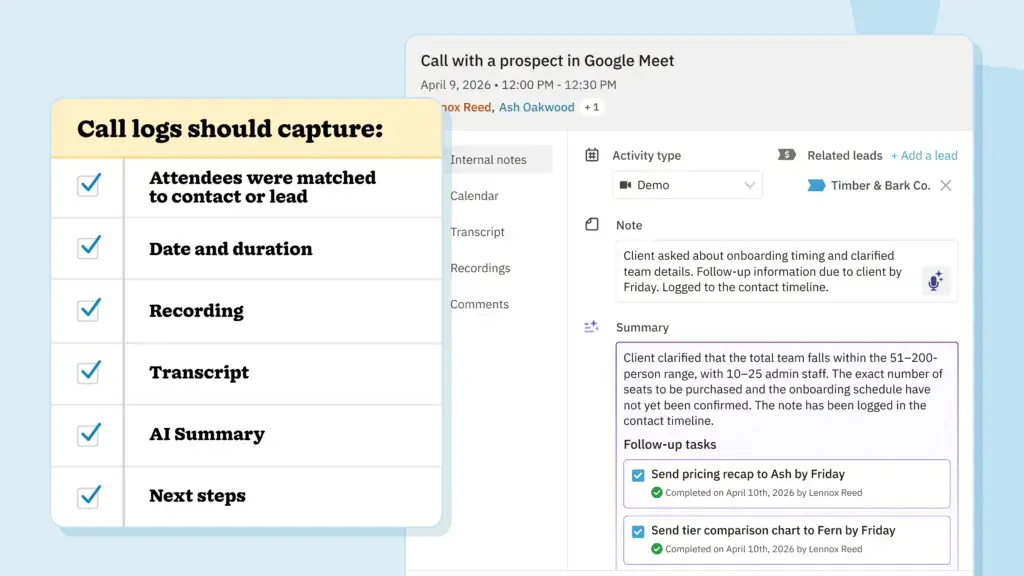
- A good automatic log saves essential data, including the attendees, recording, transcript, summary, and next steps, to the correct contact record.
- Before you start, confirm that the recording option is activated, your admin has approved the connection, and that participants are aware that you’re recording the call.
Automatically log your Google Meet calls with transcripts & summaries!
See your Google Meet calls log themselves. Nutshell logs each recorded Google Meet call with a recording, transcript, and AI summary.
Table of contents
- Why do Google Meet calls often end up unlogged?
- What are the ways to log Google Meet calls in a CRM?
- What should an automatic call log capture?
- What should you check before you turn on recording?
- Does Google have a CRM tool?
- How does a CRM notetaker log a Google Meet call in Nutshell?
- Frequently asked questions
Why do Google Meet calls often end up unlogged?
Google Meet can record and transcribe a call, but it doesn’t have the capability to automatically write anything directly to the contact record in your CRM. Recordings are typically saved to the meeting organizer’s Google Drive, and Google’s own notes feature saves a Google Doc in the same folder with Gemini’s AI notes and the call transcript. Once the call ends, the rep moves on to the next call, and the details captured in their Google Drive are sometimes lost or left unused in an unopened folder.
What are the ways to log Google Meet calls in a CRM?
To log your Google Meet calls against the relevant contact record in your CRM, you basically have three options:
- Manual notes
- AI notetaker tool
- Google Meet CRM integration
1. Manual notes
This approach takes the most effort and involves the sales rep typing up the notes for each call against the related contact record. In this instance, the notes only end up in the CRM if the rep logs them there, and the recording and transcript will land up saved in a Google Drive folder. Logging calls manually works best for reps who only hold a few calls per week and can multitask with listening, replying, and notetaking.
2. Stand-alone AI notetaker
Getting started with a third-party AI notetaker tool typically calls for a simple, one-time setup. Some notetakers can integrate with your CRM, which may require an extra step in the setup process. After a Google Meet call, your meeting transcription and summary should end up in the notetaker’s app or a folder on your PC, and on the contact record in your CRM if the two tools are integrated.
This is an ideal option for a one-person sales team that wants to keep track of relationships through personal notes. But bear in mind that there may be an additional cost involved. While some notetaker tools, like Granola, offer a free tier, the functionality is limited. Getting an AI notetaker that can integrate with your CRM will likely require a paid subscription.
3. Google Meet CRM integration
The most efficient way to log Google Meet calls against the contact record is through a Google Meet CRM integration. With it, calls are logged automatically, including quick access to the full transcript, summary, and recording. If the CRM vendor offers a built-in integration, setting up the connection should be swift and uncomplicated. CRM integration is a great option for larger teams that require shared context and a log that sits where the deals are managed.
What should an automatic call log capture?

A good call log allows a teammate to understand the call without watching it. It should show the attendees matched to the right contact or lead, the date and duration, the recording, a transcript, and a short summary with next steps. Test it by opening the record as someone who wasn’t on the call: if you can tell what was decided, the log is working.
What should you check before you turn on recording?
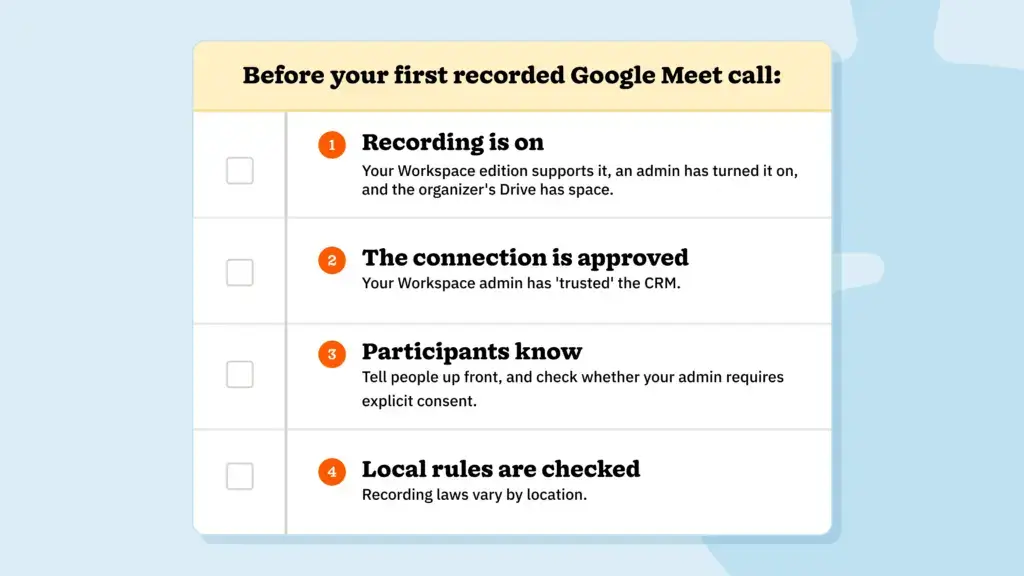
Check the following four things before initiating a recorded call:
- Google limits recording to certain Workspace editions, and an admin has to turn it on. Recordings also need storage space in the organizer’s Drive. So, double-check your Google Workspace limitations, request permission from your admin, and make sure you have the Drive space available for the recordings.
- Your Workspace admin may need to approve the CRM connection. An “app blocked” message is the usual sign it hasn’t. Get your admin’s approval before you attempt to integrate your CRM with Google Meet.
- Google notifies people outside your organization, and people on mobile, when recording starts or stops, and admins can require explicit consent. So, make sure you get consent from all parties concerned before you start recording.
- Recording laws vary by location, so examine the rules for the areas where your customers are located to ensure you abide by them.

Does Google have a CRM tool?
Google Workspace doesn’t include a built-in CRM, so most teams add one that connects to Gmail, Calendar, Contacts, and Meet. The Google Workspace Marketplace lists third-party options, and our guides to the best CRMs for Google Workspace and Google CRM integrations give you more details on how to compare them.
That said, Nutshell users have access to its Gmail Chrome extension, which brings your CRM directly into Gmail, eliminating the need to switch between tools. Access your email templates without moving outside your inbox, and seamlessly view or modify lead details as you correspond with contacts.
How does a CRM notetaker log a Google Meet call in Nutshell?
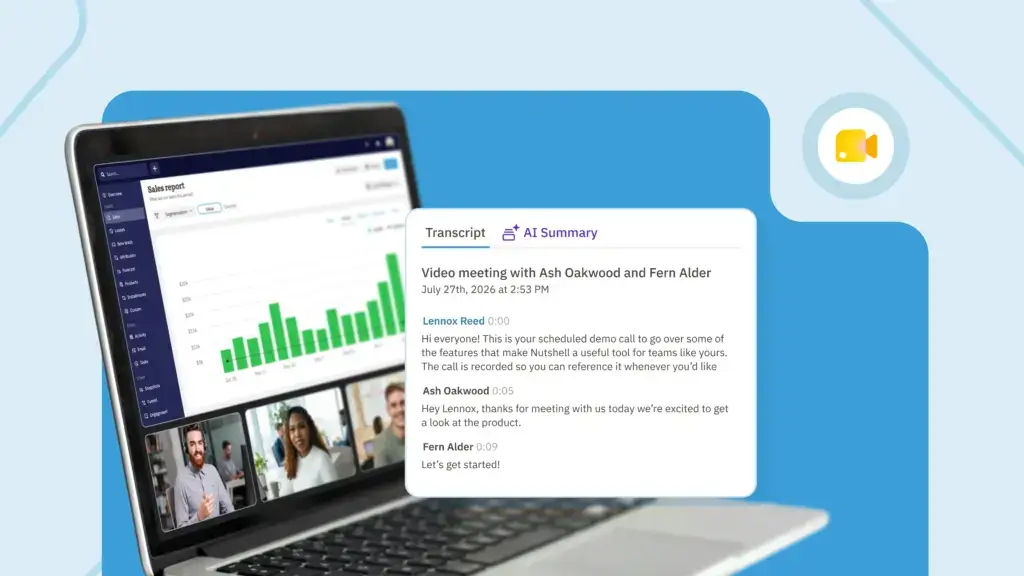
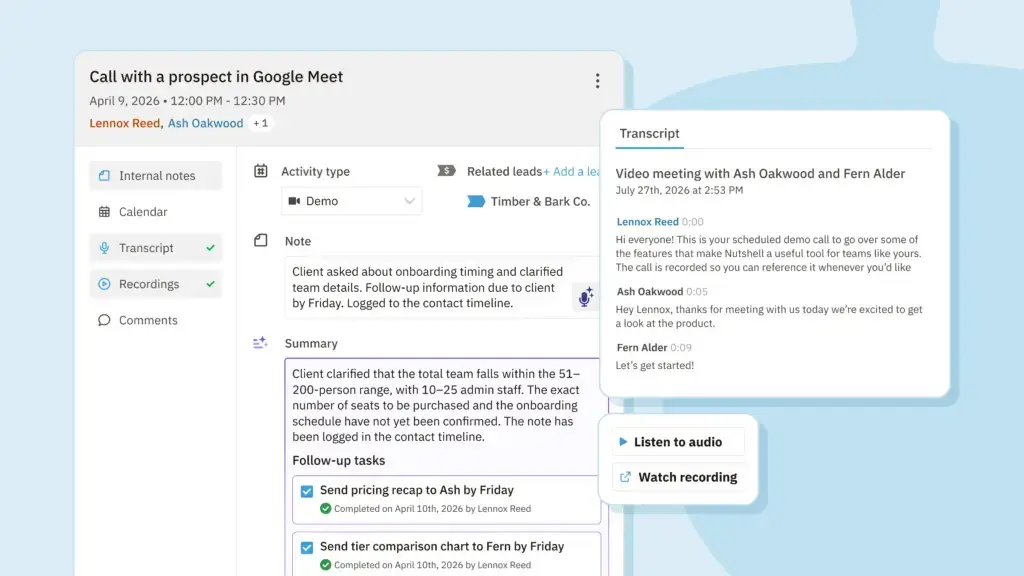
Nutshell’s Google Meet integration automatically logs each recorded call as an activity with a full transcript and an AI summary to the correct contact record. Any of your teammates with access to that record can catch up on the discussion points without rewatching the call.

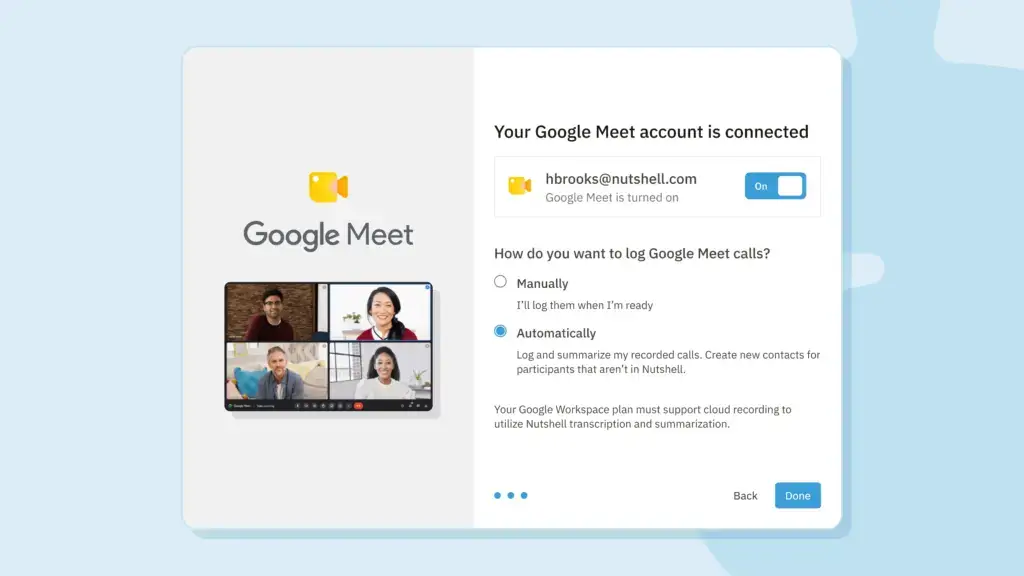
Once you’ve set up your Nutshell Google Meet connection, enabled cloud recording in Google, and confirmed the recording permissions, you actually get to choose whether you want automatic logging or manual logging. Manual logging can be helpful to teams that would rather review calls first. In automatic mode, Nutshell also automatically creates contacts for participants who aren’t in your account yet.

Gmail messages also sync to the matching person’s record, so a Google Meet call sits alongside the emails around it. And you can use Google Meet along with Nutshell Scheduler to generate bookings with Google Meet links attached.
See how Nutshell connects to Google Workspace for the full picture.
Not a Google Meet user? Zoom and Microsoft Teams calls can also be logged in Nutshell in the same way, so your history stays in one place regardless of your preferred meeting tool.
Log recorded Google Meet calls without the admin
A CRM integration turns a recorded Google Meet call into a comprehensive contact record that your whole team can use. The Google Meet integration page covers what syncs, and our setup guide walks through each step to get you started.
Start your free trial (no credit card required), or book a 15-minute walkthrough today.
See howNutshell is flexible enough for the way you sell.
Try Nutshell free for 14 days or let us show you around before you dive in.
Frequently asked questions
-
1. Can I choose which Google Meet calls get logged in Nutshell?
Yes. When you connect to Google Meet, you choose automatic or manual logging. With manual logging, completed meetings wait on the Meetings page until you log them as activities, and you can remove a meeting from the list if you choose.
-
2. What does Google’s “app blocked” message mean when I connect Nutshell?
It usually means your Google Workspace admin hasn’t approved the Nutshell integration yet. Ask your admin to “trust” Nutshell in the Google Admin console by opening “Security”, then “API controls.” Once that’s done, try connecting again.
-
3. How does Nutshell sync Gmail?
Emails sent from Gmail sync to the matching contact in Nutshell, and you can send email from Nutshell through Gmail too. You can sync all emails or only emails you label “Nutshell.” Synced email is private to you by default, but you can choose to share emails with your team when needed.
-
4. Does Nutshell sync Google Calendar both ways?
By default, calendar sync runs one way, from Nutshell to Google Calendar. Two-way sync is an opt-in setting that brings in Google events with outside participants. It covers future events on your primary calendar.
-
5. What else can I connect between Google Workspace and Nutshell?
Gmail and Google Calendar sync natively, and the Nutshell Chrome extension adds a Gmail sidebar on desktop Chrome. You can import your Google Contacts into Nutshell, and Google Sheets connects through Zapier.
BACK TO TOPWritten by
Will Gordon Sr. Director of MarketingEdited by
Sam Poole Associate Content MarketerReviewed by
Chris Cain VP of Product Development, NutshellReady to try
Nutshell for Free?Thank you! Your submission has been received!Oops! Something went wrong while submitting the form.
Highly Effective Strategies for Elevating Sales Team Performance
Published on: November 10, 2022Introducing Nutshell Forms Spam Prevention
Published on: April 22, 2024Join 30,000+ other sales and marketing professionals. Subscribe to our Sell to Win newsletter!
- Product
- Nutshell Overview
CRM & Sales
Our powerful and easy-to-use flagship product.Marketing
Email marketing, forms, landing pages, and more.Engagement
Webchat, SMS, WhatsApp & more in your Omni-Channel Inbox.Prospecting
Prospect for new leads and new contacts in your CRM.Proposals & Invoices
Create & send quotes, invoices and contracts in your CRM.
AI
See why Nutshell is the leading AI CRM.Integrations
Connect to Google/Microsoft and over 5,000 Apps. Reporting
Create reports and forecasts in an instant.Mobile App
Take your CRM with you wherever you go.CRM Advisor
Get a dedicated point of contact to get the most out of Nutshell.
- Pricing
Nutshell AI
- Marketplace
- Resources
- Contact Us
Contact Sales
Send us your questions or book a 1-on-1 demo.Join a Demo
Join a group demo for a general overview of Nutshell.
Contact Support
Contact our support team via live chat in app or via email.Become a Partner
Refer businesses to Nutshell & earn commissions.
Contact Marketing
Questions about our website or our marketing opportunities?Careers
Join our growing team! See current openings.