Skip to main content ↓

Does Pipedrive integrate with QuickBooks? What to compare before you choose a CRM

Written by
Will Gordon director of Marketing at Nutshell
Will Gordon Sr. Director of Marketing
Last updated on: November 18, 2026
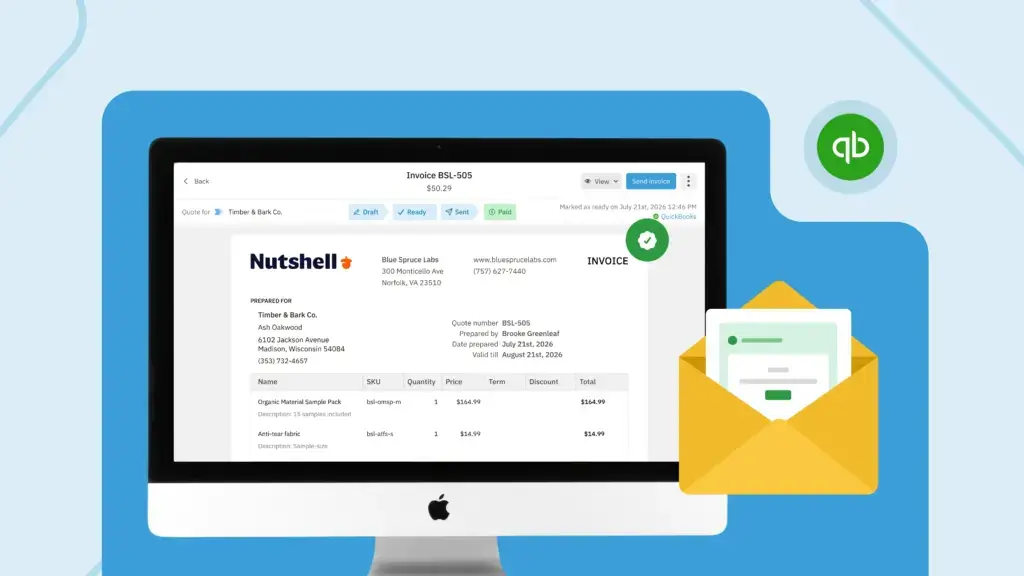
Laptop beside icons for a won deal, an invoice, and a paid check mark, showing a CRM connected to accounting software

Pipedrive offers a QuickBooks integration that connects to QuickBooks Online. With it, you can create an invoice from a deal, let Pipedrive send it to QuickBooks, and have it display the invoice status on the deal. 

Integrating any CRM with QuickBooks means the details of a closed deal reach your accounting records without anyone retyping them. This saves teams time and reduces errors. It also gives your sales team visibility into billing, such as whether an invoice has been paid, so they can follow up at the right moment.

Key takeaways

  • Pipedrive’s QuickBooks integration works with QuickBooks Online and allows you to create invoices from deals, showing the invoice status back on the deal.
  • Before you choose a CRM to integrate with QuickBooks, confirm which records move in which direction, how invoices are created, and whether the payment status returns.
  • Nutshell’s built-in QuickBooks Online integration is included on every plan and can automatically create the invoice for you when a lead is won, notify you when it’s paid, and mark a lead as Won upon payment.

Does Pipedrive integrate with QuickBooks?

Yes, through a QuickBooks app built by Pipedrive for QuickBooks Online. You can install it from your Pipedrive account menu and then choose your QuickBooks company to set it up.

From a deal’s Invoice tab, Pipedrive lets you link the contact to a QuickBooks customer, add products, and create an invoice. You can then open it in QuickBooks to edit, send, or take payment. The deal in Pipedrive will show whether the invoice is open, paid, voided, overdue, or partially paid. You can also view invoices tied to a linked contact from Pipedrive’s deal sidebar.

Pipedrive’s Marketplace also lists partner apps, including SyncQ for two-way syncing and Commercient SYNC for QuickBooks Desktop. But these partner apps come at an additional cost.

What should a CRM and QuickBooks integration do?

A QuickBooks CRM integration should move the right records between apps in the right direction so nobody on your team has to type the same deal information twice. 

Three crucial checks tell you how well the integration performs:

  1. Direction: Does data move one way or both? 
  2. Invoices: Does the CRM create the invoice from the deal, and who finishes it in QuickBooks?
  3. Payment status: Does your rep find out when the customer pays?
Close the deal and let the invoice follow!

Close the deal in Nutshell, and the invoice is already in QuickBooks. When it’s paid, your rep knows.

What questions should you ask before you choose a QuickBooks CRM?

Think about what your bookkeeper would need to know, as well as what your sales team needs to make the invoicing process more efficient. Examples of questions to ask your CRM vendor include:

  • Does it connect to QuickBooks Online, QuickBooks Desktop, or both, in your country?
  • Who in your company can authorize the connection in QuickBooks?
  • How does it match customers so you don’t end up with duplicates?
  • Which invoices will the CRM show: Only the ones it sent, or others too?

What is the best CRM to integrate with QuickBooks?

The best CRM for QuickBooks integration is the one that fixes the issue causing your billing to slow down. Ask which handoff costs you the most, then pick the connection built for that handoff.

If invoices go out late because nobody remembers to create them after a win, look for a CRM that drafts the invoice when the deal is won and tells the rep when it’s paid. If your bigger need is seeing a customer’s full invoice history before a renewal call, look for a connection that shows every invoice tied to a contact.

Either way, keep reps out of the accounting work. They should focus on closing the deal, and your bookkeeper should be able to complete the invoice process in QuickBooks.

What does Nutshell’s QuickBooks integration do?

Nutshell has a built-in QuickBooks Online integration, included on every plan. You can import your QuickBooks customers, and admins can send your Nutshell product catalog to QuickBooks so line items match on invoices. Customer imports can be run whenever you like, with matching records updating instead of duplicating.

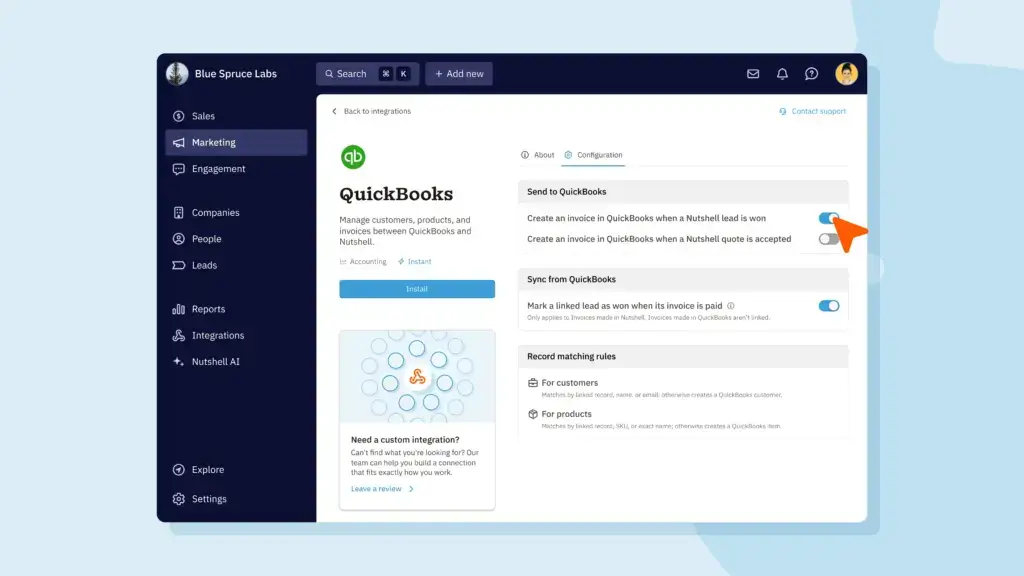
Nutshell QuickBooks Configuration tab with toggles to create an invoice when a lead is won and to mark a lead won when its invoice is paid

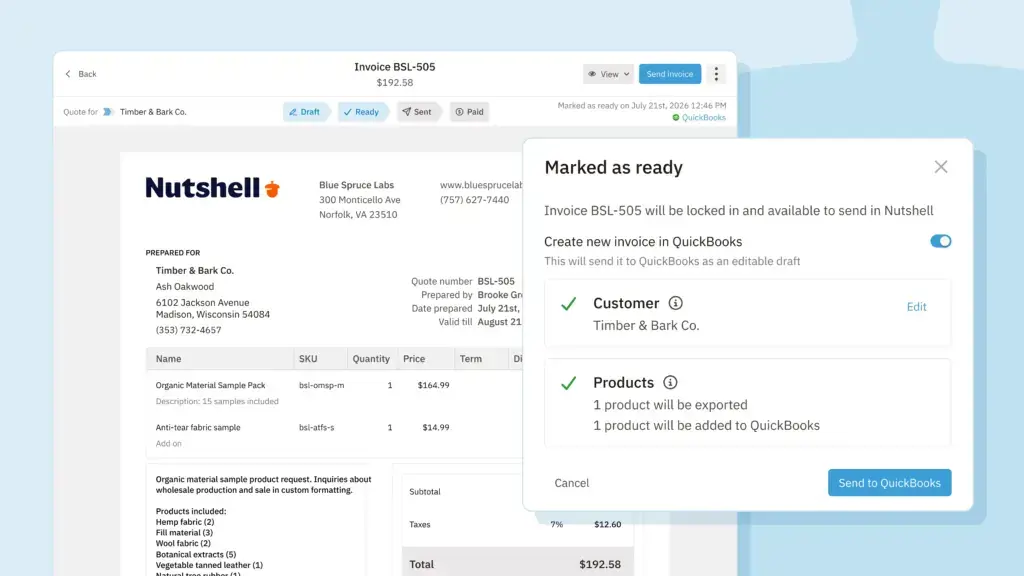
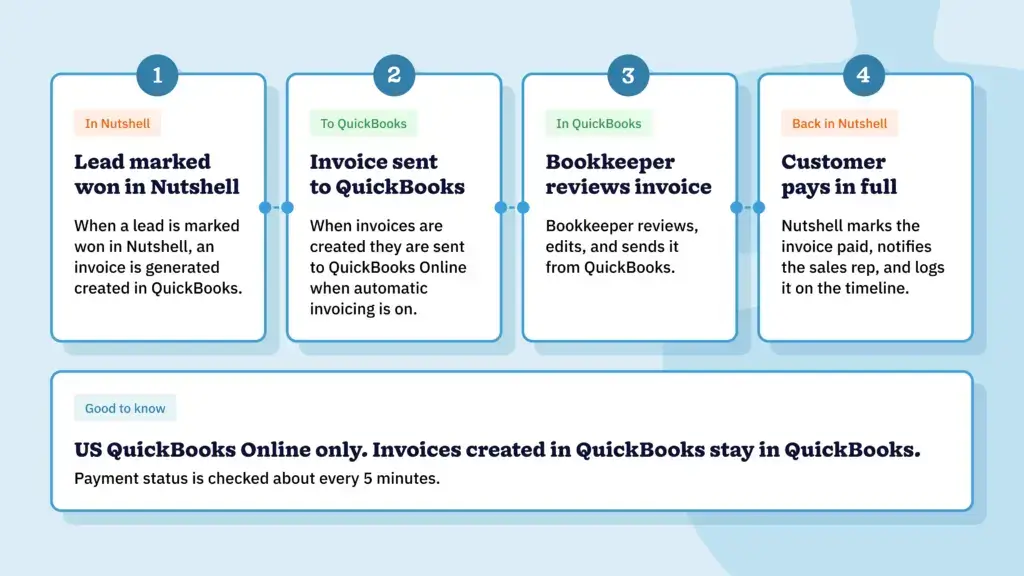
When you turn on automatic invoicing, Nutshell creates the invoice and sends it to QuickBooks when a lead is marked Won. Your bookkeeper then reviews, edits, and sends it to the customer from QuickBooks. When the customer pays in full, the rep gets an in-app notification and an email, and the payment is logged on the lead’s timeline. If you sent an invoice while the lead was still open, Nutshell can also mark the lead as Won once that invoice is paid.

Preparing a QuickBooks invoice in Nutshell, customer information and products marked as ready

Visit our QuickBooks integration page for the finer details on how Nutshell connects to QuickBooks.

How do Nutshell and Pipedrive compare when a deal closes?

Four-step timeline from a won deal in Nutshell to a paid invoice in QuickBooks Online

Both Nutshell and Pipedrive hand the invoice to QuickBooks Online to finish. But they differ in how the process starts and what comes back, as the table below shows.

NutshellPipedrive
Integration typeNativeSeparate application
Works withQuickBooks OnlineQuickBooks Online
How the invoice startsSent directly from the lead, or created automatically when a lead is wonCreated from the deal’s Invoice tab
StatusesDraft, ready, sent, paid, void, and overdue. Paid is set automatically when QuickBooks shows full payment.Open, paid, voided, overdue, partially paid

Pipedrive reports partial payments and shows a contact’s wider invoice history. Nutshell builds the handoff in, allowing the invoice to draft itself when the deal is won, without a separate automation tool, and notifies the rep when it’s paid in full.

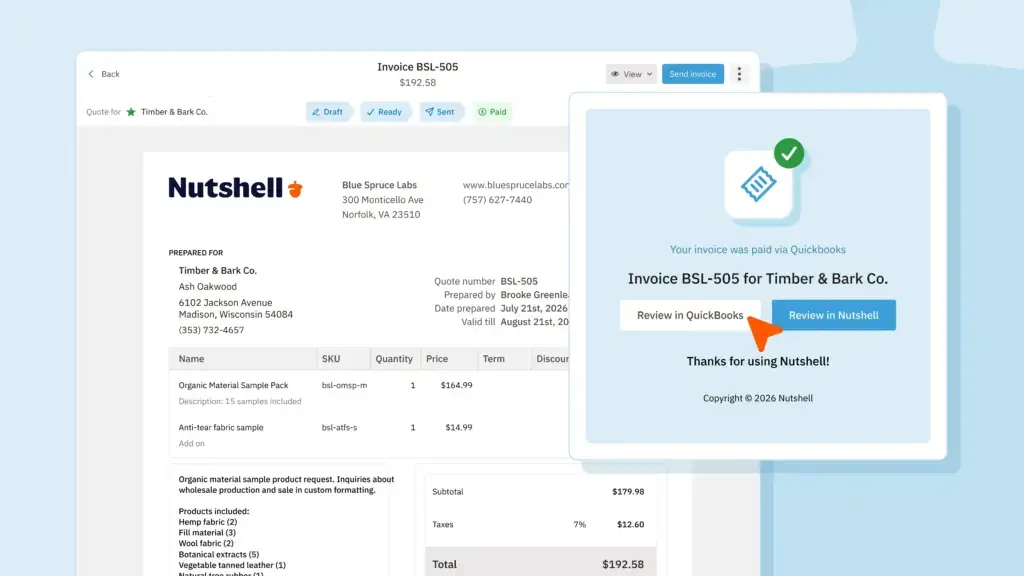
An invoice marked Paid with the “View in QuickBooks” link and the timeline entry.

For a more detailed look at how these two CRMs compare, check out our Nutshell and Pipedrive comparison.

When Nutshell is the better choice for QuickBooks users

Overall, Nutshell’s QuickBooks integration requires less admin from completed sale to invoice, and then payment, saving team members time.

With your QuickBooks account connected to Nutshell, your team benefits from:

  • Automatic invoicing: When a lead is marked Won, Nutshell can create the invoice and send it to QuickBooks.
  • Payment notifications: The lead’s assignee gets an in-app notification and an email when the invoice is paid in full.
  • Lead status updates: If you turn the setting on, Nutshell marks the lead Won when its linked invoice is paid.

Pick the connection that matches how you bill

Pipedrive integrates with QuickBooks Online, but so do many other CRMs, including Nutshell. The right choice comes down to how you bill. If you want the invoice to start itself and your rep to be told when it’s paid, Nutshell’s QuickBooks integration is built for that handoff.

Start your free trial (no credit card required) to give Nutshell a try, or book a 15-minute walk-through to see it in action.

See Nutshell in action!

Try Nutshell free for 14 days or let us show you around before you dive in.

🎉 No credit card required!

Frequently asked questions

  • 1. Does Pipedrive work with QuickBooks Desktop?

    Pipedrive’s own QuickBooks app works with QuickBooks Online only. Its Marketplace lists a partner app, Commercient SYNC, for QuickBooks Desktop, which comes at an additional cost.

  • 2. Does Nutshell work with QuickBooks Desktop?

    No. Nutshell connects to the US version of QuickBooks Online only, with one QuickBooks company per Nutshell account.

  • 3. Will Nutshell show invoices created in QuickBooks?

    No. Payment status comes back only for invoices that Nutshell sent to QuickBooks.

  • 4. How does Nutshell avoid duplicate customers when I import from QuickBooks?

    Nutshell matches companies by name, then email, and people by email, so a match is updated instead of duplicated. Clean up names in QuickBooks first, because records missing a company or person name may not import.

  • 5. Does Nutshell cost extra to connect to QuickBooks?

    No. The QuickBooks Online integration is included on every Nutshell plan.

  • 6. Does Pipedrive cost extra to connect to QuickBooks?

    It depends. If you need two-way sync capabilities included, you’ll need to install a third-party application from Pipedrive’s Marketplace, which involves an additional subscription cost. If one-way sync is sufficient for your needs, the ability to install Pipedrive’s QuickBooks app is available on all plans.

BACK TO TOP
Join 30,000+ other sales and marketing professionals. Subscribe to our Sell to Win newsletter!