Migrating your sales pipeline to a new CRM: A 6-step plan for keeping your deal history

-
Every closed deal comes with a detailed history that includes pipeline stage changes, meeting notes, follow-ups, and more. It includes data you’ll want to reference across the customer life cycle. So, making sure that deal history moves over unscathed when you migrate your data from one CRM to another is vital.
This Nutshell guide outlines an effective methodology for moving a sales pipeline between CRM systems. It runs through how to plan, test, and verify the migration process, ensuring the deal-related information that’s important to you remains clean and intact.
Key takeaways
- Determine which deal history elements must be moved over to the new system, then export contact records, activities, notes, and files separately.
- Keep reports accurate by mapping stages and fields from the old CRM to the new CRM, maintaining the correct dates and owners.
- Run a test migration with a small sample first, comparing systems side by side to ensure everything matches, then set an official cutover date with exit criteria after the full import.
What does a CRM migration plan look like?
A CRM migration plan is a strategy for moving your CRM data from one CRM system to another, with checks and decision points at critical intervals to ensure all essential data is moved and retained.
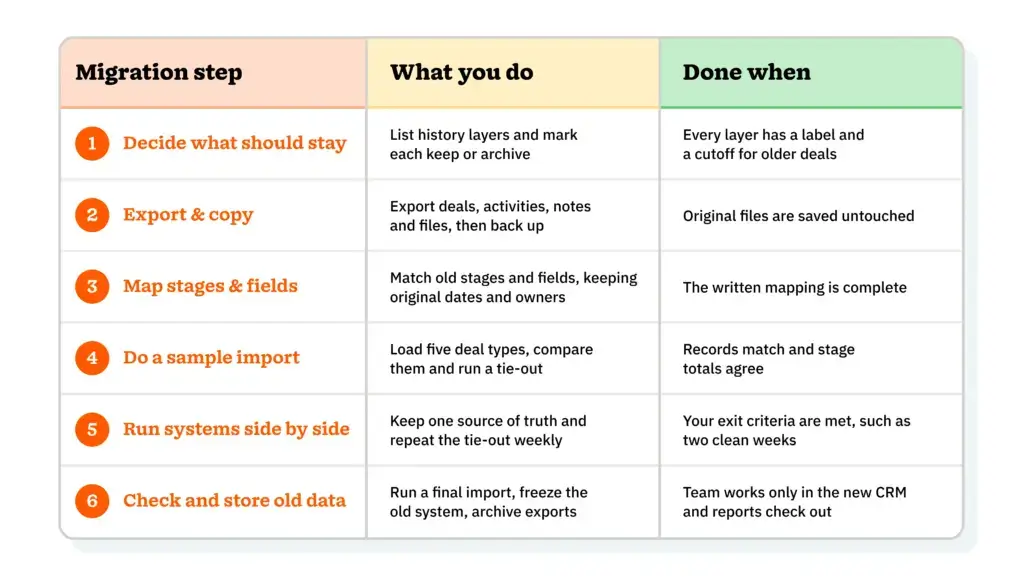
One of the most crucial data types sales teams want to preserve during the move is deal history. There are just six steps to successfully transfer deal history during migration, which should be completed in sequence.
Teams that take the time to clean their data before migrating it typically see the best results. In fact, Salesforce’s 2025 survey of 4,050 sales professionals found that 79% of the high performers who use AI as part of the sales process prioritize data hygiene to improve outcomes.
However, a 2024 Validity study revealed that 31% of CRM admins claim that poor data quality results in at least a 20% loss in annual revenue. The good news is that a CRM migration is the ideal opportunity to conduct a thorough data clean.

1. Decide what deal history data should stay
Deal history is the comprehensive record of how a lead moved through the sales pipeline, from first contact to close. This incorporates everything from changes in pipeline stage and ownership to meeting notes, call recordings, emails, documents, and more.
Not all of this data is useful to teams long-term, so it’s a good idea to establish what the team actually needs and uses. For example, a sales rep may want to save deal notes as a reference for future negotiations, while a sales manager may want to keep a record of deal stage timelines for cycle-length reporting and analysis.
Deciding how far back you want to go is also an important part of this step. Open deals and recent wins are a priority, but closed deals beyond a certain date could always be included in an archived export. Once you know your cutoff date, divide your data points into three buckets: must keep, nice to have, and archive.
2. Export the data and keep a safe copy
Data is typically exported from a CRM in either CSV or XLSX format, which can be opened in Microsoft Excel or Google Sheets. The recommended file format is CSV, because it’s plain text, which means it moves easily between systems.
Determine whether activities, notes, and files will move over with your deals when exporting. If not, it’s wise to run a separate export for each of these data points. You’ll also want to double-check export permissions, since some user roles may not have the ability to run an export.
As soon as an exported file is ready, download it and save a copy as a backup in a shared folder. Avoid making any changes to the file before you’ve saved your backup copy. Edits can be made in a working copy of the file, but make sure the original downloads remain untouched.
3. Map stages and fields to carry context over
Mapping is the process of matching CRM stages and fields in your previous system to those in the system you’re moving to. It’s best to start with stages and to have a reference point for what a stage is called in one system and its name in the other. You’ll need to make a few decisions at this point in the process, like where you’d like your closed-won and closed-lost deals to end up.
After that, match standard fields across systems and determine what should happen to your custom fields. Keeping a record of the date a deal was created, the date it closed, and its owner is essential to ensure any reports you run after migration reflect your actual sales cycle.
One key CRM migration tip is to write down all the mapping information before you start your data import. Other helpful tips include keeping consistent currency formats, displaying dates in ISO 8601 format (to avoid confusion), saving files as UTF-8 (preserving accented names), and keeping loss reasons and lead sources (for reporting).
4. Do a sample import before the complete move

Setting up a small sample of your data for import before you commit to a full data move is advisable. This way, you can check your mapping behavior and adjust accordingly before the official migration. Your sample data should include deals that are a true representation of your sales pipeline, like won, lost, and stalled deals, as well as one with lengthy notes and another that includes attachments.
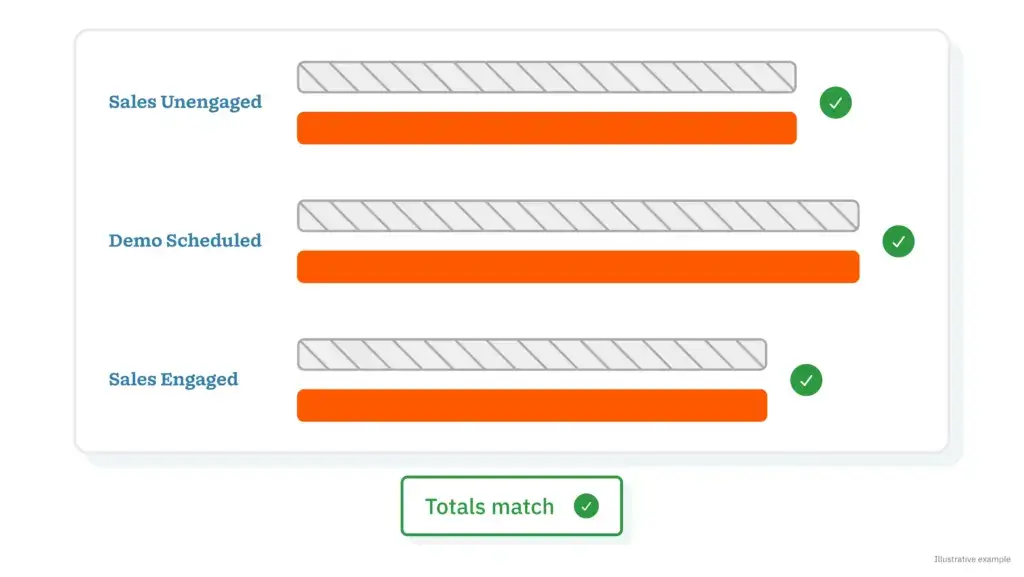
Then, run your sample import and compare each deal in your new system with the original. If the mapping is working correctly, you should see matching stages, owners, notes, dates, etc. It’s also wise to compare the number and total value of your deals across the platforms to ensure they’re the same. You’ll carry out the same checks after your full import, too.
If any mapping issues surface, take the time to adjust the mapping rules rather than trying to fix individual records manually. Then, try your import again. If the information and values for all deal types populate correctly, your team is ready for the full data import.
5. Run both systems side by side
After you’ve executed the complete CRM data migration, set a limited period of time to run both systems simultaneously. To avoid inconsistencies and hiccups, make your new system the single source of truth for all new deals and configure the old CRM to “read-only,” so it’s only available as a point of reference.
While the two CRMs run side by side, conduct a weekly check to ensure everything still matches. If the numbers across the systems don’t match, it’s likely that data has been entered in the wrong place or that it simply isn’t syncing properly. Your regular checks will help you pick up inconsistencies early.
Putting a solid plan in place for your team is just as important as the data import itself. In 2023, a Prosci study revealed that 88% of the participants who had sound change management met or exceeded their goals. At a minimum, ensure there’s a CRM migration owner as your team’s point of contact and a fixed cutover date for the old system with clear exit criteria to manage expectations.
6. Cut over and keep the old data in reserve
On your cutover date, your team will officially switch to working solely from the new CRM. Ideally, this should be planned for a day that’s typically quiet to reduce the impact of any potential downtime. Before you officially move over, carry out a final import to update anything that may have changed since you did the complete import, and run it through the usual checks.
Once you’re working from the new system only, examine your dashboards and generate your core reports to make sure the numbers appear as they should. Your old system now serves as a reference-only archive in case anyone on the team has questions regarding old deals.
What makes a new CRM easy to migrate to?
A CRM that’s easy to migrate to streamlines the mapping and checking process in steps 2 and 4 above. There are a few things you can look for in a new CRM to ensure it’s easy to migrate to. They include an import tool that facilitates field mapping, easy-to-configure sales pipelines so you can match your stages, documentation stipulating what an import brings over, and a support team that’s available to assist during the move.
Your pipeline’s history is your head start
Switching CRM systems doesn’t mean you have to start over. Your deal history is the asset that moves over with you. It’s important to take care to ensure the migration process runs smoothly and all the necessary deal data is successfully transferred.
Following the six migration steps in this guide will translate into an effective migration with cleaner data and a team that trusts the numbers.
FAQs
-
1. What is CRM migration?
CRM migration is the process of moving contacts, companies, deals, and their history from one CRM to another. It includes exporting data, matching it to the new system’s fields, importing it, and checking the result.
-
2. Can you keep deal history when switching CRMs?
In most cases, yes. Export deals, activities, notes, and files. Map stages and fields so original dates and owners carry over. Confirm the results with a sample import. Check that the new CRM’s importer supports the fields you want to keep.
-
3. Which file format is best for CRM data migration?
CSV is the format most CRM importers accept, and it opens in Excel and Google Sheets. Save files as UTF-8 to keep one record type per file, and use consistent date formats.
-
4. Should you migrate closed deals too?
Usually yes for recent closed deals, since they feed win-rate and cycle-length reports. Older closed deals can often live in an archive export if you rarely reference them. Let your team’s reporting needs guide the cutoff.
-
5. What should you look for in a CRM that’s easy to switch to?
Look for an import tool with field mapping, a pipeline you can configure to match your current stages, documentation of what each import type brings across, and support during the move.
BACK TO TOPWritten by
Will Gordon Sr. Director of MarketingEdited by
Sam Poole Associate Content MarketerReviewed by
Chris Cain VP of Product Development, NutshellReady to try
Nutshell for Free?Thank you! Your submission has been received!Oops! Something went wrong while submitting the form.

Why Increasing the Diversity of Your Sales Team Improves Your Bottom Line
Published on: November 10, 2022Establishing a System for CRM Data Entry and Management

Published on: April 11, 2023Highly Effective Strategies for Elevating Sales Team Performance
Published on: November 10, 2022Introducing Nutshell Forms Spam Prevention
Published on: April 22, 2024Join 30,000+ other sales and marketing professionals. Subscribe to our Sell to Win newsletter!
- Product
- Nutshell Overview
CRM & Sales
Our powerful and easy-to-use flagship product.Marketing
Email marketing, forms, landing pages, and more.Engagement
Webchat, SMS, WhatsApp & more in your Omni-Channel Inbox.Prospecting
Prospect for new leads and new contacts in your CRM.Proposals & Invoices
Create & send quotes, invoices and contracts in your CRM.
AI
See why Nutshell is the leading AI CRM.Integrations
Connect to Google/Microsoft and over 5,000 Apps. Reporting
Create reports and forecasts in an instant.Mobile App
Take your CRM with you wherever you go.CRM Advisor
Get a dedicated point of contact to get the most out of Nutshell.
- Pricing
Nutshell AI
- Marketplace
- Resources
- Contact Us
Contact Sales
Send us your questions or book a 1-on-1 demo.Join a Demo
Join a group demo for a general overview of Nutshell.
Contact Support
Contact our support team via live chat in app or via email.Become a Partner
Refer businesses to Nutshell & earn commissions.
Contact Marketing
Questions about our website or our marketing opportunities?Careers
Join our growing team! See current openings.