6 things to settle with your bookkeeper before connecting a CRM to QuickBooks

-
Integrating your CRM with accounting software like QuickBooks Online is most effective when your accounting team and sales team have agreed on what is shared and when. It only takes one meaningful conversation to ensure a seamless connection between these applications and avoid duplicating contacts.
With a market share of over 80% worldwide, QuickBooks is the accounting software that most small businesses connect to their CRM platforms. A QuickBooks CRM integration is a connection that allows the two applications to exchange data, including contacts, products, and invoices.
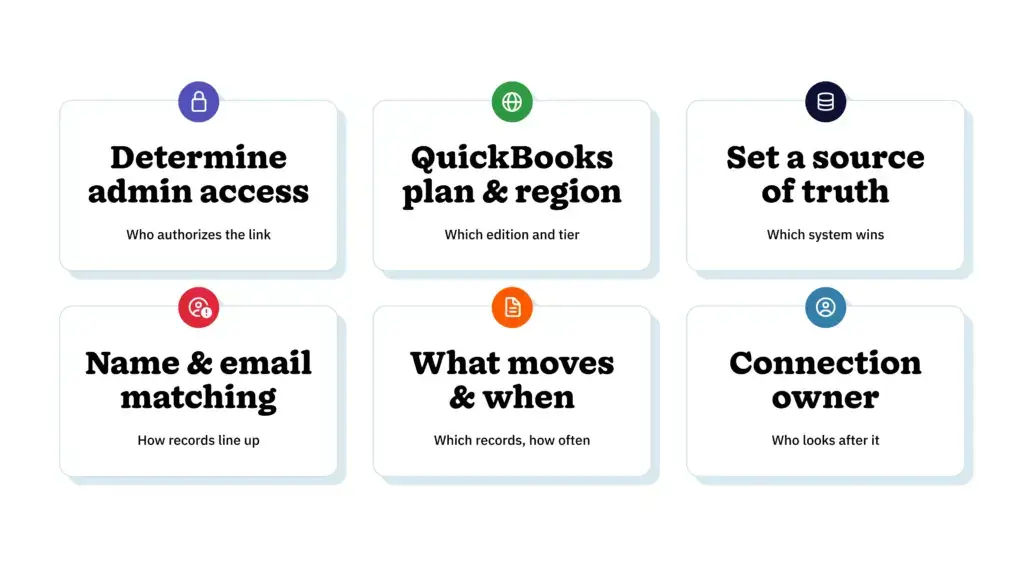
Nutshell reviewed Intuit’s integration documentation and established six decisions that small business owners and their bookkeepers should finalize before their CRM connection goes live.
Key takeaways
- Determine who will authorize the integration: Only a primary/company administrator will have the authority to initiate and manage QuickBooks Online connections.
- Standardize customer names: Customer display names must be identical to facilitate a merge. Once merged, it cannot be reversed.
- Agree on one source of truth: Establish and document what data should move, which direction it should move in, and who is responsible for the connection.
What does a clean QuickBooks CRM integration look like?
An effective QuickBooks CRM integration is authorized by the company’s primary admin, with each contact showing up only once and all related teams on the same page regarding what data moves and where.
When planning for this kind of integration, it’s important to remember that business owners think in terms of features, and bookkeepers are typically focused on records. But there are six key decisions teams can make together to ensure a common goal and that data sync is on point.
Which six decisions should owners and bookkeepers settle first?

1. Who holds admin access on each side?
To allow someone admin access is to give them permission to connect and manage the app integration. Intuit’s documentation specifically stipulates that only a company’s primary administrator can facilitate and manage connections. And if the company makes use of an accounting firm, the firm’s owner will have permission to connect QuickBooks to their client’s CRM.
Businesses need one person assigned to authorize the link and a CRM administrator who will manage the integration settings and user access from the CRM side. If an IT team is involved in the approval process, it’s best to provide them with a list of exactly what the CRM is expected to read and write.
2. Which QuickBooks Online plan and region apply?
Intuit offers five plan options for QuickBooks Online, including a Free tier. But its pricing page notes that a paid plan is needed for teams that want to connect the software to their CRM systems.
Business owners must confirm their current QuickBooks plan with their bookkeepers and double-check requirements on the CRM side to ensure a connection is possible. Bear in mind that an integration set to send invoices isn’t the same as one set to import contacts.
It’s also worth confirming potential region-based limitations. CRM vendors will stipulate if their integration supports specific QuickBooks editions. This crucial detail will usually be stated in the vendor’s documentation, which should be consulted first.
3. Which system is the source of truth for contact records?
The company’s source of truth is the system that teams deem the correct data version when the data across the two connected systems does not match. One option might be to split data prioritization, where the CRM is the primary platform for leads and related conversations, and QuickBooks is the home of billing information.
Whatever you and your bookkeeper decide, write down the version of data that wins in each instance. Also note who is authorized to create or edit contact records on each side, so new records start in one place and not both systems.
4. How will names and emails be matched?
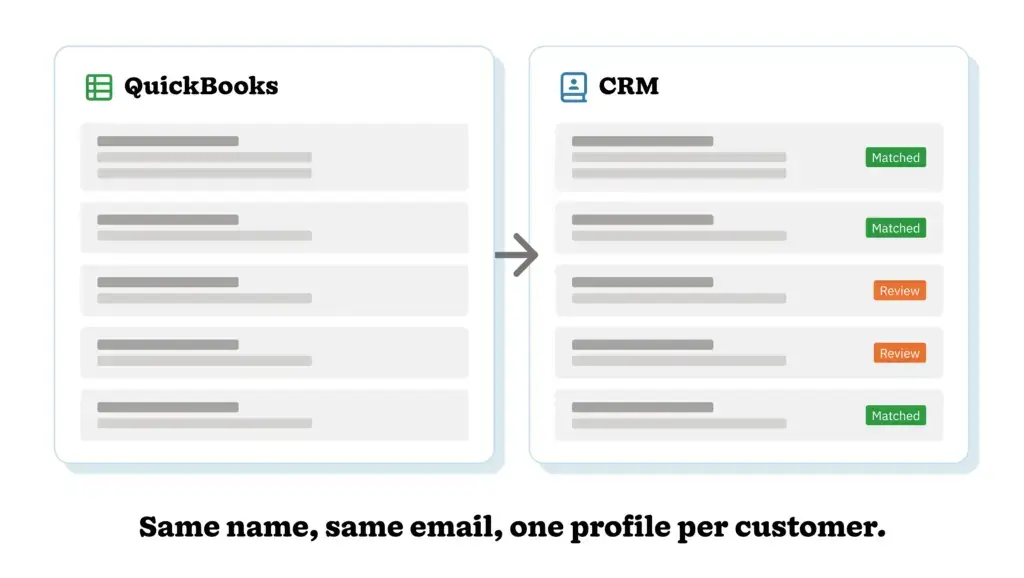
Systems rely on rules to tell them how to determine when two contact records relate to the same person, which is known as matching. The most common matching criteria are names and email addresses, but tiny differences can affect the outcome. For example, “Acme Inc” and “Acme, Inc.” may register as two different companies.
QuickBooks uses the contact’s display name for profile identification. In fact, Intuit’s merge instructions indicate that display names should be identical to successfully merge duplicate records.
To ensure a smooth integration, it’s best to clean up your data before connecting your software. Start by having your bookkeeper standardize display names in QuickBooks to eliminate known duplicates, and then check for matching email addresses in your CRM.
It’s important to note that merging duplicate records in QuickBooks is a permanent action and cannot be reversed.
5. What moves between systems, in which direction, and how often?
The next step is to determine the sync direction, which is the path your data will travel. The options are to have data move from your CRM to QuickBooks only, from QuickBooks to your CRM only, or in both directions, depending on your needs.
When choosing, consider how each data type (contacts, products, invoices, and payment status) behaves. For instance, some data will only move when initiated by the user.
Asking your vendor to document the different record types, indicating if they run manually or automatically, and how long it takes for updates to appear, will help. Sharing the document with your bookkeeper keeps them in the loop and helps you make a more informed decision about the sync direction.
6. Who owns the connection after launch?
A crucial step is to delegate connection ownership to someone, making them responsible for overseeing the integration’s maintenance and overall health. One integration owner and one backup are recommended.
If the designated owner is not the same person who authorized the initial connection, Intuit provides a detailed guide on how to transfer the app connection to a different user.
Once the role is assigned, schedule a quarterly check-in to ensure the connection is active, review duplicate records, and confirm the settings still align with your processes.
How should you test the first sync?

It’s a good idea to run an initial test sync to make sure the integration works as intended. A typical first sync involves at least one person on each relevant team and five to ten contacts representing common scenarios. For instance, you could include a company with multiple contacts, a contact name that includes punctuation, and a duplicate record.
Connect QuickBooks to your CRM and allow the data to move between the systems. Then, have your bookkeeper and sales lead open each system side-by-side. The goal is to have one profile per customer in each system with matching names and email addresses.
If you spot any anomalies, avoid making changes to the record and update the matching rule instead. Once your sales lead and bookkeeper have confirmed all is in order, you can increase the contact record batch size and repeat the process.
What does a QuickBooks CRM connection look like in practice?
We’ll use the example of a long-standing B2B company. Its finance manager handles invoicing from QuickBooks, where he works. When an invoice goes out, QuickBooks sends data to the CRM, recording the sent invoice and payment status against the related customer record.
This allows other teams to view a customer’s billing status without the need to ask the finance department or open QuickBooks. Finance has a dedicated home for invoicing, and other teams have access to a reliable status update. And it works because the teams came to an agreement on who owns what.
A single conversation sets up an integration you can trust
A successful integration is the result of proper planning. Small business owners and bookkeepers must establish authorization permissions, QuickBooks tier, regional specifics, the source of truth, matching rules, sync direction, and ownership for an effective integration. With the answers to these six questions in hand, teams are more likely to experience a smooth first sync.
FAQs
-
1. What is a QuickBooks CRM integration?
A QuickBooks Online CRM integration is a connection between a CRM and QuickBooks Online that exchanges records such as contacts, products, and invoices. What it exchanges, and whether it runs automatically or on request, depends on the CRM vendor’s documentation.
-
2. Who can connect a CRM to QuickBooks Online?
Intuit states that only the primary admin and company admin can connect and manage applications in QuickBooks Online. Owners of accounting firms can also connect apps for their clients.
-
3. Which QuickBooks plans support CRM integration?
Intuit’s pricing page lists Free, Simple Start, Essentials, Plus, and Advanced plans, and notes that third-party integrations are not currently available on the Free plan. Check your CRM vendor’s documentation to confirm which plan covers the features you want to use.
-
4. How can you prevent duplicate customers when connecting a CRM?
Prevent duplicate records by standardizing display names in QuickBooks, deciding which system creates new contacts, and agreeing on how names and emails are matched. Intuit notes that merging duplicates requires identical display names and cannot be undone, so cleaning up your data first saves a great deal of effort and time.
-
5. How do you choose a CRM that works with QuickBooks?
Read each vendor’s documentation for the supported QuickBooks edition, what moves in each direction, whether it runs manually or automatically, and which permissions it needs. Then, compare the answers with your bookkeeper’s workflow.
BACK TO TOPWritten by
Will Gordon Sr. Director of MarketingEdited by
Sam Poole Associate Content MarketerReviewed by
Chris Cain VP of Product Development, NutshellReady to try
Nutshell for Free?Thank you! Your submission has been received!Oops! Something went wrong while submitting the form.

Stop wasting ad spend: How CallRail and Nutshell help small businesses optimize their marketing
Published on: October 8, 2026Highly Effective Strategies for Elevating Sales Team Performance

Published on: November 10, 2022Establishing a System for CRM Data Entry and Management
Published on: April 11, 2023Introducing Nutshell Forms Spam Prevention
Published on: April 22, 2024Join 30,000+ other sales and marketing professionals. Subscribe to our Sell to Win newsletter!
- Product
- Nutshell Overview
CRM & Sales
Our powerful and easy-to-use flagship product.Marketing
Email marketing, forms, landing pages, and more.Engagement
Webchat, SMS, WhatsApp & more in your Omni-Channel Inbox.Prospecting
Prospect for new leads and new contacts in your CRM.Proposals & Invoices
Create & send quotes, invoices and contracts in your CRM.
AI
See why Nutshell is the leading AI CRM.Integrations
Connect to Google/Microsoft and over 5,000 Apps. Reporting
Create reports and forecasts in an instant.Mobile App
Take your CRM with you wherever you go.CRM Advisor
Get a dedicated point of contact to get the most out of Nutshell.
- Pricing
Nutshell AI
- Marketplace
- Resources
- Contact Us
Contact Sales
Send us your questions or book a 1-on-1 demo.Join a Demo
Join a group demo for a general overview of Nutshell.
Contact Support
Contact our support team via live chat in app or via email.Become a Partner
Refer businesses to Nutshell & earn commissions.
Contact Marketing
Questions about our website or our marketing opportunities?Careers
Join our growing team! See current openings.