Skip to main content ↓

Can Outlook Be Used as a CRM? How to Track Customers in Outlook


Written by
Will Gordon director of Marketing at Nutshell
Will Gordon Sr. Director of Marketing
Last updated on: November 17, 2026
Sales professional's laptop beside email, calendar, and contact icons representing Microsoft Outlook, calendar, and contacts synced to a CRM

The short answer is yes, it’s possible to use Outlook as a very basic customer relationship management (CRM) tool. Outlook capabilities like categories, flagged emails, tasks, shared mailboxes, and contacts allow you to track customer conversations without having to invest in additional software. But this solution is only suitable when you’re managing a small number of relationships. 

Businesses juggling a longer list of leads and contacts need a deal pipeline, shared team history, and reports. That’s where a CRM system comes in, but you can still connect it to Outlook to keep things moving from there. 

Key takeaways

  • Outlook handles email, calendar, and contacts well, and by leveraging a few of its built-in tools, you can stretch it into a simple tracking system.
  • Personal tags and flags stop working when more people, deals, or follow-ups are involved.
  • A CRM with an Outlook add-in offers a deal pipeline and shared customer history while you continue to work in your Outlook inbox.
Keep working in Outlook and see customer history beside your email!  

Connect your Office 365 account and install the free Nutshell for Outlook add-in!


How do you use Outlook like a CRM?

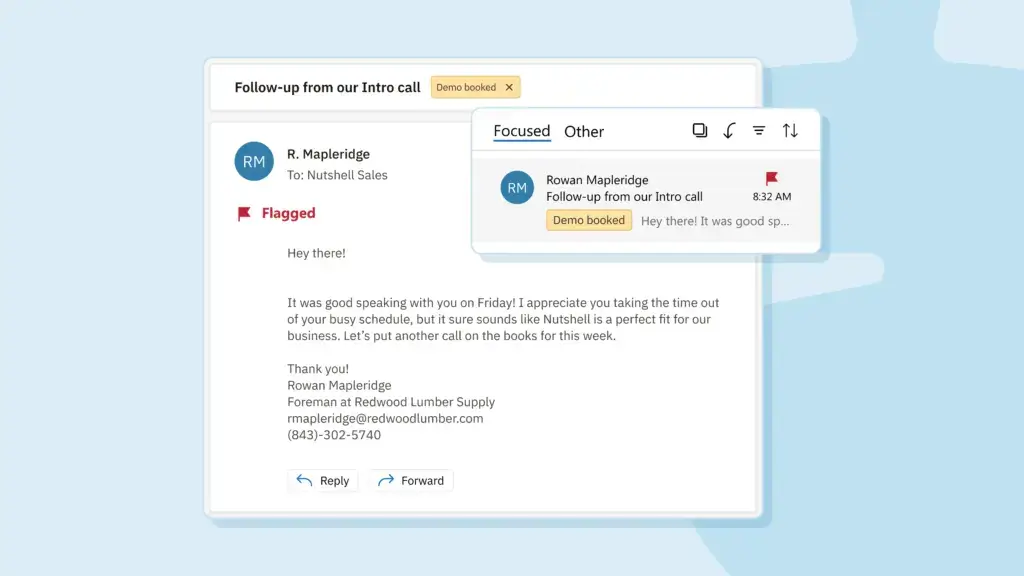
Begin by using the tools Outlook already includes. Color categories let you label your emails, appointments, and contacts with tags such as “Prospect” or “Proposal sent.” However, color categories aren’t available on email accounts configured with the Internet Message Access Protocol (IMAP). IMAP accounts let you access your emails from any device while messages remain synced on the server instead of being downloaded to a specific device.

If you flag an email in Outlook for follow-up, it’ll show up as a task in Microsoft To Do, as long as Microsoft hosts your account. A shared mailbox allows multiple team members to read and send emails from one address, such as info@, once your Microsoft 365 admin sets it up.

You can also add calendar reminders for each follow-up, giving you a workable system for a handful of customers.

A screenshot of the Outlook inbox UI showing a flagged email with a category attached.

What can’t Outlook do for sales tracking?

Outlook is built for communication, not for tracking deals. A category can tell you if someone is a prospect, but it can’t show what a deal is worth, which stage it’s in, or whether it’s likely to close this month.

Categories, flags, and tasks sit in your own mailbox, so a teammate picking up a customer starts without some of the context you’ve added on your side. And when it comes to reporting on pipeline or win rates, these fall outside of what Outlook is designed to do.

Is there a CRM plug-in available for Outlook?

Yes. Several CRMs, including Nutshell, offer an Outlook add-in that gives you access to customer records and allows you to log activities from your inbox.

Add-ins differ in what they show, so check what you’re able to do from the sidebar and whether your email and calendar can sync too. Essentially, a CRM plugin for Outlook should allow you to do most of your day-to-day CRM work from your Outlook inbox. For a side-by-side comparison, take a look at our guide to the best Outlook CRM options.

When does it make sense to add a CRM to Outlook?

Add a CRM when more than one person is engaging with customers, or when you can’t recall what’s in your pipeline without opening a spreadsheet. Other signs include follow-ups that slip because a flagged email was buried, and teammates asking for context that’s in your head and not available anywhere else.

The earlier you make the move, the easier it will be, because you’ll start logging activities with fewer records to clean up.

A lot of small teams believe they can co-manage their sales and leads from a few Outlook inboxes, but a simple CRM subscription provides a great foundation to ensure nothing falls through the cracks.

What does an Outlook-connected CRM look like in Nutshell?

In Nutshell, you’ll connect your Office 365 email and calendar and then install the Nutshell CRM for Outlook add-in, so customer records show up right next to the messages you’re already reading.

In Outlook, you can open any email, and the Nutshell sidebar will show you:

  • The contact’s details
  • Open leads
  • Tasks
  • Scheduled activities
  • The contact record timeline
  • And more.

Using the add-in, you can also: 

  • Create a lead from an email
  • Log a call or meeting
  • Add a note
  • Create a task
  • Save an attachment to a company, a person, or a lead

Email sync brings your sent and received messages into Nutshell, and you have control over which ones your team can and can’t see. But it’s important to note that your first email sync covers up to 90 days of your email and does not bring in your entire archive.

Activities you schedule in Nutshell appear in your Office 365 calendar, and Outlook events also appear in Nutshell from the day you turn on the ability to sync. By default, only events with a guest outside your Nutshell account come in, and a full calendar sync brings in the rest. If your contacts already live in Outlook, an admin can import them from Office 365 for you.

Integrate Outlook with a CRM when tracking gets heavy

Outlook can carry a small customer list on its own, and it can be a sensible place to start for solopreneurs. But when follow-ups slip through the cracks, or teammates need shared context, a CRM connected to Outlook takes organization and efficiency beyond categories and flags.

To see how Nutshell aligns with your setup, sign up for a free trial today (no credit card required).

Headshot

Let’s talk

Have a question? Need a volume discount? Send us a message or book a meeting with a Sales rep to start the conversation.

Frequently asked questions

  • 1. Does the Nutshell for Outlook add-in work with any Outlook account?

    It works with Office 365 accounts in Outlook on the web and the desktop app, on PC or Mac. If you use on-premises Outlook, you can still send email from Nutshell with your company domain by entering your SMTP settings.

  • 2. Can I use Nutshell email templates from Outlook?

    Yes, on the Business plan and above. When you write an email, open the Outlook add-in’s Templates tab, search or browse by group, and insert one. Foundation, Growth, and Pro customers can still see Nutshell data in Outlook.

  • 3. How much email comes over when I connect Outlook?

    The first sync brings in up to 90 days of email, not your full history. After that, everything you send or receive in Office 365 syncs going forward.

  • 4. Will my Outlook calendar events show up in Nutshell?

    By default, Outlook events sync to Nutshell when at least one guest doesn’t use Nutshell, and full calendar sync brings in every event. Sync starts when you turn it on, so past events stay put. Nutshell doesn’t send invitations for activities you create there, so schedule them in Outlook when you need to send one.

  • 5. What should I do if my Office 365 email sync stops working?

    The most common cause is a changed Office 365 password. Go to your email sending settings, disable access, forget the account, and reconnect it with the setup wizard. You’ll find the full steps in its guide to troubleshooting email and calendar sync issues.

  • 6. Is Nutshell a good CRM for Outlook users?

    Yes, if you work in Outlook or Office 365. You can connect your Office 365 email and calendar, and the free Nutshell for Outlook add-in shows contact details, leads, and tasks beside each email. That way, you can log calls and save attachments without switching windows. You choose which synced emails your team sees, and the add-in and sync come with every plan.

BACK TO TOP
Join 30,000+ other sales and marketing professionals. Subscribe to our Sell to Win newsletter!