Skip to main content ↓

Does Pipedrive integrate with Outlook? What to check before you connect


Written by
Will Gordon director of Marketing at Nutshell
Will Gordon Sr. Director of Marketing
Last updated on: November 18, 2026
A laptop beside icons for email, calendar, and contacts, each marked as connected

The short answer is yes, Pipedrive integrates with Outlook. According to the Pipedrive website, it syncs email with Microsoft Exchange, Office 365, and Outlook.com accounts, syncs calendars through Exchange, and syncs contacts with Outlook.com and Microsoft Office 365. It also lists Outlook add-ins in its Marketplace. But it should be noted that email sync is only available from the Growth plan upward, so checking your plan and mailbox type first is essential.

Key takeaways

  • Teams on Pipedrive’s Growth plan and above can connect their CRM and Outlook through built-in email, calendar, and contact sync, as well as Outlook add-ins created by outside developers, which are available in its Marketplace.
  • Before you connect any CRM to Outlook, you should check exactly what is included on your chosen plan, your mailbox type, who approves third-party app integrations, and how shared mailboxes and calendars are handled.
  • Nutshell integrates with Outlook through email sync, calendar sync, and a free inbox add-in for users who prefer to work in Outlook, all included on every plan.

Does Pipedrive integrate with Outlook?

Yes, Pipedrive integrates with Outlook in two ways. Its Help Center lists Microsoft Exchange and Outlook.com among the providers that its email sync functionality supports. Its calendar sync can run one-way or two-way, and its contact sync works with Outlook.com and Microsoft Office 365.

Pipedrive’s Marketplace also lists Outlook add-ins that allow users to display their Pipedrive records beside an open email. These are all built by outside developers, each with its own pricing and support.

How do I sync my emails with Pipedrive?

Pipedrive’s email sync allows users to connect Pipedrive and their mailboxes to sync their emails between the two. 

Office 365 accounts use the Microsoft Office 365 email sync option, and Exchange accounts make the connection through an email address and password. Pipedrive searches for the server settings automatically. And if two-factor authentication is enabled, you’ll need an app password from Microsoft to set up the link.

Bear in mind that you’ll only have access to email sync if you’re on the Growth plan or above.

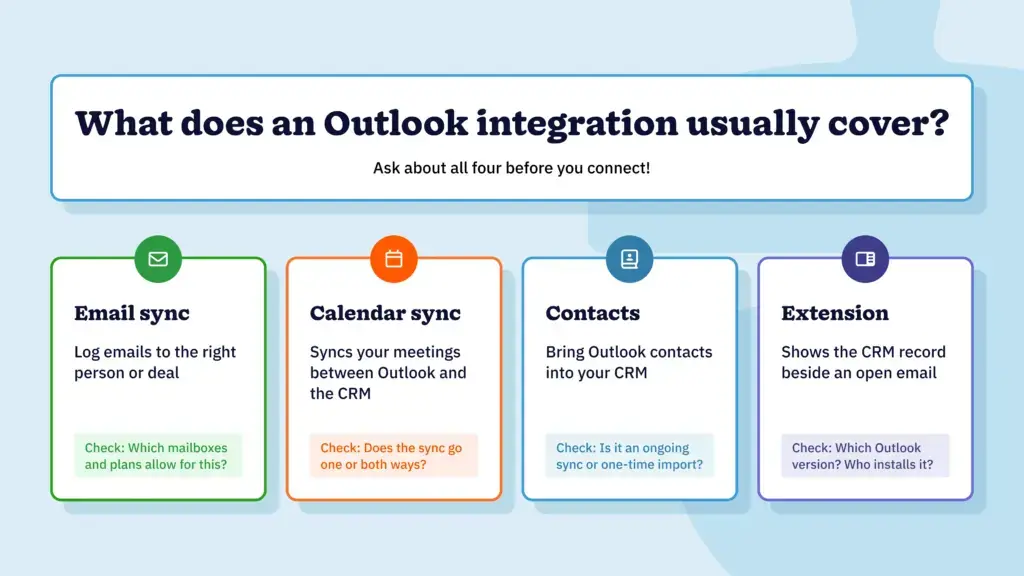
What does an Outlook integration usually cover?

Four cards showing what an Outlook integration usually covers: email sync, calendar sync, contacts, and an extension, each with one thing to check.

Outlook integrations typically combine the following three elements: 

  1. Email sync logs messages to the right person or deal
  2. Calendar sync moves meetings between Outlook and the CRM in one direction or both
  3. An add-in puts the CRM record in a sidebar beside the email

Some Outlook CRM integrations also allow you to sync contacts. 

It’s important to note that each of these capabilities sometimes sits on different plans or setup paths, so it’s best to ask the vendor about all of them.

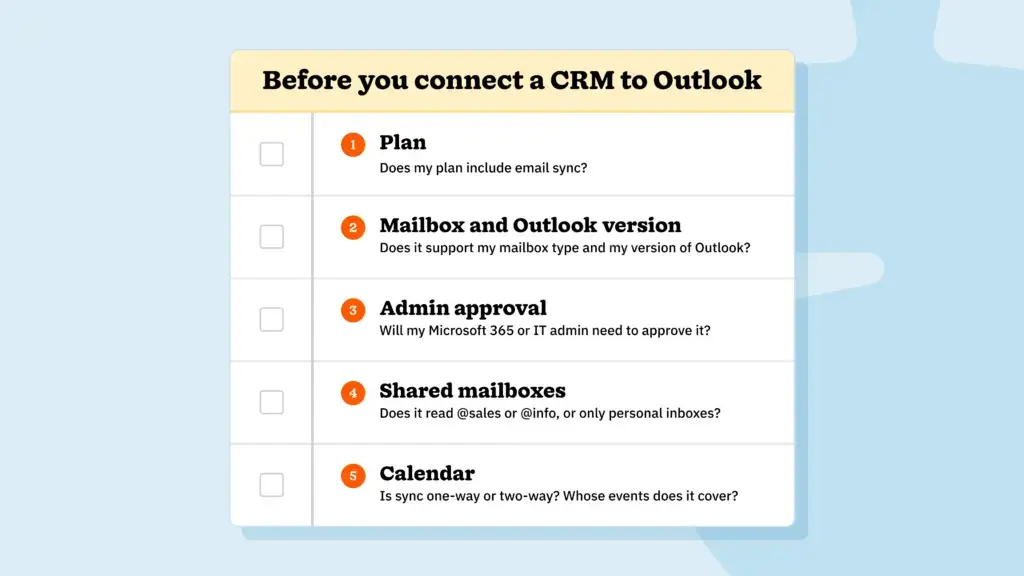
What should you check before you connect a CRM to Outlook?

The first thing to check would be permissions. Some organizations operating on the Microsoft 365 platform require an admin to approve outside apps. And Pipedrive’s Exchange guide suggests asking your Exchange or IT administrator for server details if an automatic setup fails. One Marketplace add-in also notes that organization policies may require administrator deployment.

Checklist of five things to confirm before connecting a CRM to Outlook: plan, mailbox and Outlook version, admin approval, shared mailboxes, and calendar sync.

Next, find out about mailboxes and calendars. Ask the vendor whether the integration reads shared mailboxes such as “[email protected]” or only personal ones. You should also ask whether calendar sync is one-way or two-way and whose events it covers. For example, Pipedrive’s calendar sync only syncs the activities that each person owns.

Last but not least, it’s wise to confirm your Outlook version and your plan. For instance, some add-ins require a recent version of Outlook to function, and certain integration capabilities may only be available on specific CRM plans.

What other CRMs work with Outlook?

Most CRMs offer some mix of email sync, calendar sync, and an add-in, so the differences between them come down to setup, plan, and cost. Our guide to the best CRMs for Outlook compares several side by side to help you find the best fit for your business.

See Nutshell’s Outlook add-in in action!  

Put your Outlook email, calendar, and CRM records in one place.


What does it take to get Outlook working in Pipedrive and in Nutshell?

Like Pipedrive, Nutshell also integrates with Outlook. The difference lies in how many integration elements you need to set up and which plan each one requires to connect. The following table provides a comparative breakdown of how Pipedrive and Nutshell connect to Outlook.

PipedriveNutshell
Email syncGrowth plan and aboveEvery plan
Calendar syncBuilt-in (no specific plan stated)Every plan
Outlook sidebarMarketplace add-ins from outside developers, with pricing set by eachNutshell’s own add-in, free from Microsoft AppSource, on every plan
ContactsSync with Outlook.com and Microsoft Office 365, one-way or two-wayOne-time Office 365 import, run by an admin
Add-in extrasSet by each add-in’s developerMeeting times need Scheduler (Pro and above); email templates need Business or Enterprise

A Pipedrive setup can include a specific plan, a sync connection, and an add-in that you have to source separately, each with its own terms. Nutshell bundles sync and the sidebar, though its contact import is a one-time step. If you want Outlook contacts to be automatically kept up to date, Pipedrive’s contact sync is the stronger fit.

How does Nutshell connect to Outlook?

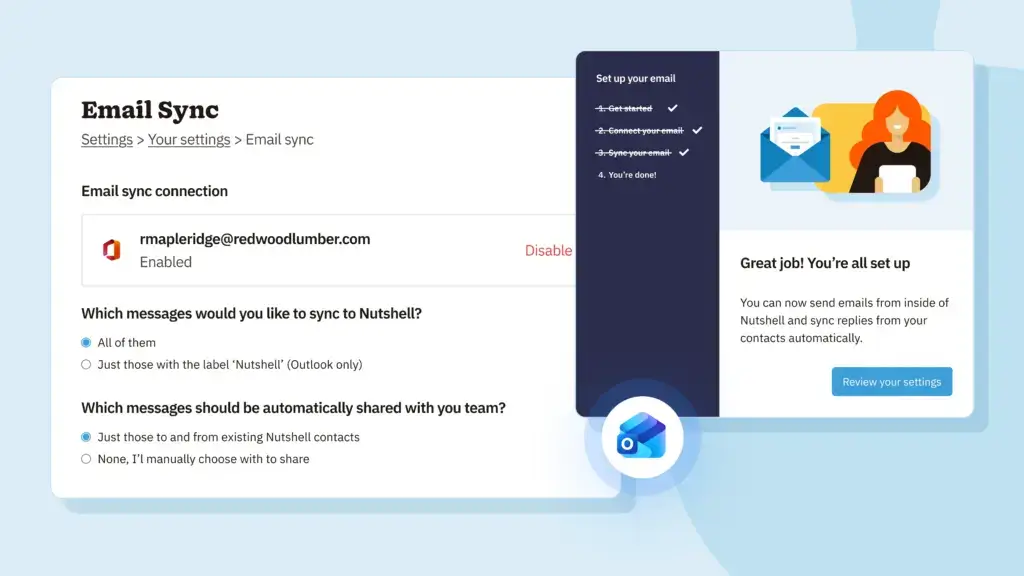
Nutshell connects through email sync, calendar sync, and an Outlook add-in, and all three are included on every plan. Each person connects their own Office 365 account to Nutshell. Synced email lands in a private inbox, and you get to choose what to share with your teammates.

Nutshell email sync setup screen asking which Outlook emails to sync and which to make visible to the team.

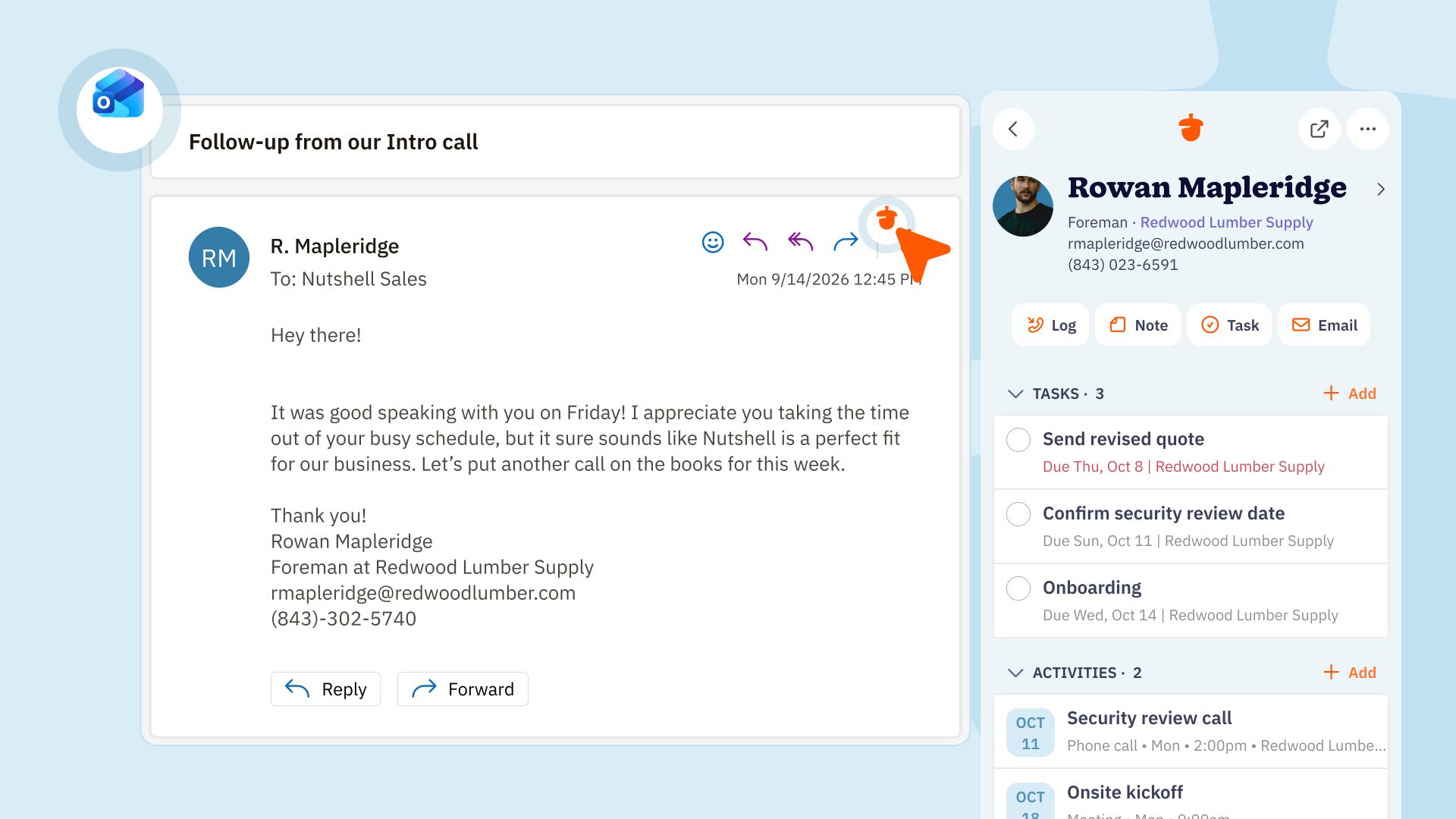
The Nutshell add-in for Outlook is available for free from Microsoft AppSource and runs in the desktop and web versions of Outlook. When installed, it opens a sidebar right next to any email with related tasks, leads, and timeline, so you can log a call, add a note, or save an attachment without leaving your inbox. 

Nutshell Scheduler users can also propose and book meetings through the add-in. Scheduler is available on Nutshell’s Sales Pro plan and above. Teams on Nutshell’s Sales Business or Enterprise plans also have access to email templates.

Nutshell’s Sales inbox can bring a shared Microsoft 365 mailbox such as “[email protected]” into a team inbox once your Microsoft 365 admin allows auto-forwarding. Contacts arrive through a one-time Office 365 import that an admin runs. Recorded Microsoft Teams meetings can also be logged with a transcript and AI summary.

Weighing Nutshell and Pipedrive side by side? See how Nutshell and Pipedrive compare.

Who on your team can see your synced Outlook email?

With Nutshell, nobody but you can see your synced Outlook email at first. Synced email lands in your private Nutshell inbox, and then you decide whether to automatically share those messages with your teammates or share them one at a time. But remember, only shared emails count toward reports and leaderboards, and emails between co-workers are never shared automatically.

If you manage a team or handle sensitive mail, Nutshell’s email sharing settings support article describes two setups that work well. You have the option to sync all of your email, share none by default, and click “Share” on the messages you want teammates to see. Or you can skip sync and forward only the messages you choose to send to “[email protected].” 

Either way, add sensitive addresses, such as HR or payroll contacts, to your personal blocklist in Nutshell. Nutshell will skip email from those addresses, even if it’s synced or forwarded by accident. Your Outlook inbox isn’t affected.

Ask the same question of any CRM before you connect. For example, Pipedrive’s email sync can sync all emails or only certain labels, so confirm what your team can see once mail is flowing.

Pick the Outlook connection that fits your team’s setup

Pipedrive works with Outlook, and the right setup depends on your plan, your mailbox type, and your IT rules. It’s best to ask about email, calendar, contacts, and add-ins before you commit. 

Nutshell’s Outlook email integration and Office 365 integration pages explain the Nutshell side, and the Help Center covers installing the Outlook add-in.

Nutshell’s Outlook add-in and Office 365 email sync are included on every plan at no extra charge. 

Start your free 14-day trial (no credit card required), or book a 15-minute walk-through.

See Nutshell in action!

Try Nutshell free for 14 days or let us show you around before you dive in.

Frequently asked questions

  • 1. Does Pipedrive sync Outlook contacts?

    Yes. Pipedrive’s contact sync works with Outlook.com and Microsoft Office 365, and you can set it up as one-way or two-way.

  • 2. Can Pipedrive’s email sync use a POP3 account?

    No. Pipedrive’s email sync supports IMAP or Exchange credentials only, so a POP3 server can’t connect.

  • 3. Which Pipedrive plan includes email sync?

    Pipedrive’s pricing page lists full email sync with tracking starting on the Growth plan. Check that page for current plan details before you buy.

  • 4. Who can see my emails after I sync Outlook with Nutshell?

    Synced email lands in your private Nutshell inbox. You choose whether to share emails with teammates automatically or one at a time, and you can block sensitive addresses from ever appearing.

  • 5. Does the Nutshell add-in work in the Outlook mobile app?

    The add-in works in desktop and web versions of Outlook, not in the Outlook mobile app. Nutshell also has its own mobile apps for iOS and Android.

BACK TO TOP
Join 30,000+ other sales and marketing professionals. Subscribe to our Sell to Win newsletter!