Can you use Gmail as a CRM? What works, and when to switch

-
Yes, you can use Gmail as a customer relationship management (CRM) tool if you’re a one-person team with a very small book of contacts. Gmail users do this with Gmail labels, filters, and a spreadsheet. But it stops working once follow-ups, deal stages, and more than one user enter the picture. At that point, most teams invest in a CRM that connects to Gmail for more efficient contact and conversation management.
Key takeaways
- Gmail can work as a CRM for one person with a short contact list, using labels, filters, and a Google Sheet.
- It breaks down once follow-ups, deal stages, and teammates enter the picture, because labels are private and the sheet needs manual updates.
- A CRM that connects to Gmail adds shared records, reminders, and reports while your email stays where it is.
See Gmail and Nutshell work together!
Emails attach to the right contact, and activities appear on Google Calendar. Take a closer look at the integration.
Table of contents
How do people set up Gmail as a CRM?
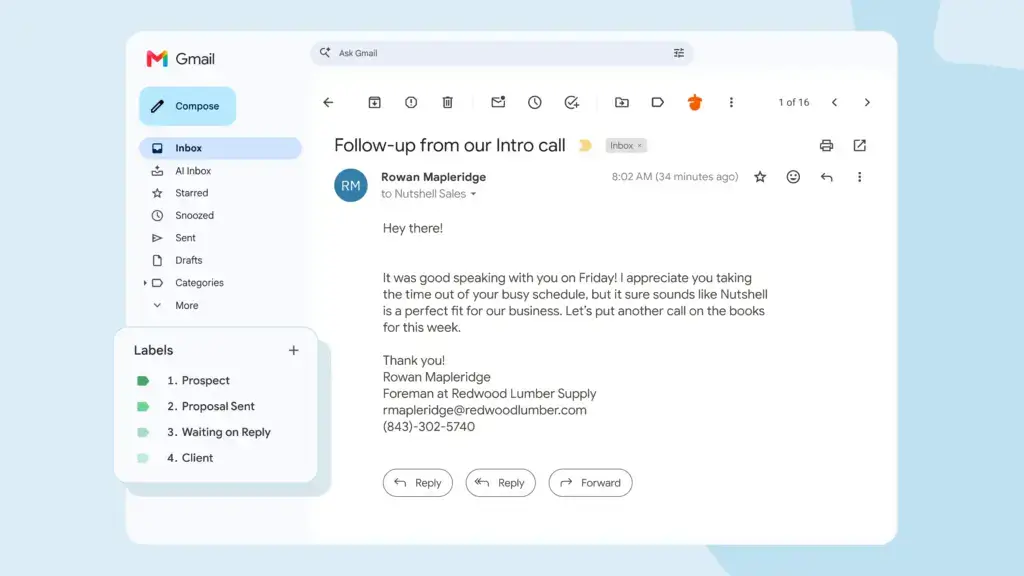
Most people start with labels when setting up Gmail as a CRM. They create one label for each stage, such as Prospect, Proposal Sent, Waiting on Reply, and Client, then tag each conversation as it moves along. Google’s guide to creating and managing Gmail labels covers the steps you’ll need to follow to set this up.

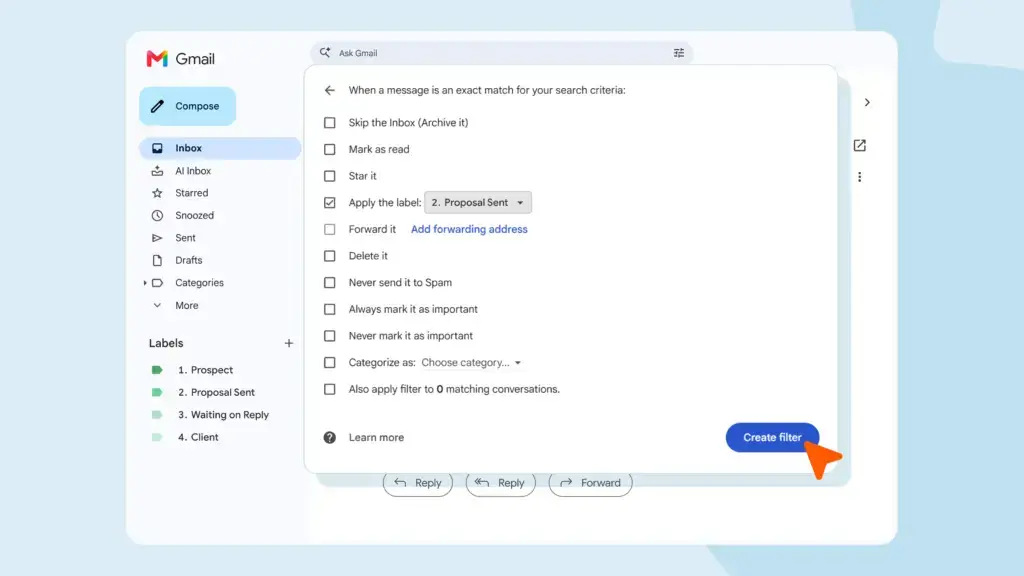
Filters are used to sort your conversations. Users can create rules in Gmail to filter mail from a specific sender, sending it straight to a label, archiving it, or starring it, as Google’s filter instructions explain.

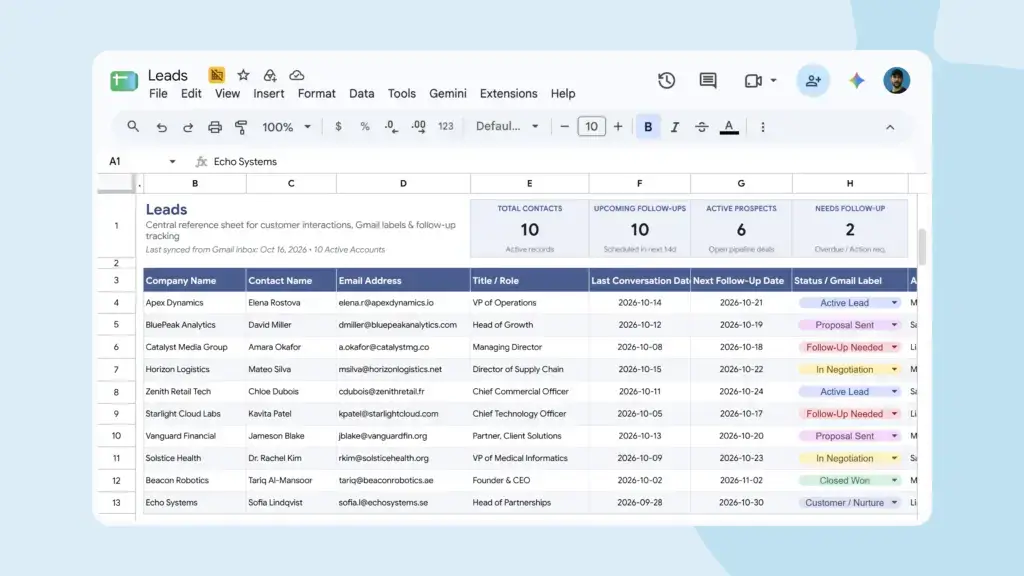
With labels and filters in place, teams then add a shared Google Sheet with one row per contact and columns to capture the company name, contact name, last conversation date, and next follow-up date. The sheet holds the details that Gmail doesn’t track and acts as a point of reference for teams. But it requires manual input and regular maintenance to ensure contact data remains clean.

Where does a Gmail-only setup break down?
A Gmail-only setup breaks when your list grows or a second person joins your team. That’s because Gmail is built to organize email and is not designed to track deals or organize a team. Using a Gmail CRM setup also means that your follow-ups depend entirely on your memory and diligent, manual task creation. A proper CRM connection syncs your Google Calendar and task activity in both directions automatically, removing the manual work.
Google’s documentation also stipulates that Gmail labels are private for individual mailboxes. It says that only you can see your labels, so teammates won’t be able to reference conversations or tell where each stands. They also won’t be able to simply transfer your labels over to their inbox. The shared sheet solves that, but someone has to retype what happened in the inbox, and the two slowly drift apart.
The alternative is to set up a Collaborative Inbox through Google Groups to level up communication, but this option is only available on a paid Google Workspace plan. If you have a free Google Workspace account, you won’t have access to this capability.
Using a combination of Gmail and Google Sheets leaves teams with zero view of deal stages, values, or which conversations have gone quiet. Once that matters, a spreadsheet and a stack of labels stop being enough.
Is there a free CRM for Gmail or from Google?
Gmail and Google Sheets are free, which is why this setup is so common, but they weren’t built as a CRM. Many CRMs offer a free trial so you can test the system with your own contacts. Nutshell has a 14-day free trial with no credit card required.
For a side-by-side comparison, read our guide to the best CRMs for Gmail. For more on connecting to Google’s other tools, see our rundown of CRMs that work with Google Workspace.
What does a CRM add on top of Gmail?
A CRM gives every person and company one point of record, so contact and deal history lives in one place instead of scattered across threads. Everyone has access to the same information, the same tags and fields, and more.
It adds pipeline stages, follow-up reminders, sales automation, and a timeline your whole team can see for context and advanced collaboration.
A CRM’s reporting features then show you what’s moving and what’s stalled.
What does a Gmail-connected CRM look like in practice?
A CRM connected to Gmail allows you to sync contact data, conversations, and calendar events between your inbox, calendar, and CRM. Most Gmail CRM integrations start with a single sign-in step, where you connect your Google account and approve what the CRM can access.
Here’s how the key syncs work:
- Contact sync: The CRM automatically matches emails to contact records, so messages appear on each person’s timeline without anyone copying them by hand. New contacts are created automatically when you connect.
- 2-way email sync: Send a message from your CRM and you’ll see it in your Gmail inbox. Get a message from a customer in Gmail, and it automatically appears on their timeline in the CRM, with settings to control who on your team can see what.
- Calendar sync: Your tasks and activities automatically sync with Google Calendar in both directions, keeping everything current wherever you work.
Many also add a sidebar or extension inside Gmail, plus settings that control which emails sync and who on your team can see them.
What does a Gmail integration look like in Nutshell?

In Nutshell, you’ll start by connecting your Google account once from your email settings. Once connected, the emails you send and receive attach to the matching person in Nutshell automatically. You can also send from Nutshell through your Gmail mailbox.
Choose whether to sync all of your email, or only messages with a specific label (like “Nutshell”). A Gmail filter can apply that label for you, so the filter habit from your DIY setup can be carried over. Bear in mind that synced email stays private to you until you share it, and that your Google Workspace admin may need to approve Nutshell first.
Can I still work mostly from my Gmail Inbox?

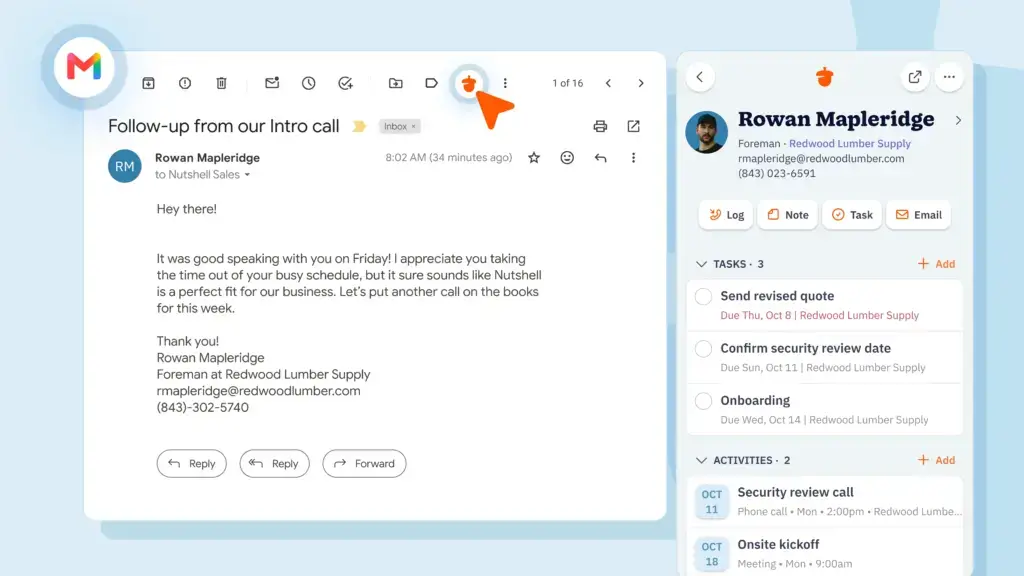
Yes. Nutshell’s Chrome extension lets you stay in Gmail while accessing your CRM. Here’s what you can do without leaving your inbox:
- Manage contacts and leads: View, update, or create contacts and companies directly from email threads with pre-filled name and email info.
- Log activities: Record calls, meetings, and notes; create tasks; schedule follow-ups; and see all your upcoming activities in the sidebar.
- Share and collaborate: Share email threads directly with teammates (no forwarding or BCC needed) and see which emails the team has shared.
- Save attachments: Store email attachments to contact or company records. Nutshell automatically filters out duplicates and signature images.
- Schedule meetings: Use the “Book a time” feature to propose meeting times and let people book directly (creates calendar events and Nutshell activities automatically).
- Stay synced with Google Calendar: Your Nutshell activities and tasks appear in Google Calendar in both directions, so your calendar and CRM always match.
The extension is available on all Nutshell plans (desktop Chrome only). Some features like email templates and meeting scheduling require higher-tier plans.
Start with Gmail, grow with a CRM
Gmail is a perfectly fine place to start for solopreneurs. When follow-ups, deal stages, and teammates outgrow labels and a spreadsheet, a CRM that connects to Gmail saves time and keeps the work where you already are.
Nutshell’s Gmail and Google Calendar integration page shows how it fits together, and its support article explains how to sync your Gmail with Nutshell.
Ready to try Nutshell with your own inbox? Gmail sync is included on every Nutshell Sales plan. Start your free Nutshell trial today (no credit card required).
See howNutshell is flexible enough for the way you sell.
Try Nutshell free for 14 days or let us show you around before you dive in.
Frequently asked questions
-
1. Can you use Google Sheets as a CRM?
Yes, for a short list of contacts and a single user. A sheet can track names, stages, and next follow-up dates, but someone has to update it manually, and it doesn’t know when an email arrives. Once more than one person needs to keep it current, a CRM saves the retyping and increases data accuracy.
-
2. What access does a CRM need to my Gmail account?
It varies by CRM, and you approve it on Google’s consent screen when you connect. With Nutshell, that screen asks for Gmail, Calendar, Tasks, and Contacts access so each feature can work. Nutshell never deletes emails, contacts, calendars, or tasks from your Google account.
-
3. How quickly do emails show up in a CRM after I connect Gmail?
It depends on the CRM. Nutshell checks for new email every few minutes, so a short wait is normal, and the first sync brings in your recent email rather than your whole mailbox. The support article on syncing Gmail lists how far back it goes.
-
4. Do I need Chrome to use a Gmail CRM?
Not always. It depends on whether the CRM relies on a browser extension. Nutshell’s Gmail sidebar is a Chrome extension (desktop Chrome only), but email sync runs in the background and doesn’t depend on it.
-
5. How do I move contacts from a spreadsheet into a CRM?
Export your sheet as a CSV file, then import it into the CRM. Nutshell supports CSV import. See our guide on how to import data using a CSV file for step-by-step instructions. An admin can also import Google Contacts once (it’s a one-time import, not an ongoing sync).
BACK TO TOPWritten by
Will Gordon Sr. Director of MarketingEdited by
Sam Poole Associate Content MarketerReviewed by
Chris Cain VP of Product Development, NutshellReady to try
Nutshell for Free?Thank you! Your submission has been received!Oops! Something went wrong while submitting the form.
Introducing Nutshell Forms Spam Prevention
Published on: April 22, 2024Highly Effective Strategies for Elevating Sales Team Performance
Published on: November 10, 2022Join 30,000+ other sales and marketing professionals. Subscribe to our Sell to Win newsletter!
- Product
- Nutshell Overview
CRM & Sales
Our powerful and easy-to-use flagship product.Marketing
Email marketing, forms, landing pages, and more.Engagement
Webchat, SMS, WhatsApp & more in your Omni-Channel Inbox.Prospecting
Prospect for new leads and new contacts in your CRM.Proposals & Invoices
Create & send quotes, invoices and contracts in your CRM.
AI
See why Nutshell is the leading AI CRM.Integrations
Connect to Google/Microsoft and over 5,000 Apps. Reporting
Create reports and forecasts in an instant.Mobile App
Take your CRM with you wherever you go.CRM Advisor
Get a dedicated point of contact to get the most out of Nutshell.
- Pricing
Nutshell AI
- Marketplace
- Resources
- Contact Us
Contact Sales
Send us your questions or book a 1-on-1 demo.Join a Demo
Join a group demo for a general overview of Nutshell.
Contact Support
Contact our support team via live chat in app or via email.Become a Partner
Refer businesses to Nutshell & earn commissions.
Contact Marketing
Questions about our website or our marketing opportunities?Careers
Join our growing team! See current openings.