Zum Hauptinhalt springen ↓

Customizable CRM For Small Business: The Complete Guide To Configuration Without Coding


Three-level progression showing how a basic CRM evolves into a customized business solution

A one-size-fits-all CRM might work fine for some companies, but if your business has unique processes, industry-specific needs, or workflows that don’t match standard templates, you need a customizable CRM. The right platform empowers your team to configure tools to match how they actually work—without needing a technical team or months of implementation.

That’s where customizable CRMs make all the difference. Whether you’re managing complex client relationships, tracking niche industry workflows, or scaling quickly, the ability to adapt your CRM means higher adoption rates, better data quality, and faster ROI.

Key takeaways

  • Customizable CRMs adapt to your process instead of forcing your team to adapt to the tool—leading to better adoption and faster ROI
  • Focus on essential configuration first (90%), optimization second (7%), and advanced features only if needed (3%)
  • The most impactful customizations are often the simplest: custom fields that match your data, automation that eliminates busywork, and reports that show what actually matters
  • Implementation doesn’t require a technical team—modern CRMs are designed for business users to configure without coding
  • Start with a 30-day implementation focused on your highest-impact workflow, then expand from there

The right customizable CRM becomes the backbone of your sales and marketing operation. It captures data your team actually uses, automates the work that wastes the most time, and gives you visibility into what’s really driving your business.

What is a customizable CRM?

CUSTOMIZABLE CRM: A CRM platform that allows businesses to modify workflows, fields, reports, user interfaces, and automation rules to match their specific processes—without requiring coding expertise or custom development.

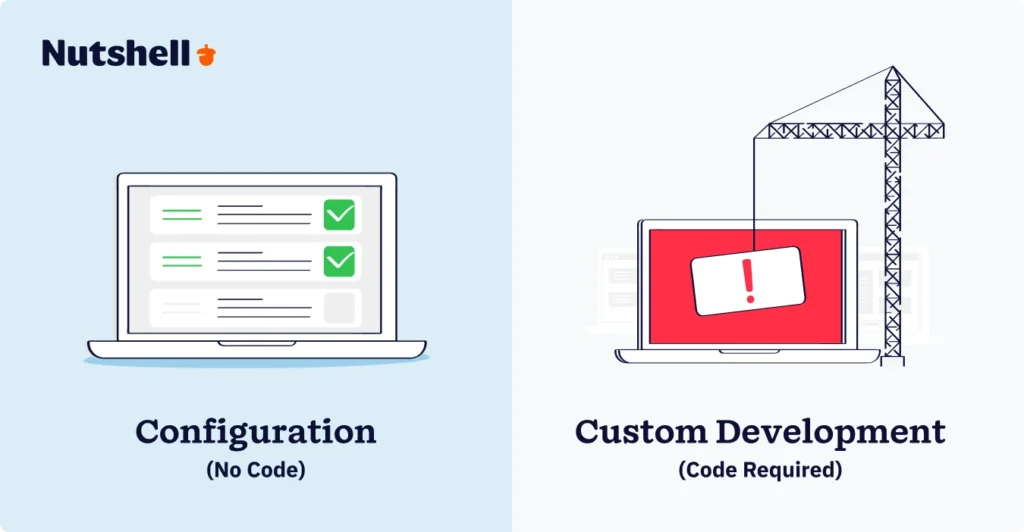
The key distinction: configuration (adjusting existing features through the interface) vs. customization (building entirely new features). Most small and mid-market businesses need configuration capabilities far more than true customization.

Why this matters for small business

According to research from Johnny Grow, 55% of CRM implementations fail when they don’t align with how teams actually work. That statistic matters because it shows that off-the-shelf solutions often create friction rather than efficiency.

Here’s what happens with a non-customizable CRM:

  • Sales reps waste time entering data into fields that don’t apply to their deals
  • Managers can’t see the metrics that actually drive their business
  • Processes slow down because the tool doesn’t match your workflow
  • Team adoption suffers because people revert to spreadsheets

A customizable CRM flips this dynamic. Your platform adapts to your process instead of forcing your team to adapt to the platform.

The business impact: ROI and adoption

Modern CRM deployments return an average of $3.10 per dollar spent, with 51% of that value coming from time savings and productivity gains rather than new revenue. That’s significant—and it means that even small efficiency improvements compound across your team.

For small businesses specifically, the impact is even more pronounced. When sales reps spend 5-10 hours per week on data entry and admin tasks, configuration features that automate this work directly improve your bottom line. One distributed team told us they cut data entry time by 60% by configuring their CRM to auto-log emails and auto-populate lead source fields based on how they sourced the contact.

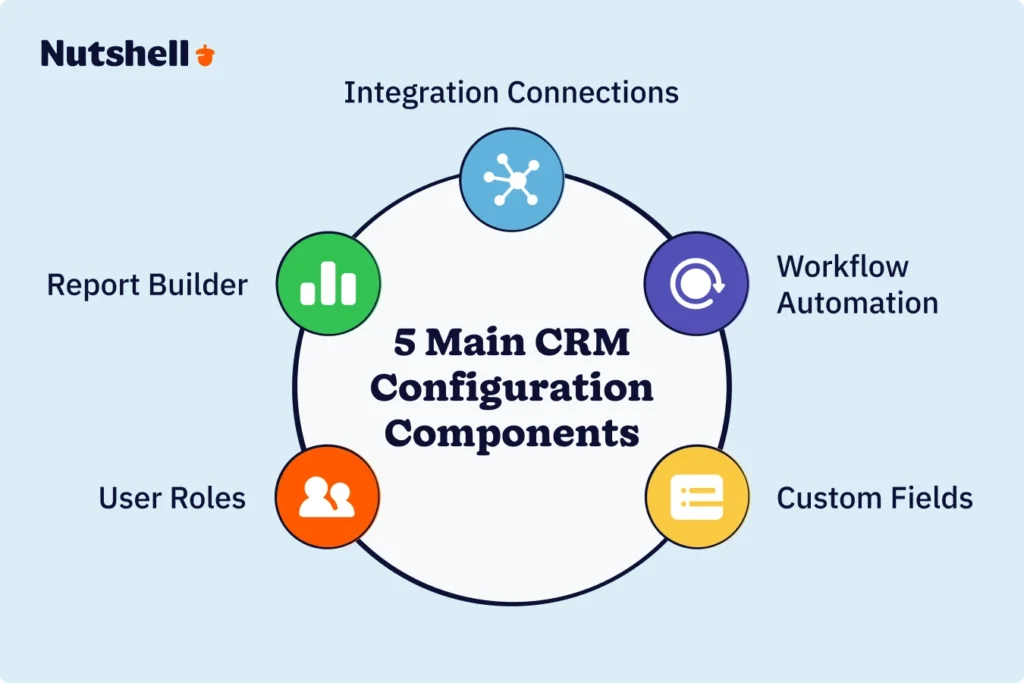
Five core CRM configuration components: custom fields, workflow automation, report builder, user roles, and integrations

Key customizable CRM features you need

1. Custom fields and field types

The foundation of any configurable CRM is the ability to create custom fields. Standard CRMs come with basic fields like “Company Name,” “Phone,” and “Email.” But if you work in construction, you might need fields for “Project Type,” “Square Footage,” “Permit Status,” and “Subcontractor List.” If you’re in professional services, you need “Practice Area,” “Billable Rate,” “Project Code,” and “NDA Status.”

Custom fields let you capture exactly what matters for your business. When you build your CRM around your actual data, everything downstream—automation, reporting, forecasting—works better.

What to look for:

  • Ability to create text, number, date, dropdown, multi-select, and checkbox fields
  • Custom field validation (e.g., “Phone number must contain digits only”)
  • Field dependencies (e.g., “Show subcontractor field only if ‘Outsourced’ is checked”)
  • Bulk field updates and field history tracking

2. Workflow automation without code

This is where customizable CRMs save your team the most time. Instead of manual processes, automation rules let you:

  • Auto-assign leads based on territory, industry, or custom criteria
  • Update lead status automatically when emails are sent or meetings scheduled
  • Trigger follow-up reminders when deals haven’t been updated in X days
  • Auto-populate fields based on patterns (e.g., “If contact is in Healthcare, set ‘Industry’ to Healthcare”)
  • Send notifications when specific actions happen
  • Create sequential workflows (if X, then Y, then Z)

Real example: A staffing firm configured their CRM so that when a candidate is marked “Placed,” the system automatically:

  • Sends a congratulations email to the candidate
  • Sends a confirmation to the hiring manager
  • Creates a 30-day follow-up task for the recruiter
  • Logs the placement in their revenue report
  • Updates the recruiter’s placement count in real time

Without automation, each of these steps would be manual. With it, zero extra work.

What to look for:

  • Visual workflow builder (no code required)
  • Ability to trigger on contact, company, deal, or task changes
  • Complex logic (if/then/else, nested conditions)
  • Multi-step workflows that branch based on conditions
  • Integration with email, calendar, and messaging tools

3. Custom reports and dashboards

A customizable CRM lets you build reports that reflect your actual business metrics, not what the vendor thinks you should track.

Standard CRM reports show pipeline by stage, deal value, and win rate. But what if you need:

  • Pipeline by industry and territory
  • Sales rep productivity (calls, meetings, proposals sent)
  • Lead source ROI (which channels deliver the best deals)
  • Days-to-close by deal type and sales rep
  • Customer health scores based on activity and engagement

With drag-and-drop report builders, you configure exactly which fields, filters, and grouping options matter to your team. Dashboards then let you view your most important metrics in real time—without jumping between reports.

What to look for:

  • Drag-and-drop report builder
  • Pre-built report templates you can modify
  • Custom dashboard builder with widgets
  • Ability to filter, group, and sort data
  • Report scheduling and automated email delivery
  • Export to CSV, Excel, PDF

Benötigen Sie ein benutzerfreundliches CRM, um den Vertrieb und die Effizienz Ihres Teams zu steigern?

Nehmen Sie an unserer geführten Tour teil und entdecken Sie die unglaublichen Funktionen von Nutshell!

4. User roles and permissions

Not everyone in your organization needs to see everything in your CRM. A customizable CRM lets you:

  • Create custom user roles (e.g., “Sales Manager – Region 1,” “Support Team Member”)
  • Set field-level permissions (e.g., “Sales reps can see deal amount, but not customer margin”)
  • Control record-level access (e.g., “Each rep sees only their own deals”)
  • Restrict features (e.g., “Support team can read contacts but not create deals”)
  • Set approval workflows (e.g., “Deals over $50K require manager approval”)

This protects sensitive data, prevents mistakes, and gives team members only the information they need.

Comparison showing configuration features available without coding versus custom development requiring technical resources

5. Integrations and data connections

A customizable CRM connects with the tools you already use. The best platforms offer:

  • Pre-built integrations with email (Gmail, Outlook), calendar (Google Calendar, Outlook), and messaging
  • Zapier or Make integration for connecting hundreds of third-party apps
  • API access for building custom integrations
  • Two-way syncing (data flows in both directions)
  • Bulk import and export capabilities

For example, you might integrate your CRM with your accounting software so that when a deal closes, it automatically creates an invoice. Or sync with your email platform so that customer conversations are automatically logged in the CRM.

How to set up your CRM without coding

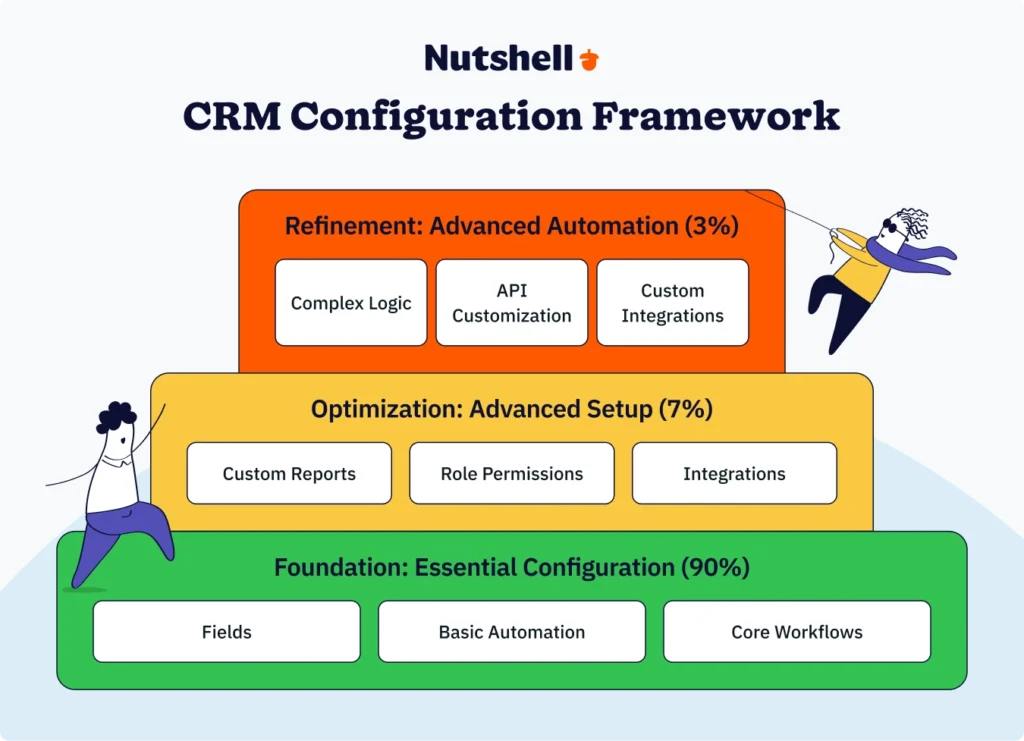
90-7-3 framework showing that configuration focus should be on essential setup first, with advanced customization as secondary

The 90-7-3 approach

Most small businesses get overwhelming trying to configure everything at once. Instead, use the 90-7-3 framework:

90% – Essential Configuration (First Priority)

  • Create custom fields for your industry/business model
  • Set up basic automation for your core workflow
  • Build your essential reports and dashboards
  • Configure user roles and permissions

7% – Optimization (Second Priority)

  • Refine automation workflows based on what you learn
  • Build advanced reports for specific teams
  • Set up integrations with your key tools
  • Create templates and process documentation

3% – Advanced Refinement (Only if Needed)

  • Complex, multi-step workflows with conditional logic
  • Custom API integrations with proprietary tools
  • Advanced data validation rules
  • Performance optimization

This approach gets you to 80% of the value quickly, then lets you refine based on real usage patterns. You’re not trying to build a perfect system on day one—you’re building a functional system, using it, and improving it.

This approach gets you to 80% of the value quickly, then lets you refine based on real usage patterns. You’re not trying to build a perfect system on day one—you’re building a functional system, using it, and improving it.

Step-by-step setup process

Week 1: Plan and document

  • Map your actual sales/business process (how deals really move through your system)
  • List the data you need to capture at each stage
  • Identify which fields are essential vs. nice-to-have
  • Document your team’s reporting needs

Weeks 2-3: Build foundations

  • Create custom fields based on your process map
  • Import your existing contacts and companies
  • Set up basic deal stages that match your process
  • Configure basic user roles

Weeks 4-5: Automate

  • Build automation rules for your highest-impact workflow (usually lead assignment or follow-up)
  • Test thoroughly with a small group
  • Document how automation rules work
  • Train your team on the new workflow

Weeks 6-8: Integrate and optimize

  • Connect your email and calendar integration
  • Set up 2-3 essential reports
  • Create dashboards for leadership
  • Refine automation based on early feedback

The key: you’re not configuring in a vacuum. You’re configuring based on how your team actually works, testing with real users, and refining based on real feedback.

Real-world customization examples

Manufacturing – Order management and inventory

Acme Manufacturing sells industrial equipment through a complex sales process. They need:

Custom fields: Product category, lead source (trade show, referral, cold outreach), estimated project value, expected close date, payment terms, and delivery timeline.

Automation: When a deal is marked “Proposal Sent,” the system automatically logs it in their financial forecast and notifies the production manager. When a deal closes, it creates a project in their operations system and sends a welcome packet email.

Reports: Pipeline by product category, average deal cycle time by source, sales rep close rate by product type, and monthly revenue forecast.

Result: Sales reps no longer manually update spreadsheets. The operations team gets early notification of incoming orders. Leadership has real-time visibility into revenue. Implementation took 3 weeks, and they saw adoption from day one because the CRM matched their actual process.

Professional services – Project and resource management

A consulting firm manages multiple concurrent client projects with billable hours and deliverables. They customized their CRM to:

Custom fields: Project code, billable hours, hourly rate, project status, deliverable checklist, and client satisfaction score.

Automation: When a project reaches “Proposal Accepted,” the system automatically creates a resource allocation task and sends a project kick-off email to the client. When deliverables are marked complete, it triggers an invoice generation in their accounting software.

Reports: Utilization rate by consultant, billable hours by client, project profitability, and pipeline value by project type.

Result: Better project visibility, faster invoicing, and improved resource planning. What used to require manual status meetings now happens automatically in the CRM.

Choosing a customizable CRM for small business

When evaluating customizable CRMs, look for these criteria:

1. No-code configuration tools

Does the platform let you create fields, workflows, and reports without coding? Test drive the interface—if it requires a technical team to set up even basic customizations, it’s not truly customizable for small business.

2. Pre-built templates 

Good CRM platforms include industry-specific templates (for real estate, construction, services, etc.) that you can customize rather than starting from scratch.

3. Integration ecosystem

Can it connect with your email, calendar, accounting software, and other tools you use? Look for native integrations or robust API/Zapier support.

4. Reporting flexibility

Can you build custom reports and dashboards without code? The best platforms let you drag and drop fields and create saved reports quickly.

5. Mobile configuration

Your team needs to access and update records on mobile. Make sure customizations work seamlessly on mobile devices, not just the desktop version.

6. Scalability

As your business grows, can your CRM handle more data, more custom fields, and more complex automation without performance issues?

7. Implementation support 

Good platforms offer setup guides, templates, and customer success support to help you configure correctly from day one.

Common mistakes to avoid

Mistake 1: Over-configuring too early

The temptation is to customize everything before you launch. Resist it. Configure your essential workflow, launch to your team, and refine based on real usage. You’ll make better decisions once you see how people actually use the system.

Mistake 2: Creating too many custom fields

More fields doesn’t mean better data. It usually means less adoption. Only create custom fields for data your team actually needs to capture and use. If you’re creating a field “just in case,” you probably don’t need it.

Mistake 3: Forgetting to train your team

The best-configured CRM fails if your team doesn’t understand how to use it. Build training into your implementation plan. Use short, focused training videos and live Q&A sessions, not lengthy documentation.

Mistake 4: Neglecting data quality

Customizable fields are only valuable if your team fills them in. Make critical fields required, set up validation rules, and audit data quality regularly. Garbage in, garbage out applies to CRMs more than most tools.

Mistake 5: Not documenting your customizations

As your CRM evolves, document what you’ve configured and why. This helps new team members onboard faster and prevents duplicate work if multiple people configure rules.

Implementation roadmap: 30-60-90 days 

Days 1-30: Plan and configure

Week 1: Audit and document

  • Interview sales leaders and managers about their current process
  • Document which metrics matter most to the business
  • List the top 3 pain points your CRM needs to solve
  • Identify all data sources that need to connect to the CRM

Week 2: Design your configuration

  • Create a field map showing every field you’ll need
  • Design your deal stages and workflow
  • Define user roles and permissions
  • List automation rules in priority order (highest-impact first)

Week 3: Set up foundations

  • Create custom fields
  • Import historical data
  • Set up user accounts and roles
  • Configure basic deal pipeline

Week 4: Build and test

  • Create your first 2-3 automation rules
  • Build essential reports
  • Test with a small pilot group
  • Gather feedback and adjust

Days 31-60: Deploy and train

Week 5-6: Full team launch

  • Conduct live training with the entire team
  • Create quick reference guides for common tasks
  • Set up office hours for questions
  • Monitor adoption and engagement

Week 7-8: Monitor and adjust

  • Track which automation rules are working (and which aren’t)
  • Identify data quality issues
  • Refine automation based on real-world usage
  • Add 2-3 advanced reports based on team feedback

Days 61-90: Optimize and scale

Week 9-10: Deep analysis

  • Review performance metrics and ROI
  • Identify next-level customizations based on usage patterns
  • Plan integrations with secondary tools
  • Build industry-specific or role-specific reports

Week 11-12: Plan next phase

  • Identify additional automation opportunities
  • Plan expansion to additional teams or use cases
  • Document lessons learned
  • Build a roadmap for advanced customization

Ready to see how Nutshell’s customization works for your business?

Stop forcing your team into a generic CRM box. Experience a platform that bends to your process, not the other way around. Try Nutshell free for 14 days—no credit card required. See how you can set up custom fields, build automation, and create reports in your first week.

Headshot

Let’s Talk

Sie haben eine Frage? Benötigen Sie einen Mengenrabatt? Schicken Sie uns eine Nachricht oder vereinbaren Sie einen Termin mit einem Vertriebsmitarbeiter, um das Gespräch zu beginnen.

CRM customization FAQs

  • 1. Do I really need a customizable CRM, or is a standard CRM enough?

    It depends on how unique your process is. If you sell a standardized product with a straightforward sales process, a standard CRM might work. But if you have industry-specific requirements, complex workflows, or data that doesn’t fit standard fields, customization becomes essential for adoption and ROI. The rule of thumb: if your sales process can’t be described in three sentences, you probably need customization.

  • 2. How do we drive team adoption of the new CRM?

    Adoption depends on three things: (1) Relevance—the CRM solves real pain points, (2) Usability—your team finds it easy to use, and (3) Training—everyone knows how to use it. Start by involving your team in the planning phase so they see their needs reflected in the setup. Use short, focused training sessions focused on the features each person uses daily. Create a “go live” celebration to signal this is a company priority. Most importantly, make it easy—if your CRM requires 15 clicks to log a call, reps will use spreadsheets instead.

  • 3. What’s a realistic adoption timeline?

    Plan for 60-90 days of active adoption. Week 1-2: Team learns basics and uses the system with support. Week 3-8: Adoption increases as people see how it saves time. Week 9-12: CRM becomes routine. By month 4, most teams are using it consistently. However, you’ll typically see 20-30% of your team resisting change. These are your power users—get them aligned on benefits, and they become advocates who bring others along.

  • 4. How much does a customizable CRM cost?

    CRM pricing typically ranges from 25−150 per user per month depending on features and vendor. For a 10-person sales team, that’s 300−1,500/month or 3,600−18,000 annually. Implementation costs (setup, training, consulting) can range from 0 (self−serve) to 10,000+ (vendor-managed). Most vendors offer free trial periods, so you can test before committing. Calculate total cost of ownership (software + implementation + training) to compare vendors fairly.

  • 5. Can we export our data if we decide to switch CRMs later?

    Most modern CRMs support data export in standard formats (CSV, Excel). However, custom fields and automation logic may not export easily—you’d have to rebuild that in a new system. Before choosing a CRM, ask whether you can export all your data in a portable format. This gives you confidence that you’re not locked in. Some vendors make it easy; others make it difficult. This should factor into your vendor choice.

  • 6. Can we build a CRM customization that works across multiple departments?

    Yes, and this is where a good CRM shines. You might create shared custom fields for contacts (company size, industry) and company-level information, then have department-specific fields for sales (pipeline status), marketing (campaign response), and support (ticket status). Use user roles to control who sees what. Define clear data ownership—who is responsible for keeping each field current? This prevents confusion and keeps data clean.

ZURÜCK NACH OBEN

Schließen Sie sich 30.000+ anderen Vertriebs- und Marketingexperten an. Abonnieren Sie unseren Sell to Win-Newsletter!