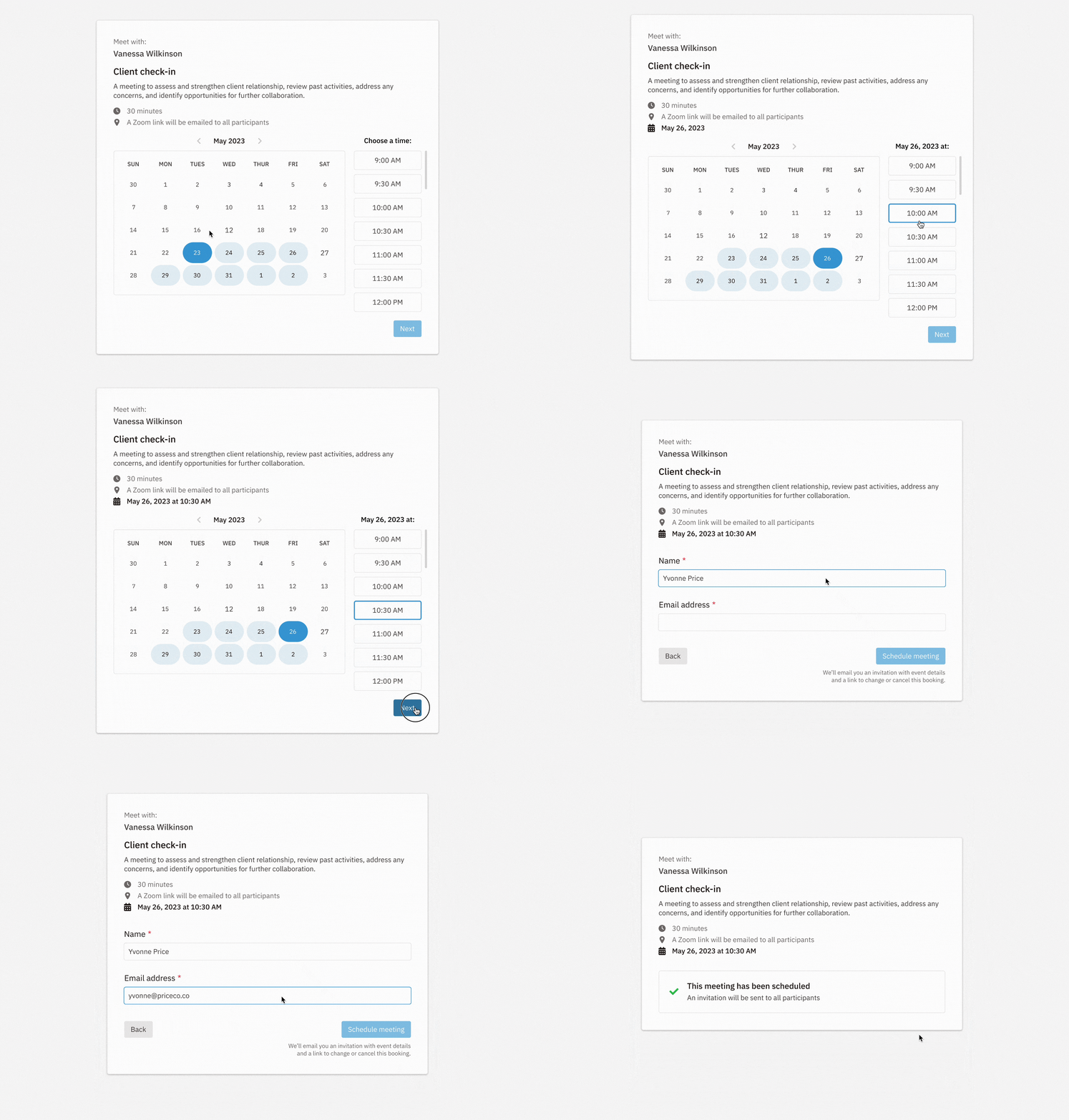
Staying ahead of your upcoming meetings and appointments is critical for sales success, and keeping an accurate record of those meetings in your CRM can help you streamline your workflow and get a fuller picture of your relationship with customers. We’ve launched Nutshell Scheduler to help you do just that.
With Scheduler, you can easily plan, schedule, and manage meetings with clients or potential customers, all without leaving Nutshell. Whether you need to book a sales call, demo session, or any other type of meeting, including meetings with multiple hosts, Scheduler streamlines your workflow and connects you to your team and your prospects.
And—unlike Calendly or other standalone tools—Scheduler is fully integrated with Nutshell, so the activities you schedule are automatically tracked in your CRM, with forms that can collect contact information and custom fields.
What is Scheduler?
Scheduler is a calendar management tool that works in Nutshell to simplify meeting planning, connect your appointments, and sync meeting information with contact information.
Scheduler will help your team:
Streamline your appointment scheduling process and end confusing email exchanges about when to meet
Collect bookings with a link you email to your prospects or with a form embedded on your site
Create a Zoom, Google Meet, or Microsoft Teams link to include in the meeting invitation
Link a form in the appointment invitation to learn more about your prospect before your meeting
Automatically create new leads in Nutshell when you receive a new booking
How Scheduler works
Scheduler is located under the Calendar section in Nutshell.
Scheduler syncs with your existing Google or Office 365 calendar to know your availability, so you’ll need to connect and enable the calendar you want Scheduler to use. Invitees will easily be able to see your availability and pick a convenient time to meet up.
Configuring meetings
With your Google or Office 365 account connected, you can start configuring your Scheduler appointments.
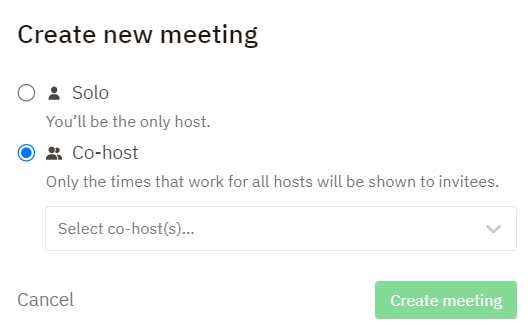
When creating a meeting, you can choose whether to host a meeting solo or with co-hosts. If you select ‘co-host,’ you can choose the other hosts from your team with the dropdown menu. You can also add co-hosts to existing meetings by navigating to the meeting and selecting ‘Add co-host(s).’
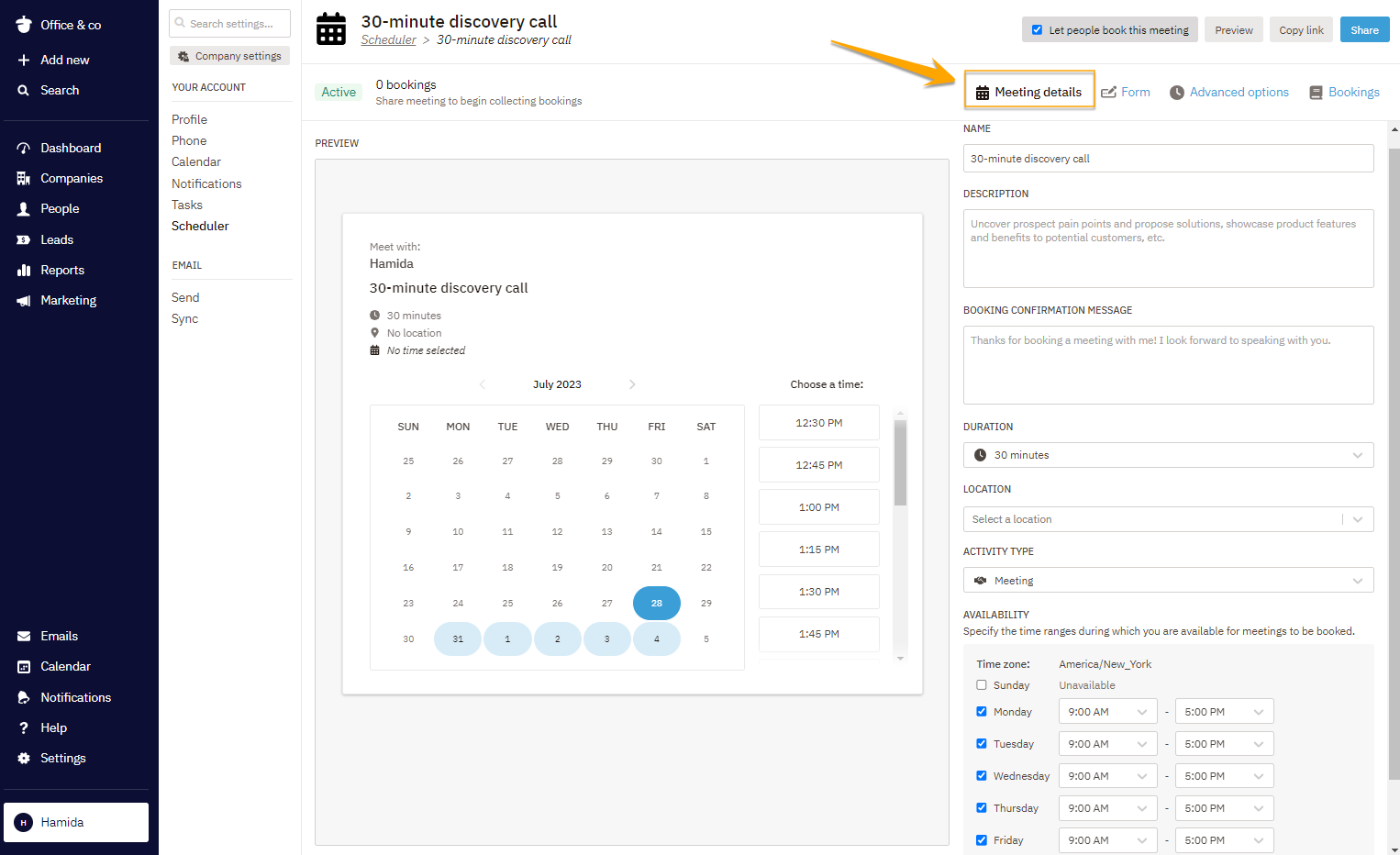
Once you’ve created a meeting and chosen the meeting hosts, Scheduler lets you customize each meeting with all the information you need, such as:
Meeting name
Description
Booking confirmation message
Duration
Location, whether in-person, virtual, or over the phone
Nutshell activity type
Your availability
You’ll also be prompted to connect your Zoom, Google Meet, or Microsoft Teams account from the location dropdown if you select a virtual location.
To log your meeting as an activity, go to the Bookings tab on the Scheduler page and click on the meeting name.
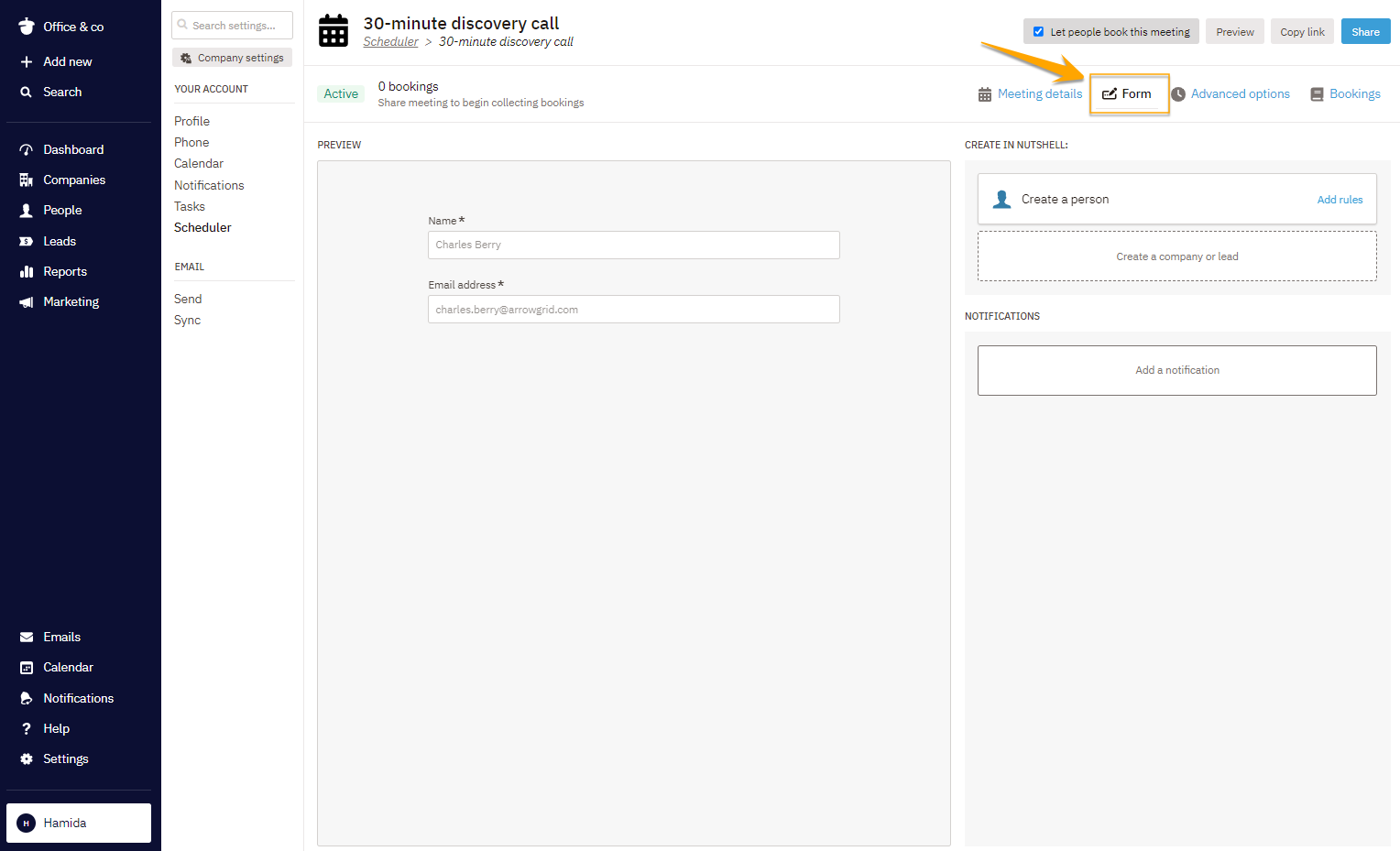
When you click on the Form tab on the Scheduler page, you can:
Add and edit form fields to be included in your Scheduler link
Configure rules to automatically add a new person, company, or lead in Nutshell with a form submission
Set up notifications to be notified as soon as a new meeting is booked
The Advanced options tab lets you set additional preferences, such as:
A date range that the meeting can be booked
A minimum amount of notice someone must provide before booking a meeting
Time slots for invitees
Maximum number of appointments per day
Buffer time before and after the meeting
The Bookings tab is also the place to go to manage your meetings. You’ll see a comprehensive list of all your appointments with details like:
Meeting name
Meeting date
Appointment status (Scheduled, Past, and Canceled)
Booked by
Date the booking was made
Link to the form submission
Buttons to reschedule, remove, or cancel a booking
Streamlining the booking process
With your appointment configured, Scheduler makes it easy to get the right people on board. By checking the ‘Let people book this meeting’ checkbox, you allow invitees to access and book the meeting. Unchecking the box deactivates the meeting.
The Preview button lets you preview your meeting details before sharing the booking.
You can either copy the meeting link to share with invitees or click the Share button, which will open a modal with the same link.
Sending confirmation emails
For extra clarity and convenience for your meeting invitees, Scheduler will also send confirmation emails once a meeting is booked. As soon as participants book an appointment, they’ll receive a confirmation email with all the details, like the meeting name, date, time, and location.
The confirmation email also gives participants the ability to reschedule or cancel if needed, helping everyone remain flexible.
Make booking appointments easier than ever with Scheduler
Ready to start effortlessly scheduling, booking, and managing meetings in Nutshell? Try Scheduler and see for yourself how it can simplify bookings for your entire team. If you have any questions, contact our support team and we’ll be happy to help!
FAQs
1. How can I access Scheduler?
Scheduler is available as a feature in our Pro, Business and Enterprise CRM Plans.
2. Are there multiple ways to share meeting links?
Besides copying and pasting the link to a meeting, you’ll also be able to access an embed code for your meeting. Share the embed code on your website so website visitors can easily see your availability and make a booking.
3. How does Nutshell Scheduler compare to Calendly?
Unlike Calendly, Nutshell Scheduler is built directly into your CRM—no separate subscription needed. It’s included with Pro, Business, and Enterprise plans, so your entire team can schedule meetings without per-seat fees. Plus, bookings automatically sync to contact records, giving you a complete view of every customer relationship.
4. Does Nutshell Scheduler automatically create leads in my CRM?
Yes! When someone books a meeting through Scheduler, you can configure form rules to automatically create a new person, company, or lead in Nutshell. This ensures every booking becomes an actionable opportunity in your pipeline, so no potential customer falls through the cracks.
5. Can I customize my Nutshell Scheduler booking page with my company branding?
Absolutely. On Business and Enterprise plans, you can add your company logo and Nutshell avatar, create custom meeting URLs, and host your scheduler on your custom domain. This creates a professional, branded experience that builds trust with prospects throughout the booking process.
6. Can multiple team members share the same Nutshell Scheduler link for round-robin booking?
Yes, with Business and Enterprise plans. Round-robin assignment automatically rotates meeting bookings between available team members based on their schedules. This ensures leads are distributed evenly across your sales team, so everyone gets fair opportunities and no one gets overwhelmed.
7. Will Nutshell Scheduler sync with my existing Google Calendar or Outlook calendar?
Yes! Scheduler syncs seamlessly with both Google Calendar and Office 365 calendars. It checks your availability in real-time to prevent double-booking and automatically adds scheduled meetings to your calendar. Your existing workflow stays intact while Scheduler handles the scheduling logistics.