Skip to main content ↓

Planning for a CRM switch: What to do when your CRM is being retired


Written by
Will Gordon director of Marketing at Nutshell
Will Gordon Sr. Director of Marketing
Last updated on: October 22, 2026
Business professional at a laptop reviewing a data table, with icons for export, transfer, and task completion

Customer relationship management (CRM) platforms, no matter how prominent they may be, don’t always last forever. Every now and then, a CRM is retired. For example, Highrise closed new subscriptions and stopped updates to its CRM in 2018, and Zendesk announced last year that it will be retiring its Zendesk Sell product in 2027.

The result is that existing customers are left to source an alternative, export their data to the new CRM, and get it up and running as quickly as possible. And it raises concerns about preserving customer data history, potential downtime, and user adoption of the new CRM.

This Nutshell guide was created to help teams navigate a CRM retirement announcement and turn it into a well-timed, seamless transition. Teams switching CRMs for other reasons will also benefit from this guide.

Key takeaways

  • When you receive the retirement notice, run your first CRM data export and save the original files, untouched.
  • Verify the record types covered by the export, how long your export link is active for, and what date the data will be deleted.
  • Create a short timeline, working back from the date of retirement, with steps for the initial export, filling the gaps, cleaning the data, running a test import, doing a final export, and cutting over to the new system.
  • When searching for your next, prioritize robust data import capabilities, customizable pipelines, communication sync, dedicated migration support, and the indispensable features your team uses daily.

What does a CRM retirement mean for my business?

A retired CRM can impact your business in a number of ways, depending on the nature of the retirement. Typically, it means that the software will gradually be phased out and that you’ll eventually need to move to a new system.

In the case of Highrise, the vendor retired the ability to purchase a subscription in August, 2018, but existing clients were able to continue using the CRM. Despite still providing customer support to existing customers, Highrise has stopped developing new features. So, eventually, its users will be left with an outdated CRM if they don’t switch.

The Zendesk Sell example is a little different, in that the company has announced a definitive end date on which accounts will be closed and data permanently deleted. This gives businesses a timeline to work with while they search for a new CRM solution and export their data.

What does a CRM data export include?

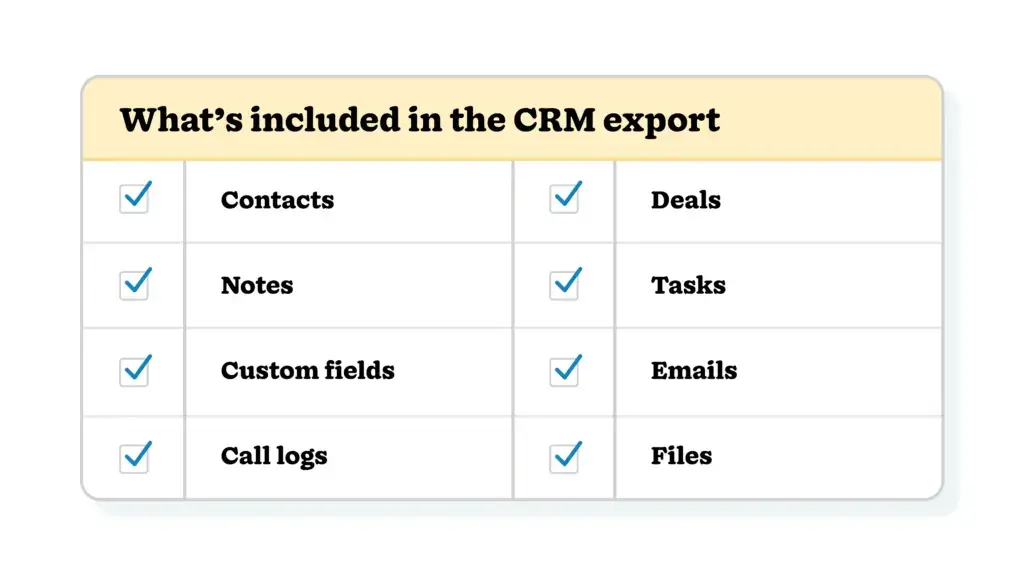
Checklist of CRM record types to confirm before a data export

A CRM data export involves downloading contact records and other data from your CRM account, typically in the form of a CSV file, as most import tools can read this file type. But it’s important to note that not all CRM exports will carry over every bit of data, and the type of data you can export often differs from system to system. So, checking with your CRM vendor about the exportable data is crucial.

Before executing an export, ask your vendor to confirm which of the data points below will form part of the export (for the data points the export does not cover, you’ll have to make a plan to move them separately):

  • Contacts and companies: This should include names, email addresses, phone numbers, and the relationship between people and organizations.
  • Leads and deals: You’ll want your pipeline stages, deal values, owners, and the dates on which the lead was created and the deal was closed.
  • Notes and tasks: It’s helpful to be able to export the full task and note text, as well as details about the contact record they relate to.
  • Custom fields: Ask if you’ll be able to export all the custom fields your team created to capture the data that really matters to you, including dropdown values.
  • Emails, call logs, and files: Find out if these are exportable, or if you need to make another plan to save them.

When will you lose access to your data?

When a retirement notice is issued, the vendor usually provides a few dates to help companies plan for a comprehensive data export. Those often include the announcement date, the day you lose access to your account, and when the data will officially be deleted. Be sure to check the notice for these dates, as well as your contract renewal date if data deletion is tied to the end of your subscription.

Here are four more questions you can pose to your CRM vendor to ensure you export your data in time:

  1. Who is permitted to run an export?
  2. How is the exported file delivered?
  3. How long will the download link for the export stay active?
  4. Can a deleted account be restored in the case of an emergency?

Once you have the answers you need, download all of your files as soon as possible and save them to a shared folder rather than relying on the vendor’s download window.

What does a CRM data export timeline look like?

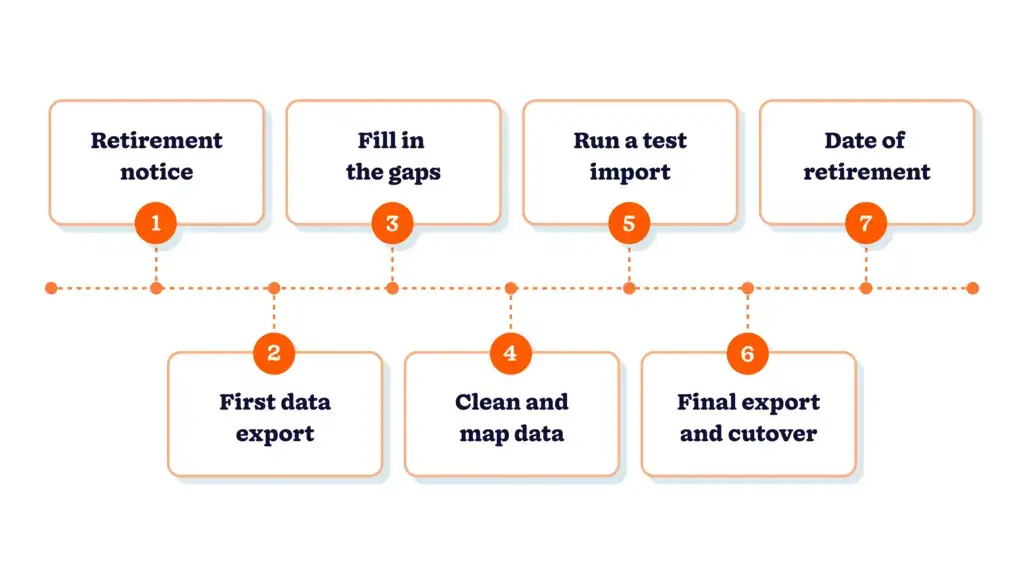
Let’s take a closer look at what a month-to-month data export timeline might entail. It’s best to start at your end date and work backward, dividing the process into five key stages. The stages detailed below are designed to align with a ten-month timeline. But you can expand or contract these stages according to your specific timeline.

Seven-stage CRM data export timeline from retirement notice to end date

1. Run the first export when you hear the news

As soon as you receive your vendor’s letter of notice, confirm who is permitted to run the export, grant them access, and get a full account export started. If the vendor offers smaller exports for special fields, you should run those too. Save your original exports as master files that should not be altered, then make copies and work from those.

2. Plan for what the export excludes

Not everything you’ve set up in your existing CRM can be exported cleanly. So, it’s important to identify those elements and document what needs to be configured when you move over to the new system. An effective way to keep track of these is to take screenshots and screen recordings of your current setups.

For instance, use screenshots and recordings to capture what your pipelines and workflow automations look like, the custom reports you’ve built, and saved lists and audiences with specific filters applied. Documenting these processes and setups in this way will make rebuilding them in the new system much easier.

Over approximately the next two months, determine which emails, call notes, and files your team references regularly. Download all the documents you need and write notes summarizing the contact history for your key accounts, saving them where your reps will see them.

3. Clean up and map your data

To streamline the data mapping process and avoid complexities after migration, it’s important to do a thorough data clean-up about halfway through the timeline. This would include merging duplicates, standardizing phone number and date formats, and documenting how each custom field and pipeline stage should be mapped within the new CRM system.

4. Test with team members who know the accounts

About two months before the official retirement date, run a small sample import that includes won, lost, and open deals. This is to surface any issues before moving all your data into the new system. Ask someone who knows the accounts well, like a sales manager, to check a few of the accounts in the sample import and identify any potential gaps.

5. Do a final export and cut over to the new system

In the final month of the contract end date, conduct another full data export so you have a copy that includes all your recent updates. Choose a quiet business day, well ahead of the cutoff date, to execute the official CRM switch, keeping the old account as a point of reference while you still have access to it. Archive your final set of files and include a note stipulating what each one contains.

Which CRM is easiest to move to from a retired system?

The easiest CRM to switch to is the one that offers a “one-click” data import option directly from the retiring system. Your chosen CRM must also support the types of records that are in your export and should ideally include a pipeline structure that aligns with your current stages. Create a checklist to compare different platforms to ensure your decision is objective and the best solution for your business needs.

Five essential elements to search for include:

  1. A data import tool that can read and map contacts, companies, deals, notes, and tasks
  2. Customizable pipeline stages and data fields
  3. Calendar and email sync that helps you rebuild your contact communication history
  4. A support team that’s available to assist with the move
  5. The features and capabilities your team uses daily and can’t live without

Familiarity is often the key to the successful adoption of a new system. So, try to find a CRM that is most like the one you’re moving from. If the new CRM shares a similar vocabulary and structure, it’s easier for teams to pick up and use.

Start with a saved copy, and the rest falls into place

When a vendor issues a software retirement date, it provides your team with a deadline to work toward and a timeline within which to develop and deploy a migration plan. Running an initial data export as soon as you’re made aware of the retirement while give you a good starting point.

Use the time between the retirement announcement and the end date to clean up your data, run sample imports, test with people who know your accounts, run a final export, and cut over to the new system.

Software comes and goes, but the data your team has built is yours to keep. Saving a copy of that data gives your team an opportunity to start with a clean slate.

Frequently asked questions

  • 1. How soon should I export my CRM data after a retirement notice?

    As soon as you can. A first export takes a little time, and it gives you a safe copy to work from while you evaluate new systems.

  • 2. Who can run a CRM data export?

    Usually, an administrator, and sometimes any user an administrator has granted access to. Check your CRM’s settings early so permissions aren’t a surprise later.

  • 3. Which file format is best for a CRM data export?

    CSV format is best. It’s plain text defined in RFC 4180, and almost every CRM importer supports it.

  • 4. Can I keep my old CRM data after the retirement date?

    Yes, if you export it before that date. Store the final files in a shared folder with a short note on what each file contains.

  • 5. What other CRM is most like the one I’m leaving?

    The closest match is a CRM built around the same elements, including leads, contacts, deals, tasks, and notes. Check that its importer accepts those record types and that its pipeline stages can mirror yours.

BACK TO TOP
Join 30,000+ other sales and marketing professionals. Subscribe to our Sell to Win newsletter!